
MS-900 · Question #259
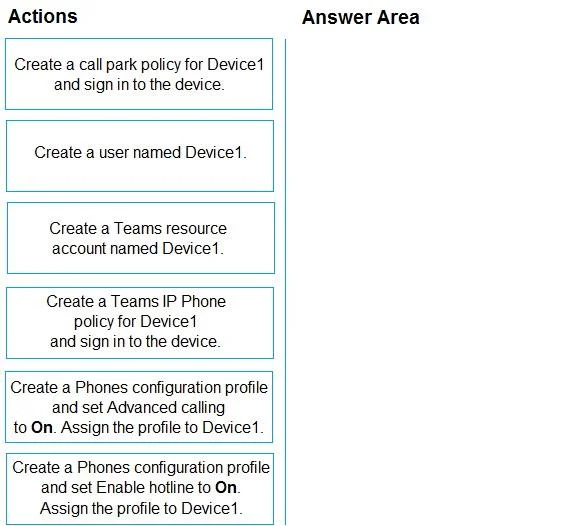
Drag and Drop Question You have a Microsoft 365 E5 subscription that includes Teams. You plan to deploy a common area Teams device named Device1 to a reception area. Device1 must autodial a…
The correct answer is Create a user named Device1.; Create a Teams IP Phone policy for Device1 and sign in to the device.; Create a Phones configuration profile and set Advanced calling to On. Assign the profile to Device1. For a Common Area Phone (CAP) deployment in Teams, you must first create a dedicated user account (not a resource account) licensed with a Common Area Phone license, then create a Teams IP Phone policy to control device behavior and sign in. Finally, you create a Phones…
Question
Exhibit
Answer Area
Drag items
Correct arrangement
- Create a user named Device1.
- Create a Teams IP Phone policy for Device1 and sign in to the device.
- Create a Phones configuration profile and set Advanced calling to On. Assign the profile to Device1.
Explanation
For a Common Area Phone (CAP) deployment in Teams, you must first create a dedicated user account (not a resource account) licensed with a Common Area Phone license, then create a Teams IP Phone policy to control device behavior and sign in. Finally, you create a Phones configuration profile with 'Enable hotline' set to On, which enables the autodial (hotline) feature so the phone automatically dials a preconfigured number when the handset is picked up - this profile also allows restricting directory search. The correct sequence is: (1) Create a user named Device1, (2) Create a Teams IP Phone policy for Device1 and sign in to the device, (3) Create a Phones configuration profile and set Enable hotline to On and assign the profile to Device1.
Topics
Community Discussion
No community discussion yet for this question.