
MS-721 · Question #112
Drag and Drop Question You have a Teams Phone deployment for a company. The company uses Teams Rooms on Windows. The manager of the company wants to be able to view diagnostic data related to…
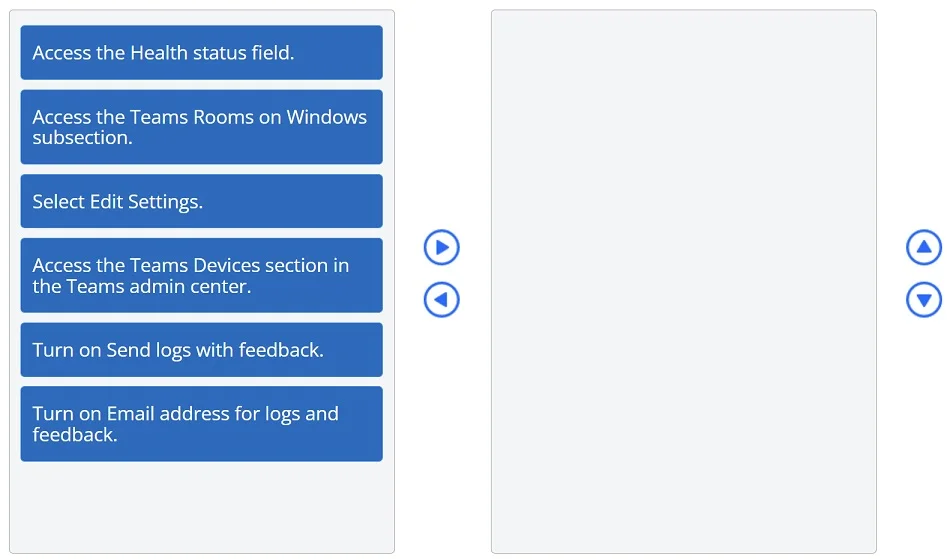
The correct answer is Access the Teams Devices section in the Teams admin center.; Access the Teams Rooms on Windows subsection.; Select Edit Settings.; Turn on Send logs with feedback. This question tests knowledge of the Microsoft Teams admin center navigation path required to enable diagnostic log collection on a Teams Rooms on Windows device experiencing audio/video issues.
Question
Exhibit
Answer Area
Drag items
Correct arrangement
- Access the Teams Devices section in the Teams admin center.
- Access the Teams Rooms on Windows subsection.
- Select Edit Settings.
- Turn on Send logs with feedback.
Explanation
This question tests knowledge of the Microsoft Teams admin center navigation path required to enable diagnostic log collection on a Teams Rooms on Windows device experiencing audio/video issues.
Approach. The correct sequence follows the exact navigation path in the Teams admin center to configure a Teams Rooms device for diagnostic data collection. You start in 'Teams Devices' (the top-level section), drill into the 'Teams Rooms on Windows' subsection to locate the specific device, select 'Edit Settings' to access its configuration, and then enable 'Send logs with feedback' - which is the specific toggle that allows diagnostic telemetry (audio/video quality logs) to be collected and transmitted. This directly addresses the voice lag and video visibility issues by ensuring logs are sent when problems occur. 'Turn on Email address for logs and feedback' is a supplementary option, not a required step in the core diagnostic enablement flow. 'Access the Health status field' is a read-only status view, not a configuration action, so it does not fulfill the requirement to enable diagnostic data collection.
Concept tested. Navigating the Microsoft Teams admin center to configure diagnostic log collection (Send logs with feedback) on Teams Rooms on Windows devices for troubleshooting meeting quality issues such as audio lag and video rendering failures.
Reference. Microsoft Learn - Manage Teams Rooms devices with Teams admin center: https://learn.microsoft.com/en-us/microsoftteams/rooms/rooms-manage
Topics
Community Discussion
No community discussion yet for this question.