
MS-700 · Question #284
You have a Teams deployment. You are deploying the new Teams client to user devices. When some users attempt to install the Teams client they receive an error message that states the client cannot…
The issue of the new Teams client failing to install due to 'organizational policy' for a user with the Teams service already enabled likely stems from a missing core Microsoft 365 app dependency that needs to be provisioned for the user via their license assignments.
Question
Exhibit
Explanation
The issue of the new Teams client failing to install due to 'organizational policy' for a user with the Teams service already enabled likely stems from a missing core Microsoft 365 app dependency that needs to be provisioned for the user via their license assignments.
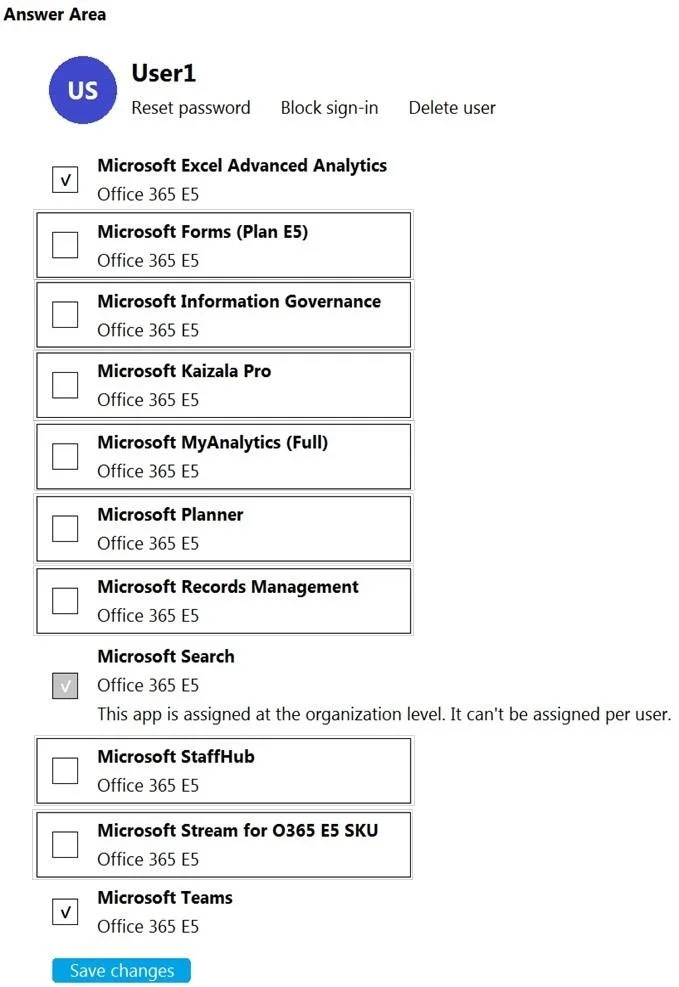
Approach. The problem states that users cannot install the new Teams client due to 'organizational policy', despite Group Policy Objects (GPOs) and Windows updates being confirmed as not the cause. The image shows a user's Microsoft 365 service assignments. Since 'Microsoft Teams' is already enabled for 'User1', the issue is not a lack of the core Teams service license itself. The 'new Teams client' (Teams 2.0) has specific installation requirements and often leverages modern app provisioning mechanisms. While there isn't a universally documented direct dependency of the Teams client installation on 'Microsoft Forms (Plan E5)', in a troubleshooting scenario where local policies are ruled out, and the core service is enabled, the 'organizational policy' error often points to a missing M365-level enablement. 'Microsoft Forms' is a foundational, basic application within the Microsoft 365 suite. It is plausible that enabling a fundamental application like Forms for the user could implicitly enable broader underlying Microsoft 365 app components or client provisioning capabilities that the new Teams client relies on for its modern installation and setup process, thereby resolving an obscure 'organizational policy' block. The correct interaction is to click the checkbox next to 'Microsoft Forms (Plan E5)' to enable it, and then click 'Save changes' to apply the modification to User1's service assignments.
Common mistakes.
- common_mistake. 1. Not making any changes: If the 'Microsoft Teams' service is already enabled (checked), simply clicking 'Save changes' without modifying any other service is unlikely to resolve an active installation error that implies a missing configuration.
- Disabling 'Microsoft Teams': Unchecking 'Microsoft Teams' would explicitly prevent the user from accessing the Teams service and would certainly worsen the problem.
- Enabling other seemingly unrelated services: While the exact dependency for the 'new Teams client' installation can be obscure, enabling services like 'Microsoft Kaizala Pro', 'Microsoft MyAnalytics (Full)', 'Microsoft Planner', 'Microsoft Records Management', 'Microsoft StaffHub', or 'Microsoft Stream for O365 E5 SKU' are generally not considered direct prerequisites for the installation of the Teams client. These are largely distinct applications or features, and a lack of one typically wouldn't block the installation of another core client unless there's a very specific, undocumented dependency. The choice of 'Microsoft Forms' is based on its role as a fundamental app within the M365 ecosystem, potentially enabling broader app enablement features, which is a common pattern in complex certification questions with limited options.
Concept tested. Microsoft 365 service licensing and application provisioning, troubleshooting client application installation issues in an enterprise Microsoft 365 environment, and understanding implicit dependencies or 'organizational policy' controls beyond traditional Group Policy.
Topics
Community Discussion
No community discussion yet for this question.