MB-800 · Question #289
Drag and Drop Question A manufacturing company uses Dynamics 365 Business Central. The company implemented fixed assets by using a straight-line depreciation method for its financials. The company…
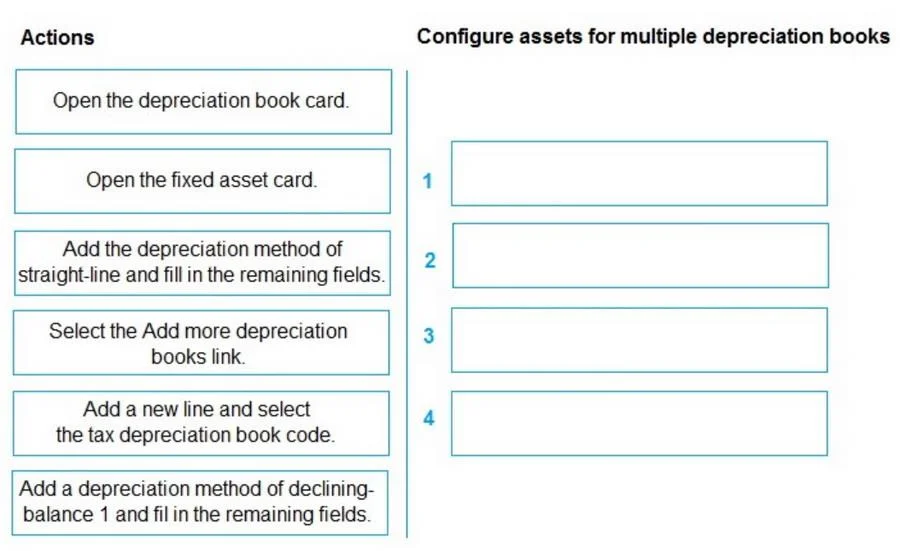
The correct answer is Open the fixed asset card.; Open the depreciation book card.; Select the Add more depreciation books link; Add a depreciation method of declining-balance 1 and fill in the remaining fields. Explanation: Configuring Multiple Depreciation Books in Business Central Context The company already has a financial depreciation book (straight-line) configured on existing fixed assets, and has pre-created a Tax depreciation book (code: Tax). The task is to attach that Tax…
Question
Exhibit
Answer Area
Drag items
Correct arrangement
- Open the fixed asset card.
- Open the depreciation book card.
- Select the Add more depreciation books link
- Add a depreciation method of declining-balance 1 and fill in the remaining fields.
Explanation
Explanation: Configuring Multiple Depreciation Books in Business Central
Context
The company already has a financial depreciation book (straight-line) configured on existing fixed assets, and has pre-created a Tax depreciation book (code: Tax). The task is to attach that Tax book to existing fixed assets.
Why This Sequence
Step 1: Open the fixed asset card
Reason: You must start at the individual fixed asset record - this is the entry point for all depreciation configuration tied to a specific asset. You cannot configure asset-level depreciation settings from the depreciation book setup itself; the relationship is managed from the asset side.
Step 2: Open the depreciation book card
Reason: Within the fixed asset card, the "Depreciation Books" FastTab shows existing FA-depreciation book records. You open the existing financial depreciation book card (the straight-line one) to reach the asset's depreciation configuration context. The "Add more depreciation books" action lives here, not on the main fixed asset card form itself.
Step 3: Select the "Add more depreciation books" link
Reason: This is the correct Business Central workflow for attaching an additional depreciation book to an existing asset. It initiates a guided process to add the new book. Do not manually insert a new line - that bypasses the proper setup flow and is a common mistake.
Step 4: Add a depreciation method of declining-balance 1 and fill in the remaining fields
Reason: The Tax book uses a different method from the financial book - this is the entire point of having a separate tax depreciation book. Tax depreciation in most jurisdictions uses an accelerated method (declining-balance), not straight-line. You are configuring the new Tax book's settings here.
Why the Distractors Are Wrong
| Rejected Item | Why It's Wrong |
|---|---|
| "Add the depreciation method of straight-line..." | Straight-line is already the financial book's method. The tax book requires a different method (declining-balance 1). |
| "Add a new line and select the tax depreciation book code" | Manually adding a line is not the correct BC workflow; the "Add more depreciation books" link is the proper guided path. |
Key Misconception to Avoid
The most common mistake is confusing which depreciation method belongs to which book. Since the question says the company uses straight-line for financials and a different method for tax, selecting straight-line in step 4 contradicts the scenario's premise. The tax book needs declining-balance 1.
Topics
Community Discussion
No community discussion yet for this question.