
MB-800 · Question #292
Drag and Drop Question A manufacturing company is implementing Dynamics 365 Business Central. The company has production machines that consist of several parts. The company requires the parts to be…
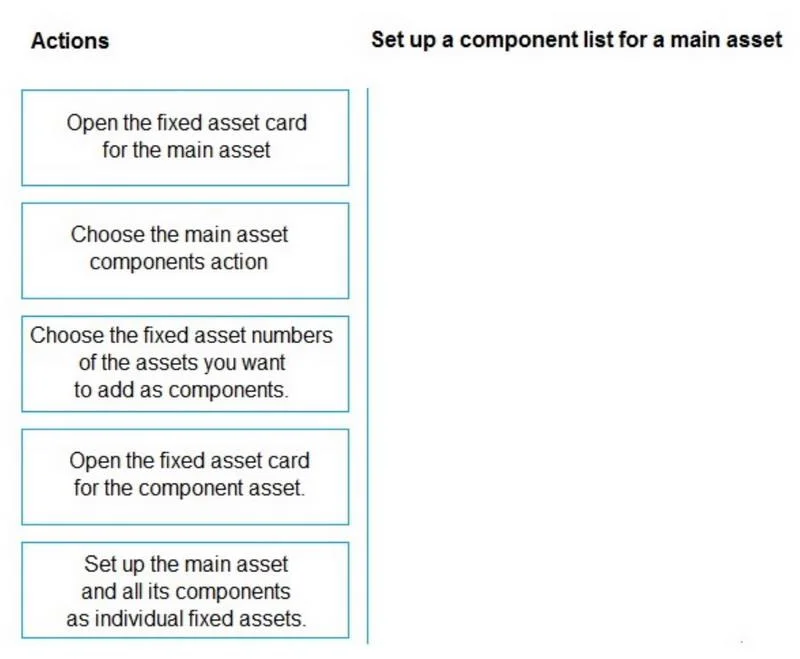
The correct answer is Set up the main asset and all its components as individual fixed assets.; Open the fixed asset card for the main asset; Choose the main asset components action; Choose the fixed asset numbers of the assets you want to add as components. Dynamics 365 Business Central: Setting Up a Main Asset Component List Overview In Business Central's Fixed Asset module, a main asset/component structure lets you group related assets (e.g., a machine and its parts) under one parent record. The process follows a strict…
Question
Exhibit
Answer Area
Drag items
Correct arrangement
- Set up the main asset and all its components as individual fixed assets.
- Open the fixed asset card for the main asset
- Choose the main asset components action
- Choose the fixed asset numbers of the assets you want to add as components.
Explanation
Dynamics 365 Business Central: Setting Up a Main Asset Component List
Overview
In Business Central's Fixed Asset module, a main asset/component structure lets you group related assets (e.g., a machine and its parts) under one parent record. The process follows a strict prerequisite chain.
Step-by-Step Breakdown
Step 1: Set up the main asset and all its components as individual fixed assets.
Why first? This is a hard prerequisite. You cannot link assets that don't exist yet. Both the parent (main asset) and all child assets (components) must have their own Fixed Asset cards created before any grouping can occur. Skipping this means there's nothing to open or reference in subsequent steps.
Step 2: Open the fixed asset card for the main asset.
Why second? The component list is defined on the main asset's card, not on the components. You navigate to the parent asset to establish the relationship. Opening a component card instead is the most common mistake here - the configuration lives on the parent.
Step 3: Choose the Main Asset Components action.
Why third? Once you're on the main asset card, this action opens the component sub-list (a dedicated page where you assign which assets belong to this main asset). You must be on the correct card first before this action is meaningful.
Step 4: Choose the fixed asset numbers of the assets you want to add as components.
Why last? This is the final linking step - you select the FA numbers of the pre-created component assets to populate the component list. The component list page (opened in Step 3) is where you enter or look up these numbers.
Common Mistakes & Misconceptions
| Mistake | Why It's Wrong |
|---|---|
| Trying to add components before creating all FA cards | You can't reference assets that don't exist |
| Opening the component asset card instead of the main asset card | The component list is managed from the parent, not the child |
| Looking for the component list in FA Setup rather than the FA card | It's an action on the individual asset card, not a global setup screen |
| Adding FA numbers before navigating to the Components action | The entry point for the list is the action - you need to open it first |
Key Concept
Think of it as: create → navigate to parent → open the list → populate the list. Each step depends entirely on the previous one completing successfully.
Topics
Community Discussion
No community discussion yet for this question.