
MB-800 · Question #215
Drag and Drop Question A company uses Business Central to manage retail product pricing and discounts. The new sales pricing experience has not been enabled. The company plans to track discounts…
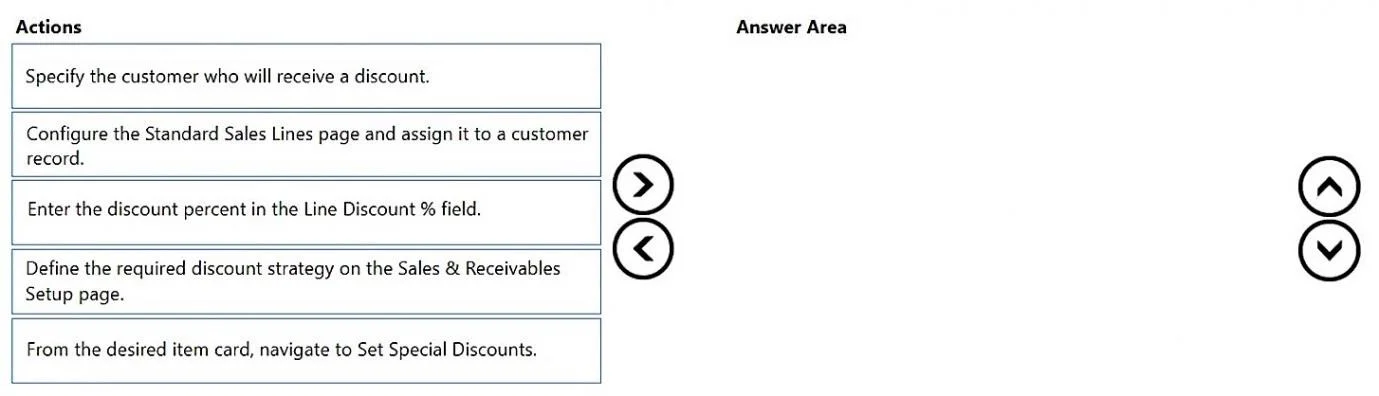
The correct answer is Specify the customer who will receive a discount.; Configure the Standard Sales Lines page and assign it to a customer record.; Enter the discount percent in the Line Discount % field. Business Central: Setting Up Item Discounts (Classic Pricing Experience) Context Summary Classic pricing mode (new experience not enabled) Price lists per customer already exist Discounts must be configured separately from prices Goal: customer-specific line discounts using…
Question
Exhibit
Answer Area
Drag items
Correct arrangement
- Specify the customer who will receive a discount.
- Configure the Standard Sales Lines page and assign it to a customer record.
- Enter the discount percent in the Line Discount % field.
Explanation
Business Central: Setting Up Item Discounts (Classic Pricing Experience)
Context Summary
- Classic pricing mode (new experience not enabled)
- Price lists per customer already exist
- Discounts must be configured separately from prices
- Goal: customer-specific line discounts using Standard Sales Lines
Correct Sequence & Why
Step 1 - Specify the customer who will receive a discount
Why first: You cannot configure a customer-specific discount without first identifying the customer. In BC's classic pricing model, line discounts are scoped to a specific customer record. This is the anchor for all subsequent steps - you need the customer context established before any configuration can be assigned.
Step 2 - Configure the Standard Sales Lines page and assign it to a customer record
Why second: Standard Sales Lines (Recurring Sales Lines) let you predefine sales lines - including items, quantities, and discount fields - that auto-populate on sales documents for that customer. You must have the customer identified (Step 1) before you can assign this configuration. This step creates the framework that holds the discount value entered in Step 3.
Step 3 - Enter the discount percent in the Line Discount % field
Why last: The discount value is entered within the Standard Sales Lines configuration created in Step 2. You cannot fill in the field before the configuration exists, and the configuration cannot exist before the customer is specified.
Why the Distractors Are Wrong
| Distractor | Why Excluded |
|---|---|
| Define the required discount strategy on the Sales & Receivables setup page | This is a one-time system-level prerequisite (e.g., enabling discount tracking globally), not a step in per-customer discount setup. It is not part of the sequence for a specific customer. |
| From the desired item card, navigate to Set Special Discounts | This is an item-centric alternative approach (Sales Line Discounts via the item). The correct answer uses a customer-centric approach via Standard Sales Lines. Both exist in BC, but they are different workflows - mixing them is the most common mistake. |
Common Misconceptions
- Confusing item-centric vs. customer-centric discount paths - "Set Special Discounts" from an item card is a valid BC feature, but it follows a different sequence. The correct answer is customer-driven, not item-driven.
- Thinking Sales & Receivables setup must be in the sequence - That page configures whether discounts are tracked globally; it is not part of the workflow for assigning a discount to a specific customer.
- Assuming prices and discounts use the same setup - The question explicitly states discounts are configured separately. Standard Sales Lines handle the discount; a separate price list handles the price.
Topics
Community Discussion
No community discussion yet for this question.