
MB-500 · Question #92
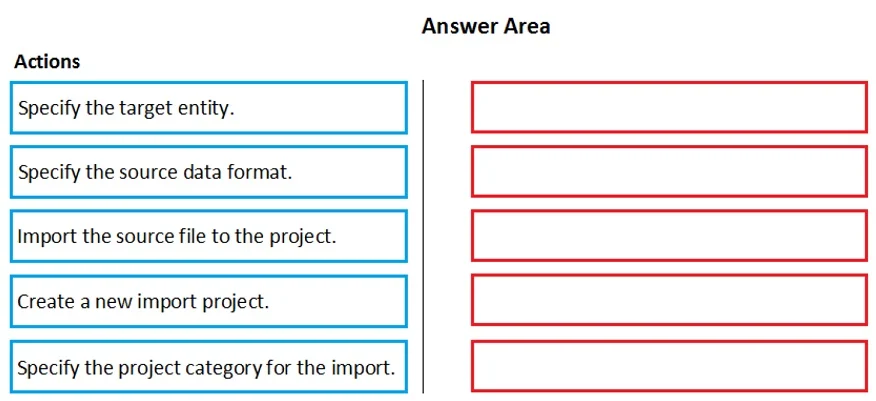
Drag and Drop Question A company is migrating from a legacy system to Dynamics 365 Finance. You need to import the customer data by using the Data Management workspace. In which order should you…
The correct answer is Create a new import project.; Specify the project category for the import.; Specify the target entity.; Specify the source data format.; Import the source file to the project. Dynamics 365 Finance: Data Management Import Order The Correct Sequence & Why --- 1. Create a new import project This is the mandatory foundation. The Data Management workspace organizes all import/export operations into "projects" - without one, there is nowhere to configure…
Question
Exhibit
Answer Area
Drag items
Correct arrangement
- Create a new import project.
- Specify the project category for the import.
- Specify the target entity.
- Specify the source data format.
- Import the source file to the project.
Explanation
Dynamics 365 Finance: Data Management Import Order
The Correct Sequence & Why
1. Create a new import project
This is the mandatory foundation. The Data Management workspace organizes all import/export operations into "projects" - without one, there is nowhere to configure anything. Everything else is a property of this project. Skipping this means you have no container to work in.
2. Specify the project category for the import
Immediately after creation, you must classify the project as Import (vs. Export or Copy). This is done at the project header level and determines what options and fields are available going forward. The system won't know to present import-related configuration until this is set.
Common mistake: Candidates overlook this step because it feels administrative - but the category gates which subsequent options appear.
3. Specify the target entity
Now you select what D365 data entity receives the data (e.g., Customers V3). The entity defines the expected fields/schema. You must know the destination before you can map source data to it.
Common mistake: Reversing steps 3 and 4 - trying to define the format before the entity. The format configuration is actually a sub-setting of the entity you've selected. The entity comes first because the format dialog is attached to it.
4. Specify the source data format
With the target entity selected, you now tell the system how to read the incoming file - CSV, Excel, XML, fixed-width, etc., including delimiters and encoding. This is required before uploading so the system knows how to parse and map the file to the entity's fields.
5. Import the source file to the project
Only after the project, category, entity, and format are all configured do you upload the actual data file. At this point, D365 has all the information needed to validate, map, and stage the data correctly.
Common mistake: Uploading the file early. The system cannot parse or validate a file without knowing its format and destination entity first.
Summary Mental Model
Think of it as setup → scope → destination → translation rules → data. Each step narrows the context for the next - you can't translate data you haven't described, and you can't describe data without a destination.
Topics
Community Discussion
No community discussion yet for this question.