
MB-330 · Question #77
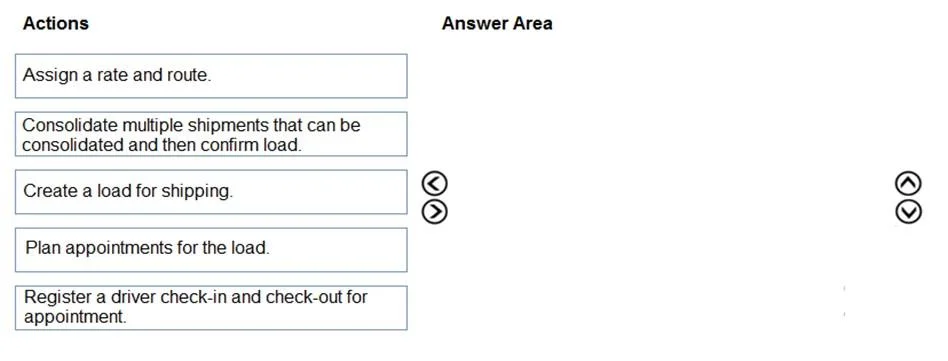
Drag and Drop Question A company uses Dynamics 365 Supply Chain Management. The company plans to streamline their receiving process for shipments that arrive daily. You need to set up inbound…
The correct answer is Create a load for shipping.; Assign a rate and route.; Consolidate multiple shipments that can be consolidated and then confirm load.; Plan appointments for the load.; Register a driver check-in and check-out for appointment. Inbound Shipment Processing in D365 Supply Chain Management This sequence follows the plan → configure → finalize → schedule → execute pattern for inbound logistics. Each step depends on the previous one existing in the system. --- Step 1: Create a load for shipping Why first…
Question
Exhibit
Answer Area
Drag items
Correct arrangement
- Create a load for shipping.
- Assign a rate and route.
- Consolidate multiple shipments that can be consolidated and then confirm load.
- Plan appointments for the load.
- Register a driver check-in and check-out for appointment.
Explanation
Inbound Shipment Processing in D365 Supply Chain Management
This sequence follows the plan → configure → finalize → schedule → execute pattern for inbound logistics. Each step depends on the previous one existing in the system.
Step 1: Create a load for shipping
Why first: A load is the core container object in D365 SCM that groups purchase orders or transfer order lines for receiving. Nothing else can exist without it - you cannot assign rates, consolidate, or schedule appointments on something that doesn't yet exist.
Common mistake: Thinking "shipping" in the label means outbound. In D365 SCM, loads are used for both inbound and outbound; the same load entity drives the inbound receiving process.
Step 2: Assign a rate and route
Why second: Once the load exists, you configure how it will arrive - carrier, mode of transport, and route. This must happen before confirmation because the rate/route information is part of the load's logistical identity. Confirming a load without transport data leaves it incomplete.
Common mistake: Skipping this step for inbound scenarios. It applies to inbound loads too, not just outbound shipments.
Step 3: Consolidate multiple shipments and confirm load
Why third: With a rate and route in place, you can now identify which pending shipments share the same carrier, route, and delivery window - and merge them into the existing load to optimize receiving capacity. After consolidation, confirming the load is the critical gate action: it locks the load's composition and status, making it eligible for appointment planning. You cannot plan appointments against an unconfirmed load.
Common mistake: Trying to confirm before consolidating, then having to undo and re-confirm when additional shipments are merged in. Do consolidation first, one confirmation.
Step 4: Plan appointments for the load
Why fourth: With a confirmed, finalized load, you can now schedule a dock appointment - reserving a time slot and dock door at the warehouse. The system requires a confirmed load to do this because the appointment must be tied to a stable, finalized shipment.
Common mistake: Planning appointments before the load is confirmed. D365 will not allow this, or the appointment will be invalid if the load changes post-scheduling.
Step 5: Register a driver check-in and check-out for appointment
Why last: This is the physical execution step on arrival day. The driver arrives at the scheduled appointment, checks in (signaling arrival), the receiving process occurs, and then checks out (signaling completion). All prior steps are planning; this step is execution. It cannot logically occur before an appointment exists to check in against.
Common mistake: Treating this as administrative/optional. In D365 SCM warehouse management, driver check-in/check-out is the trigger that moves the load through its inbound status lifecycle.
Summary of the Logic Chain
| Step | Gate It Opens |
|---|---|
| Create load | Enables rate/route assignment |
| Assign rate & route | Enables load confirmation |
| Consolidate & confirm | Enables appointment planning |
| Plan appointment | Enables driver check-in |
| Driver check-in/out | Completes the inbound process |
Each step is a prerequisite for the next - you are building from the abstract (a load object) toward the concrete (a physical truck at your dock).
Topics
Community Discussion
No community discussion yet for this question.