
MB-310 · Question #343
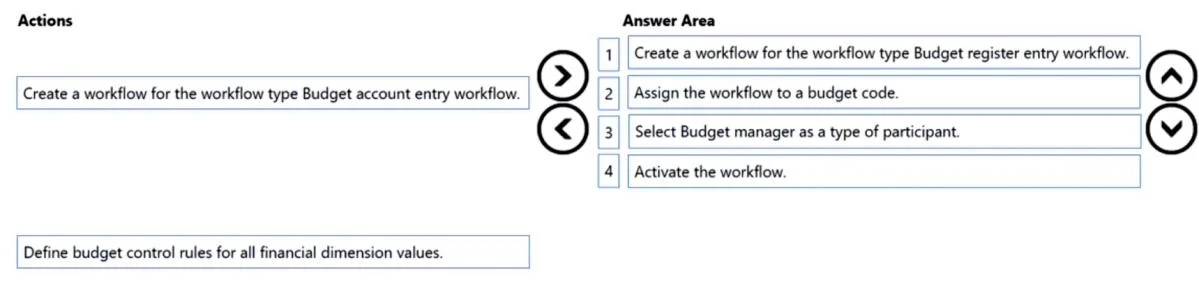
Drag and Drop Question A company uses basic budgeting functionality in Dynamics 365 Finance. A budget manager plans to review and approve budget register entries in the system. You need to set up…
The correct answer is Create a workflow for the workflow type Budget register entry workflow.; Assign the workflow to a budget code.; Select Budget manager as a type of participant.; Activate the workflow. Dynamics 365 Finance: Budget Register Entry Approval Workflow The Core Logic Setting up a workflow follows a natural dependency chain: create → configure → assign participants → activate. You cannot configure what doesn't exist, and you cannot activate something incomplete…
Question
Exhibit
Answer Area
Drag items
Correct arrangement
- Create a workflow for the workflow type Budget register entry workflow.
- Assign the workflow to a budget code.
- Select Budget manager as a type of participant.
- Activate the workflow.
Explanation
Dynamics 365 Finance: Budget Register Entry Approval Workflow
The Core Logic
Setting up a workflow follows a natural dependency chain: create → configure → assign participants → activate. You cannot configure what doesn't exist, and you cannot activate something incomplete.
Step-by-Step Explanation
Step 1: Create a workflow for the workflow type "Budget register entry workflow"
This is the mandatory starting point. In D365 Finance, workflows are type-specific - you must select the correct workflow type that matches your business object. The Budget register entry workflow type is designed specifically for budget register entries (journal-style entries used to create/adjust budgets). Without creating this workflow first, nothing else can be configured.
Step 2: Assign the workflow to a budget code
Once the workflow exists, it must be linked to a budget code (e.g., Original Budget, Revision, Transfer). Budget codes categorize budget register entries; assigning the workflow here tells D365 Finance which types of entries require approval. This is a configuration step that must happen before defining who approves it.
Step 3: Select "Budget manager" as a type of participant
Within the workflow, you configure the approval step - specifically, who approves the entry. Selecting Budget manager as the participant type routes the approval to users assigned the Budget manager role. This step happens after the workflow is assigned to a budget code because the approval step is an internal workflow configuration detail.
Step 4: Activate the workflow
The final step is always activation. Until activated, the workflow exists in Draft status and has no effect on transactions. Activation publishes it and makes it operational. You cannot activate before completing configuration, as D365 Finance validates the workflow on activation.
Why the Distractors Are Wrong
| Distractor | Why it's excluded |
|---|---|
| Budget account entry workflow | This is a different workflow type for budget account entries (not register entries). The question specifies budget register entries - a common confuse-and-distract trap. |
| Define budget control rules for all financial dimension values | Budget control rules govern spending control (preventing over-budget transactions), not approval workflows. Entirely separate feature. |
Common Mistakes
- Confusing workflow types: "Budget account entry workflow" vs. "Budget register entry workflow" - always match the workflow type to the exact document being approved.
- Activating too early: Candidates sometimes place Activate at step 2 or 3. Activation is always last - D365 enforces this by blocking activation on incomplete workflows.
- Skipping the budget code assignment: Some assume the workflow applies globally once created. It doesn't - the budget code linkage is what scopes it to specific entry types.
Topics
Community Discussion
No community discussion yet for this question.