
MB-310 · Question #340
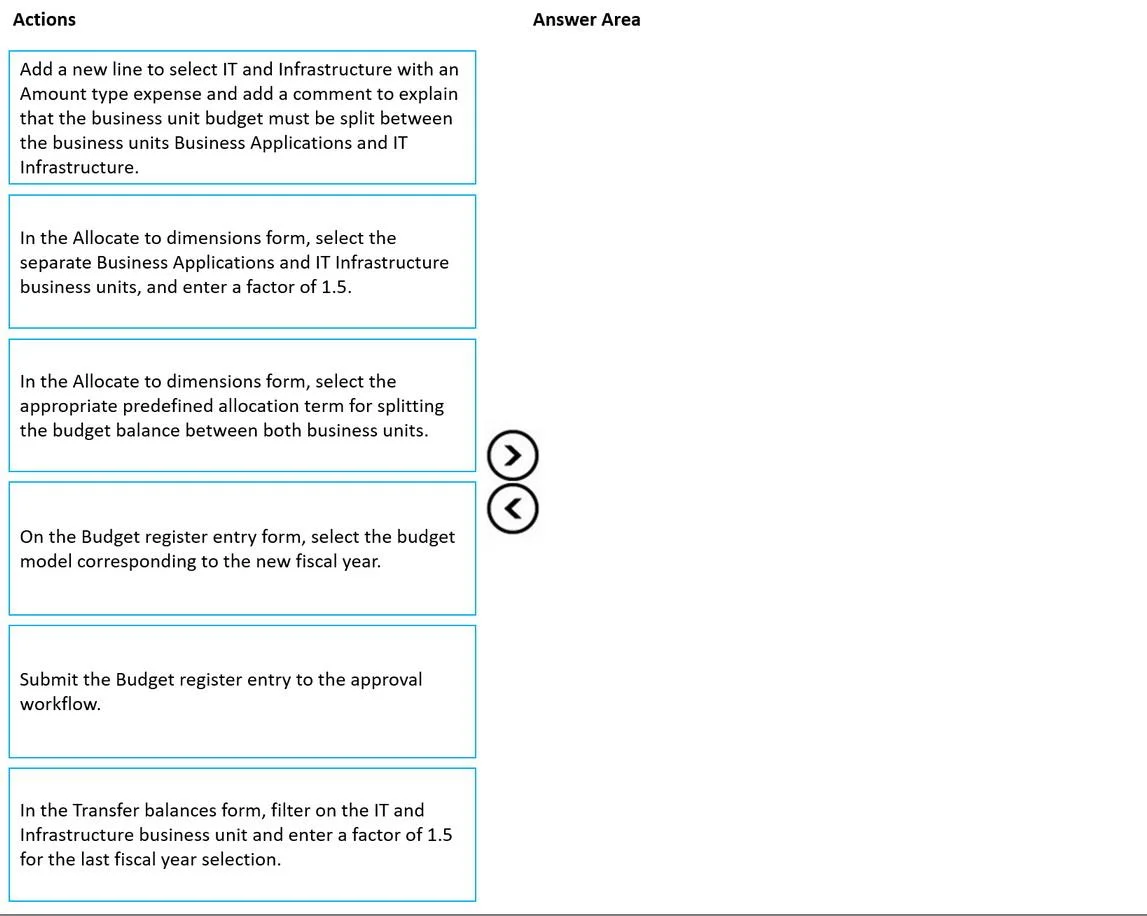
Drag and Drop Question A company uses the basic budgeting functionality in Dynamics 365 Finance. You are creating the budget in the system for the upcoming fiscal year. The company uses budget…
The correct answer is On the Budget register entry form, select the budget model corresponding to the new fiscal year.; In the Allocate to dimensions form, select the appropriate predefined allocation term for splitting the budget balance between both business units.; In the Transfer balances form, filter on the IT and Infrastructure business unit and enter a factor of 1.5 for the last fiscal year selection.; Submit the Budget register entry to the approval workflow. Dynamics 365 Finance - Budget Creation for Split Business Unit Scenario Summary You need to create a new fiscal year budget for two new BUs (Business Applications and IT Infrastructure), replacing the old IT and Infrastructure BU, at 1.5× prior year actuals. Budget workflow…
Question
Exhibit
Answer Area
Drag items
Correct arrangement
- On the Budget register entry form, select the budget model corresponding to the new fiscal year.
- In the Allocate to dimensions form, select the appropriate predefined allocation term for splitting the budget balance between both business units.
- In the Transfer balances form, filter on the IT and Infrastructure business unit and enter a factor of 1.5 for the last fiscal year selection.
- Submit the Budget register entry to the approval workflow.
Explanation
Dynamics 365 Finance - Budget Creation for Split Business Unit
Scenario Summary
You need to create a new fiscal year budget for two new BUs (Business Applications and IT Infrastructure), replacing the old IT and Infrastructure BU, at 1.5× prior year actuals. Budget workflow approval is required.
Why This Specific Order
Step 1 - On the Budget register entry form, select the budget model corresponding to the new fiscal year.
Why first: The Budget register entry is the container document for all budget data. Nothing else can happen without it. Selecting the correct budget model ties the entry to the upcoming fiscal year's planning cycle. This is the mandatory starting point - all subsequent actions operate on this entry.
Common mistake: Skipping straight to Transfer balances without first establishing the budget register entry and model. Transfer balances needs a target budget model to write into.
Step 2 - In the Allocate to dimensions form, select the appropriate predefined allocation term for splitting the budget balance between both business units.
Why second: Before any balances are moved, the system needs to know how to split the IT and Infrastructure amount across the two new business units. The predefined allocation term defines the proportional split (e.g., 60/40 or 50/50). Selecting it here configures the allocation rules that the Transfer balances process will reference when distributing amounts.
Common mistake: Choosing the other Allocate to dimensions option - manually entering Business Applications and IT Infrastructure with a factor of 1.5. That option conflates two separate concerns: the split logic (handled by the allocation term) and the scaling factor (handled by Transfer balances). The factor of 1.5 does not belong in this step.
Step 3 - In the Transfer balances form, filter on the IT and Infrastructure business unit and enter a factor of 1.5 for the last fiscal year selection.
Why third: Now that the allocation term is configured, Transfer balances performs the actual data movement - it pulls prior year actuals for IT and Infrastructure, applies the 1.5× multiplier, and distributes the scaled amounts across Business Applications and IT Infrastructure using the allocation term from Step 2. This is where the financial figures are calculated and written into the budget register entry.
Common mistake: Entering the 1.5 factor in the Allocate to dimensions form (Step 2) instead of here. Allocate to dimensions handles proportional splits, not year-over-year scaling. Transfer balances is specifically designed for the "prior year actuals × factor" pattern.
Step 4 - Submit the Budget register entry to the approval workflow.
Why last: Workflow submission is always the final action. The entry must be complete and accurate before it enters the approval chain. Submitting prematurely (before the allocation and transfer are done) would route an incomplete entry for approval, requiring rejection and rework.
Common mistake: Forgetting this step entirely, or assuming the entry is "live" once the transfer is done. With budget workflow enabled, entries are not active until approved.
Why the Two Excluded Items Are Wrong
| Excluded Item | Why It's a Distractor |
|---|---|
| Add a new line for IT and Infrastructure with a comment | Manual line entry with a comment is not the correct method for this scenario. The requirement is to scale actuals automatically via Transfer balances, not manually document a transfer. |
| Allocate to dimensions: manually select both BUs and enter factor 1.5 | This conflates scaling (1.5×) with splitting (allocation term). The 1.5 factor belongs in Transfer balances; the split belongs in the predefined allocation term. Using both would double-apply the multiplier. |
Core Principle to Remember
In D365 Finance basic budgeting for this type of scenario:
- Allocation term = how to split across dimensions
- Transfer balances factor = how much to scale prior year actuals
- These are distinct steps, applied in that order, within a budget register entry scoped to the correct fiscal year model.
Topics
Community Discussion
No community discussion yet for this question.