
Microsoft
MB-280 · Question #175
Drag and Drop Question You are working with email tracking in the Dynamics App for Outlook. You need to change the row that an email is tracked to. Which three actions should you perform in…
Sign in or unlock MB-280 to reveal the answer and full explanation for question #175. The question stem and answer options stay visible for context.
Deploy the Dynamics 365 App for Outlook
Question
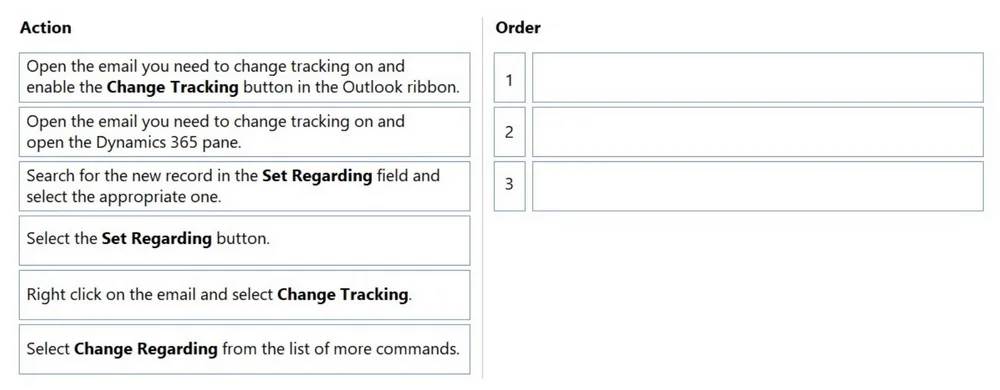
Drag and Drop Question You are working with email tracking in the Dynamics App for Outlook. You need to change the row that an email is tracked to. Which three actions should you perform in sequence? To answer, move the three appropriate actions from the list of actions to the answer area. Arrange the three actions in the correct order. Answer: Exam Questions, Study Guides, Practice Tests. Lead the way to help you pass any IT Certification exams, 100% Pass Guaranteed or Full Refund. Especially Cisco, Microsoft, CompTIA, Citrix, EMC, HP, Oracle, VMware, Juniper, Check Point, LPI, Nortel, EXIN and so on. Our Slogan: First Test, First Pass. Help you to pass any IT Certification exams at the first try. You can reach us at any of the email addresses listed below. Any problems about IT certification or our products, you could rely upon us, we will give you satisfactory answers in 24 hours.
Exhibit
Answer Area
Drag items
Open the email you need to change tracking on and enable the Change Tracking button in the Outlook ribbon.Open the email you need to change tracking on and open the Dynamics 365 pane.Search for the new record in the Set Regarding field and select the appropriate one.Select the Set Regarding button.Right click on the email and select Change TrackingSelect Change Regarding from the list of more commands.
Unlock MB-280 to see the answer
You've previewed enough free MB-280 questions. Unlock MB-280 for full answers, explanations, the timed quiz mode, progress tracking, and the master PDF. Question stem and options stay visible so you can still see what's on the exam.
Topics
#email tracking#regarding field#Dynamics App for Outlook#tracked row