MB-280 · Question #143
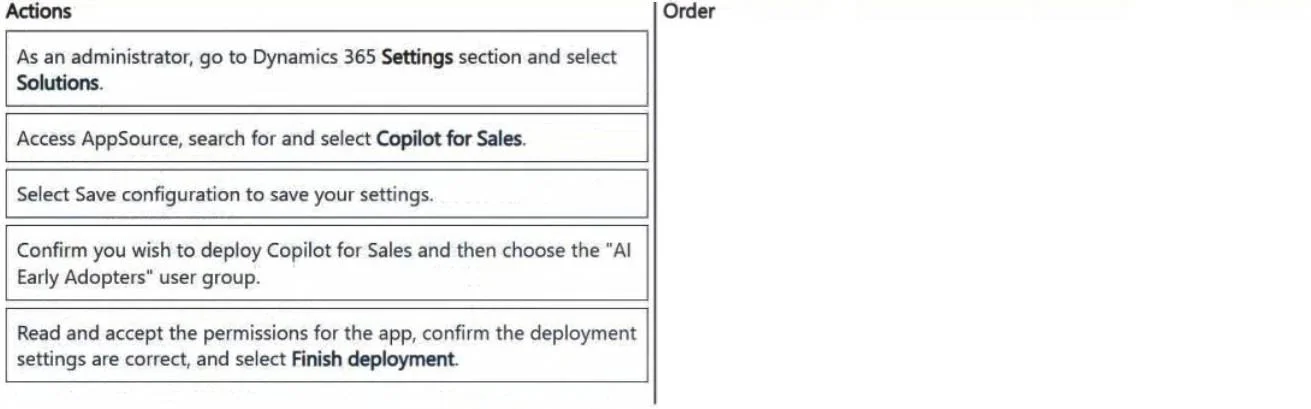
Drag and Drop Question Your organization believes sales representatives can gain a lot of value from generative AI support in their daily tasks. A group of early adopters has been identified and…
The correct answer is Access AppSource, search for and select Copilot for Sales.; Confirm you wish to deploy Copilot for Sales and then choose the “AI Early Adopters” user group.; Read and accept the permissions for the app, confirm the deployment settings are correct and select Finish deployment. Deploying Copilot for Sales to a Specific User Group The Core Concept Deploying Copilot for Sales as an Outlook add-in goes through Microsoft AppSource / Microsoft 365 Admin Center's Integrated Apps flow - not through Dynamics 365 settings. This is the key insight the question…
Question
Exhibit
Answer Area
Drag items
Correct arrangement
- Access AppSource, search for and select Copilot for Sales.
- Confirm you wish to deploy Copilot for Sales and then choose the “AI Early Adopters” user group.
- Read and accept the permissions for the app, confirm the deployment settings are correct and select Finish deployment.
Explanation
Deploying Copilot for Sales to a Specific User Group
The Core Concept
Deploying Copilot for Sales as an Outlook add-in goes through Microsoft AppSource / Microsoft 365 Admin Center's Integrated Apps flow - not through Dynamics 365 settings. This is the key insight the question tests.
Step-by-Step Breakdown
Step 1 - Access AppSource, search for and select Copilot for Sales
AppSource (accessed via Microsoft 365 Admin Center > Integrated Apps) is the correct starting point for deploying Microsoft 365-integrated apps to users. You must find and initiate the app before you can configure anything. This is always first - there is nothing to configure until you've selected the app.
Step 2 - Confirm deployment and choose the "AI Early Adopters" user group
After selecting the app, the wizard prompts you to confirm intent and specify the deployment audience. Targeting the Entra user group happens here, mid-wizard. It must come after Step 1 (you need an app selected) and before Step 3 (you can't accept permissions for an unscoped deployment).
Step 3 - Read and accept permissions, confirm settings, select Finish deployment
Permission review and final confirmation is always the last step in Microsoft 365 app deployment flows. The permissions the app requests are scope-specific - they're reviewed after you've defined who gets the app. Selecting "Finish deployment" is the commit action that triggers the rollout.
Why the Distractors Are Wrong
| Item | Why It's Excluded |
|---|---|
| Dynamics 365 Settings > Solutions | This manages Dynamics 365 solution packages within D365 itself - not Outlook add-in deployment to user groups. A common trap because Copilot for Sales integrates with Dynamics 365, so people assume deployment starts there. |
| Select Save configuration | This belongs to post-deployment configuration (e.g., mapping CRM fields, configuring data sources), not the initial deployment wizard. It has no role in the three-step AppSource deployment flow. |
Common Mistakes
- Starting with Dynamics 365 Settings - The integration relationship misleads people into thinking D365 is the deployment channel. It isn't; AppSource/M365 Admin Center owns add-in deployment.
- Swapping Steps 2 and 3 - Intuition might suggest "accept permissions first, then choose users." The actual wizard presents audience selection before the final permissions review.
- Including "Save configuration" - It sounds like a natural closing action, but it's configuration vocabulary, not deployment vocabulary.
Topics
Community Discussion
No community discussion yet for this question.