
MB-230 · Question #193
A midsize service company provides clients with various service needs. The company plans to implement URS to schedule its service technicians. The company requires a solution that includes custom…
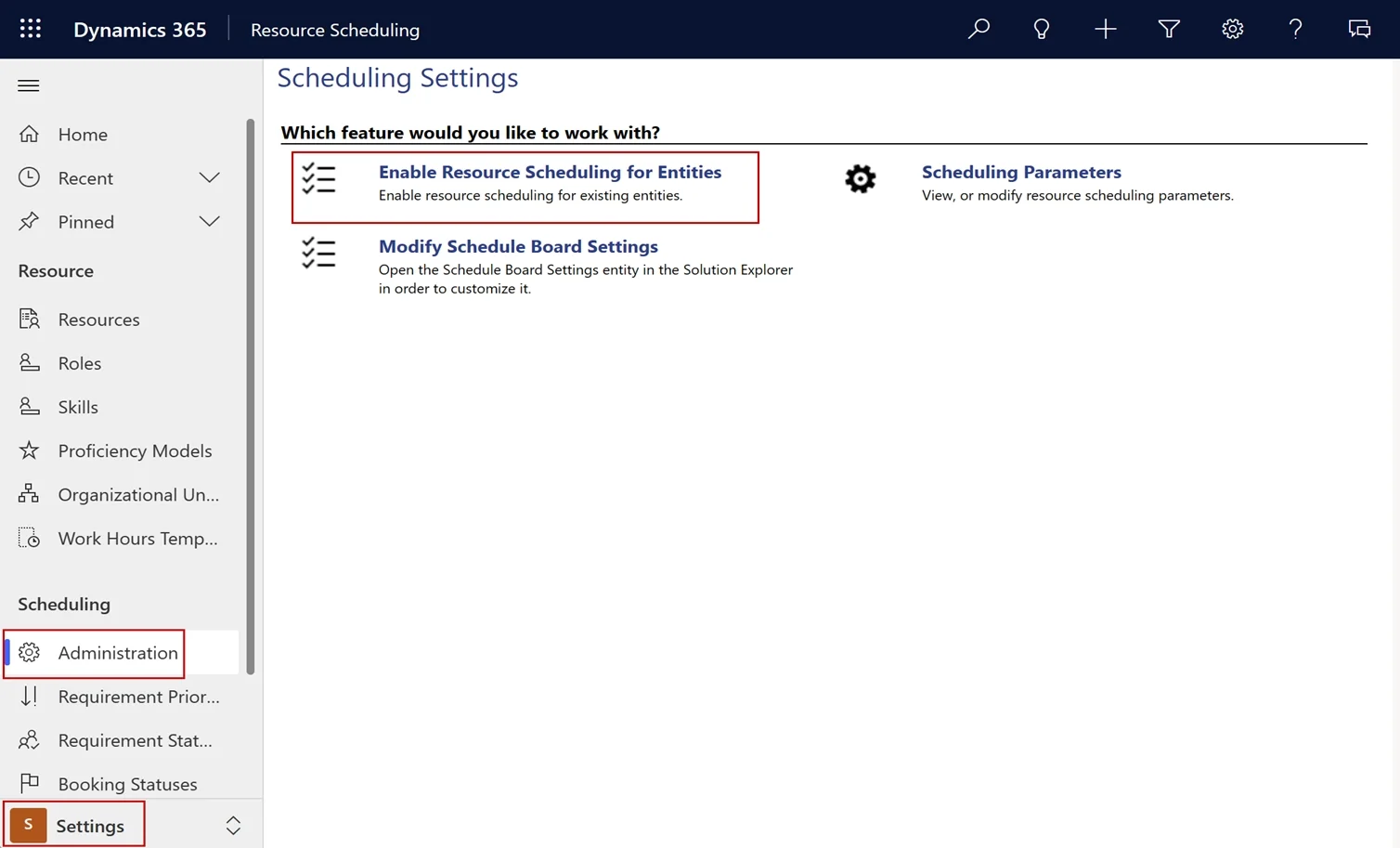
The correct answer is A. Use the Resource Scheduling application to configure table settings. Enable scheduling for another entity You can also enable scheduling for another entity, including custom entities. Once enabled, the system creates a resource requirement record related to the entity. This way, when you create a resource requirement, the system automatically…
Question
A midsize service company provides clients with various service needs. The company plans to implement URS to schedule its service technicians. The company requires a solution that includes custom tables. You need to recommend an implementation process for URS that enables a table for scheduling. What should you recommend?
Exhibit
Options
- AUse the Resource Scheduling application to configure table settings.
- BConfigure the environment settings in the Microsoft Power Platform admin center.
- CUpdate the solution import settings when importing the solution into the production environment.
- DUpdate the Scheduling Services in the Customer Service Hub application.
How the community answered
(40 responses)- A73% (29)
- B18% (7)
- C8% (3)
- D3% (1)
Explanation
Enable scheduling for another entity You can also enable scheduling for another entity, including custom entities. Once enabled, the system creates a resource requirement record related to the entity. This way, when you create a resource requirement, the system automatically checks which entity the resource requirement is Enable an entity for scheduling in Universal Resource Scheduling Enabling an entity for scheduling allows dispatchers to schedule that requirements related to that entity to the matching resources. 1. In Resource Scheduling, change to the Settings area. Under Scheduling, select Administration. Select Enable Resource Scheduling for Entities. 2. In the Enable New Entity section, under Add Entity, choose an entity from the list. If the entity you want to enable doesn't show in list, update the Can be customized setting to True for the managed property. 3. For Booking Relationship and Requirement Relationship, choose Create New Relationship. Select an existing relationship if you've previously created relationships to the bookable resource booking or resource requirement entities 4. Select Publish Customization. https://learn.microsoft.com/en-us/dynamics365/common-scheduler/schedule-new-entity
Topics
Community Discussion
No community discussion yet for this question.