nerdexam
Microsoft

DP-300 · Question #372

SIMULATION You need to configure high availability for db1. The solution must tolerate the loss of an Azure datacenter without data loss or the need to modify application connection strings. To…

Active geo-replication in Azure SQL Database replicates data synchronously to a secondary replica in a different Azure region/datacenter, ensuring zero data loss (RPO=0) if the primary datacenter fails. By configuring a geo-replica and using an auto-failover group or…

Submitted by haru.x· Mar 6, 2026Design and Implement High Availability and Disaster Recovery Solutions for Azure SQL Database - typically aligned with Microsoft certifications such as DP-300 (Azure Database Administrator Associate) under the domain 'Monitor and Optimize Operational Resources / Configure High Availability'

Question

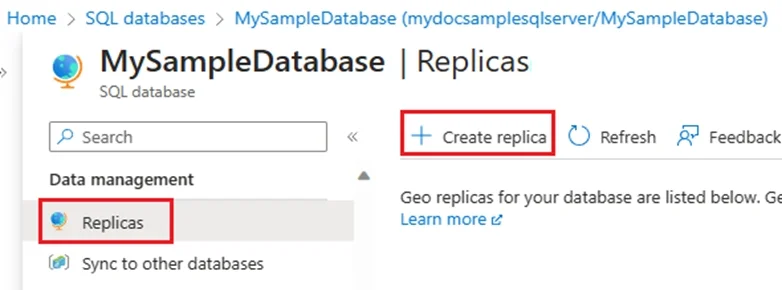
SIMULATION You need to configure high availability for db1. The solution must tolerate the loss of an Azure datacenter without data loss or the need to modify application connection strings. To complete this task, sign in to the virtual machine. You may need to use SQL Server Management Studio and the Azure portal. Answer: Configure a license-free standby replica (preview) for Azure SQL Database You can save on licensing costs by designating your secondary disaster recovery (DR) database for standby when using Azure SQL Database. Configure a standby replica You can designate a replica for standby when you configure a new active geo-replication relationship by using the Azure portal, PowerShell, or the Azure CLI. To create a new active geo-replication relationship and designate your secondary database for standby in the Azure portal, follow these steps: Step 1: Go to your SQL database [Here db1] resource in the Azure portal. Step 2: Choose Replicas under Data management from the resource menu, and then select + Create replica to open the Create SQL Database - Geo Replica page. Step 3: On the Create SQL Database - Geo Replica page, select Standby replica for Replica type under Replica configuration. Check the box to confirm you'll use the replica for standby. Step 4: Provide a new or existing server for the new standby database and then use Review + create to do a final validation of your database and server details. Step 5: Use Create to confirm your settings and create your new standby database replica. Reference: https://learn.microsoft.com/en-us/azure/azure-sql/database/standby-replica-how-to-configure

Exhibit

DP-300 question #372 exhibit

Explanation

Active geo-replication in Azure SQL Database replicates data synchronously to a secondary replica in a different Azure region/datacenter, ensuring zero data loss (RPO=0) if the primary datacenter fails. By configuring a geo-replica and using an auto-failover group or geo-replication listener endpoint, application connection strings remain unchanged after failover. The standby replica designation is specifically designed to meet the requirement of datacenter-level fault tolerance without data loss while optimizing licensing costs.

Topics

#Azure SQL Database#Active Geo-Replication#High Availability#Disaster Recovery

Community Discussion

No community discussion yet for this question.

Full DP-300 Practice