
DP-100 · Question #448
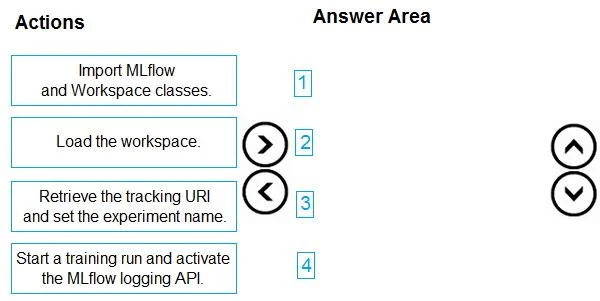
Drag and Drop Question You have an Azure Machine Learning workspace. You are running an experiment on your local computer. You need to use MLflow Tracking to store metrics and artifacts from your…
The correct answer is Import MLflow and Workspace classes.; Load the workspace.; Retrieve the tracking URI and set the experiment name.; Start a training run and activate the MLflow logging API. To integrate MLflow tracking from a local experiment to Azure Machine Learning, the necessary classes must be imported, the workspace loaded, the tracking URI configured with an experiment name, and finally, the training run started with MLflow logging activated.
Question
Exhibit
Answer Area
Drag items
Correct arrangement
- Import MLflow and Workspace classes.
- Load the workspace.
- Retrieve the tracking URI and set the experiment name.
- Start a training run and activate the MLflow logging API.
Explanation
To integrate MLflow tracking from a local experiment to Azure Machine Learning, the necessary classes must be imported, the workspace loaded, the tracking URI configured with an experiment name, and finally, the training run started with MLflow logging activated.
Approach. The correct interaction is to drag the actions from the 'Actions' list to the 'Answer Area' and arrange them in the following order:
- Import MLflow and Workspace classes. - This is the fundamental first step in any programming task. Before you can use any functionality from MLflow or interact with an Azure ML workspace, you must import their respective libraries and classes into your script. This makes the necessary functions and objects available.
- Load the workspace. - Once the
Workspaceclass is imported, the next logical step is to establish a connection to your Azure Machine Learning workspace. Loading the workspace object provides the context for subsequent operations, such as retrieving tracking information or registering models. - Retrieve the tracking URI and set the experiment name. - With the workspace loaded, you can now configure MLflow to use the Azure ML workspace's tracking server. This involves getting the tracking URI from the workspace object and then instructing MLflow to use this URI for tracking. Additionally, setting the experiment name before a run helps organize your experiment runs within the Azure ML studio.
- Start a training run and activate the MLflow logging API. - After all the setup (imports, workspace connection, tracking URI configuration) is complete, you can begin your actual machine learning training run. Within this run, you'll use MLflow's logging API (e.g.,
mlflow.start_run(),mlflow.log_param(),mlflow.log_metric(),mlflow.log_artifact()) to record metrics, parameters, and artifacts, which will then be stored in the configured Azure ML workspace.
Common mistakes.
- common_mistake. A common mistake would be to place actions out of their logical dependency order. For instance, attempting to 'Load the workspace' or 'Retrieve the tracking URI' before 'Import MLflow and Workspace classes' would fail because the necessary classes like
Workspacewould not be defined. Similarly, trying to 'Start a training run and activate the MLflow logging API' before 'Retrieve the tracking URI and set the experiment name' would lead to MLflow not knowing where to log the data or how to associate it with a specific experiment in Azure ML. Skipping the workspace loading step would also prevent MLflow from connecting to the Azure ML backend for tracking.
Concept tested. The core concept being tested is the integration of MLflow Tracking with Azure Machine Learning workspaces for logging experiment metrics and artifacts from a local development environment. This includes understanding the sequential steps required for setting up the environment, connecting to the Azure ML workspace, configuring MLflow's tracking URI, and performing logging operations.
Topics
Community Discussion
No community discussion yet for this question.