
AZ-800 · Question #159
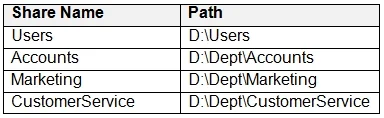
You have an Active Directory domain that contains a file server named Server1. Server1 runs Windows Server and includes the file shares shown in the following table. When users login to the network…
The correct answer is A. File Server Resource Manager (FSRM) quotas. FSRM quotas are applied per-folder (per-path), making them ideal here. You can set a 5 GB quota on \server1\users (covering all H: drives) and different quotas on each department share (Accounts 10 GB, Marketing 15 GB, Customer Service 2 GB). FSRM supports quota templates…
Question
You have an Active Directory domain that contains a file server named Server1. Server1 runs Windows Server and includes the file shares shown in the following table. When users login to the network they receive the following network drive mappings.
- H: maps to \server1\users%UserName%
- G: maps to \server1%Department%
You need to limit the amount of space consumed by user’s on Server1. The solution must meet the following requirements:
- Prevent users using more than 5GB of space on their H: drive
- Prevent Accounts department users from using more than 10GB of space
on the G: drive
- Prevent Marketing department users from using more than 15GB of space
on the G: drive
- Prevent Customer Service department users from using more than 2GB of
space on the G: drive
- Minimize administrative effort
What should you use?
Exhibit
Options
- AFile Server Resource Manager (FSRM) quotas
- BStorage tiering
- CNTFS Disk quotas
- DGroup Policy Preferences
How the community answered
(23 responses)- A83% (19)
- B4% (1)
- C9% (2)
- D4% (1)
Explanation
FSRM quotas are applied per-folder (per-path), making them ideal here. You can set a 5 GB quota on \server1\users (covering all H: drives) and different quotas on each department share (Accounts 10 GB, Marketing 15 GB, Customer Service 2 GB). FSRM supports quota templates, which allow reusable quota definitions applied to multiple folders - this minimizes administration. NTFS Disk Quotas (option C) track usage per-user per-volume, not per-folder, so you cannot set different limits on different folders. Storage Tiering (option B) moves data between storage tiers based on access patterns and does not enforce capacity limits. Group Policy Preferences (option D) can map drives but cannot enforce storage quotas.
Topics
Community Discussion
No community discussion yet for this question.