
AZ-800 · Question #114
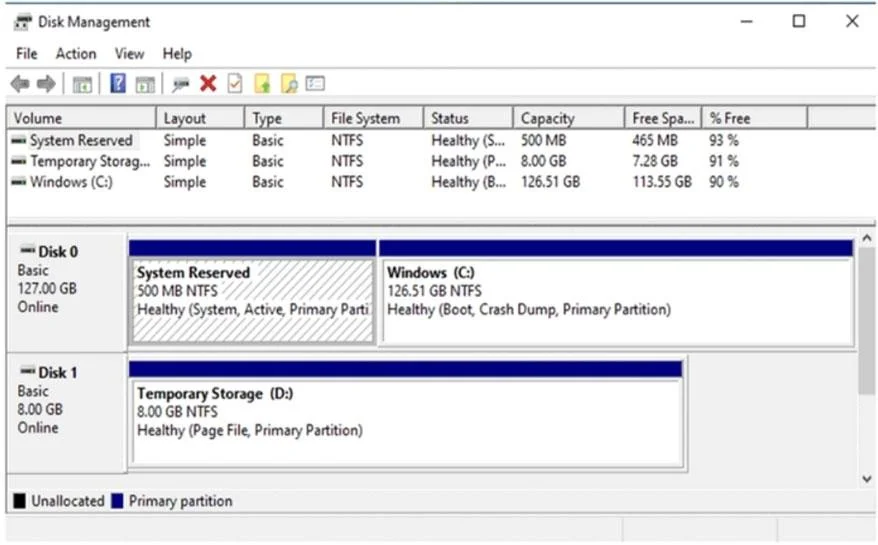
Drag and Drop Question You create an Azure virtual machine named Server1 that runs Windows Server. Server1 has the disk configurations shown in the following exhibit. You need to create a new 100-GB…
The correct answer is Create and attach a new data disk.; Initialize the disk.; Create a new simple volume. To add a new 100-GB volume to an Azure VM when existing disks are full, a new data disk must first be created and attached, then initialized within the OS, and finally a simple volume created on it.
Question
Exhibit
Answer Area
Drag items
Correct arrangement
- Create and attach a new data disk.
- Initialize the disk.
- Create a new simple volume.
Explanation
To add a new 100-GB volume to an Azure VM when existing disks are full, a new data disk must first be created and attached, then initialized within the OS, and finally a simple volume created on it.
Approach. The goal is to create a new 100-GB volume on Server1. Based on the Disk Management screenshot, both Disk 0 and Disk 1 are fully utilized, leaving no unallocated space for a new 100-GB volume. Therefore, the first logical step is to introduce new storage.
- 'Create and attach a new data disk.': This is the initial step because the existing disks lack the required 100 GB of free space. In Azure, a new data disk can be created and hot-attached to a running VM, making it available within the guest OS.
- 'Initialize the disk.': Once a new physical disk is attached to a Windows server (even a virtual one), it must be initialized (e.g., as MBR or GPT) before it can be partitioned. This prepares the disk for use by the operating system.
- 'Create a new simple volume.': After the disk is initialized, it appears as 'Unallocated' space. To make it usable storage with a drive letter and file system, a new volume (in this case, a simple volume of 100 GB) must be created on the initialized disk. This step also involves formatting the volume with a file system like NTFS.
Common mistakes.
- common_mistake. Other options are incorrect for the following reasons:
- 'Shut down Server1.' / 'Start Server1.': Shutting down and restarting the VM is unnecessary. Azure allows hot-attach of data disks to a running VM, minimizing downtime.
- 'Create a new spanned volume.': A spanned volume combines unallocated space from multiple disks into a single logical volume. This is not the primary requirement here, nor is there existing unallocated space across multiple disks to span. The most straightforward approach for a single new volume is a simple volume on a newly attached disk.
Concept tested. Azure virtual machine data disk management, Windows Server Disk Management utility, the lifecycle of adding and preparing a new data disk for use within a Windows operating system, including disk initialization, partitioning, and volume creation.
Topics
Community Discussion
No community discussion yet for this question.