AZ-500 · Question #137
AZ-500 Question #137: Real Exam Question with Answer & Explanation
Sign in or unlock AZ-500 to reveal the answer and full explanation for question #137. The question stem and answer options stay visible for context.
Question
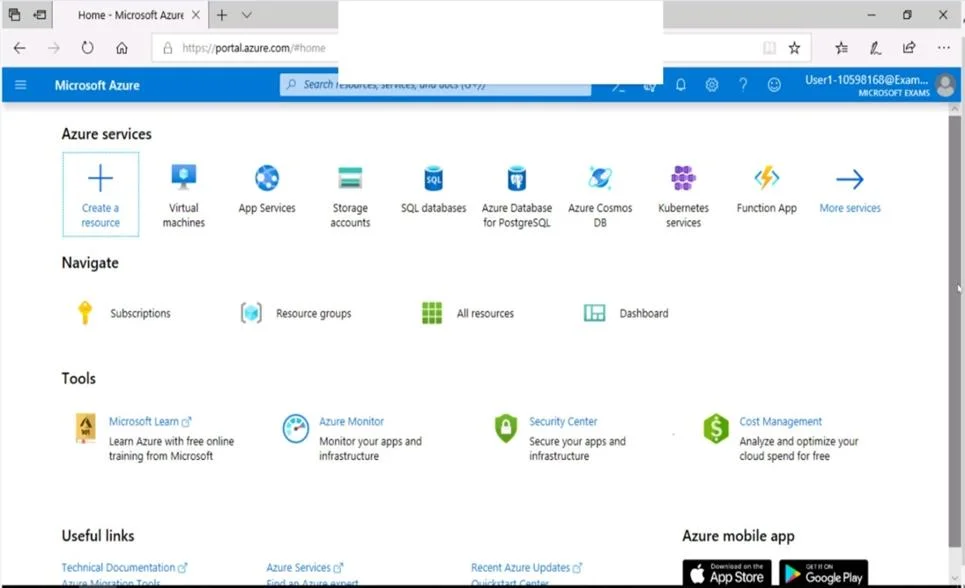
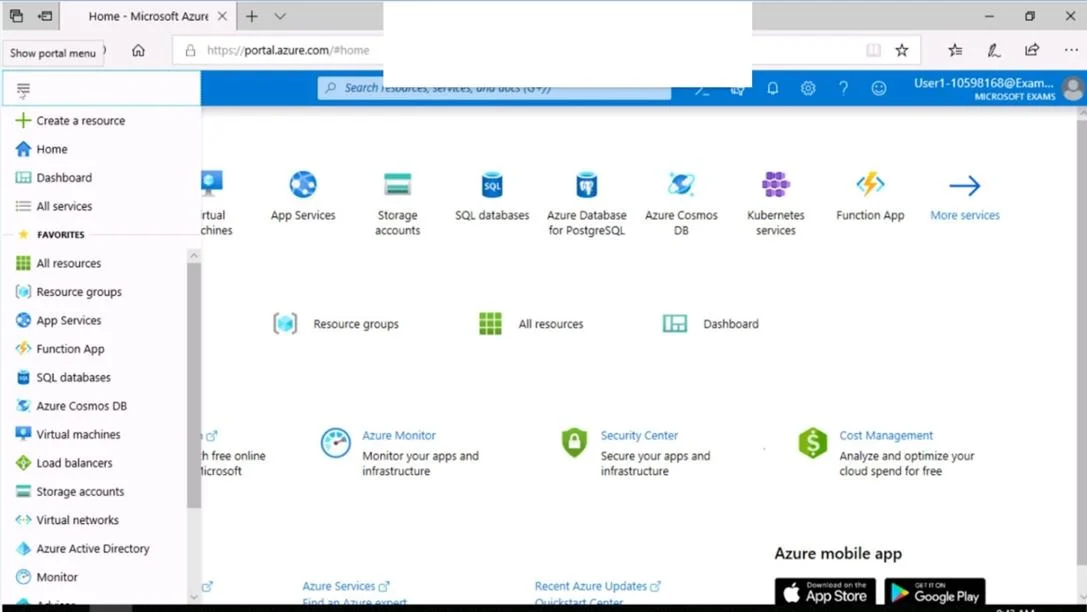
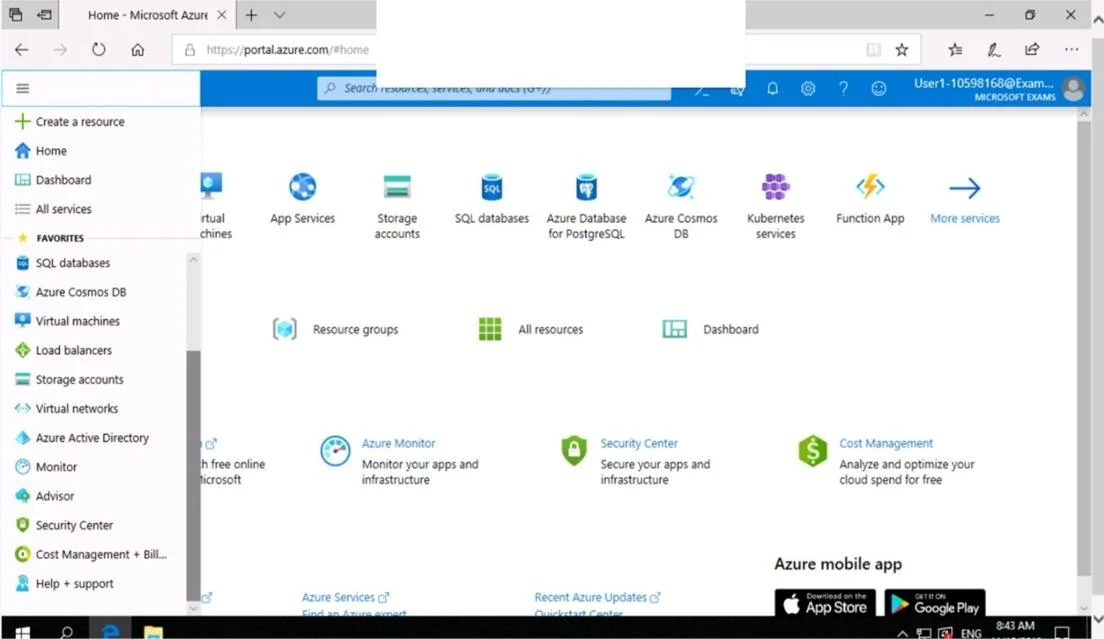
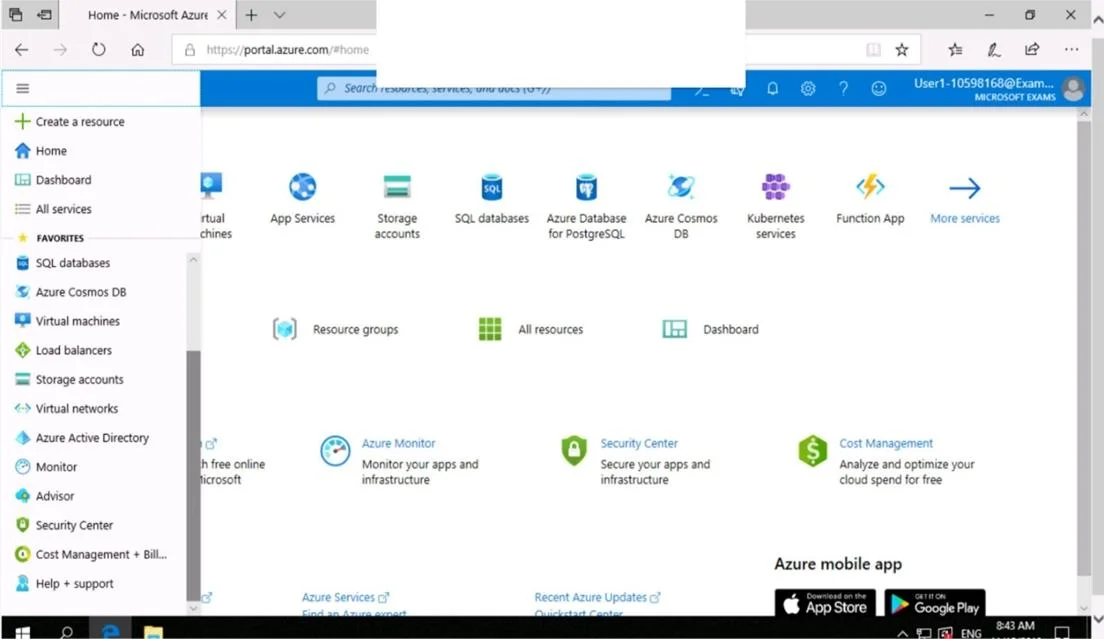
SIMULATION Use the following login credentials as needed: To enter your username, place your cursor in the Sign in box and click on the username below. To enter your password, place your cursor in the Enter password box and click on the password below. Azure Username: [email protected] Azure Password: Ag1Bh9!#Bd The following information is for technical support purposes only: Lab Instance: 10598168 You need to collect all the audit failure data from the security log of a virtual machine named VM1 to an Azure Storage account. To complete this task, sign in to the Azure portal. This task might take several minutes to complete You can perform other tasks while the task completes. Answer: Step 1: Create a workspace Azure Monitor can collect data directly from your Azure virtual machines into a Log Analytics workspace for detailed analysis and correlation. 1. In the Azure portal, select All services. In the list of resources, type Log Analytics. As you begin typing, the list filters based on your input. Select Log Analytics workspaces. 2. Select Create, and then select choices for the following items: 3. After providing the required information on the Log Analytics workspace pane, select OK. While the information is verified and the workspace is created, you can track its progress under Notifications from the menu. Step 2: Enable the Log Analytics VM Extension Installing the Log Analytics VM extension for Windows and Linux allows Azure Monitor to collect data from your Azure VMs. 1. In the Azure portal, select All services found in the upper left-hand corner. In the list of resources, type Log Analytics. As you begin typing, the list filters based on your input. Select Log Analytics workspaces. 2. In your list of Log Analytics workspaces, select DefaultWorkspace (the name you created in step 1). 3. On the left-hand menu, under Workspace Data Sources, select Virtual machines. 4. In the list of Virtual machines, select a virtual machine you want to install the agent on. Notice that the Log Analytics connection status for the VM indicates that it is Not connected. 5. In the details for your virtual machine, select Connect. The agent is automatically installed and configured for your Log Analytics workspace. This process takes a few minutes, during which time the Status shows Connecting. After you install and connect the agent, the Log Analytics connection status will be updated with This workspace. Reference: https://docs.microsoft.com/en-us/azure/azure-monitor/learn/quick-collect-azurevm
Options
- taskCollect all the audit failure data from the security log of a virtual machine named VM1 to an Azure Storage account.
- prerequisitesAzure Username: [email protected], Azure Password: Ag1Bh9!#Bd
Unlock AZ-500 to see the answer
You've previewed enough free AZ-500 questions. Unlock AZ-500 for full answers, explanations, the timed quiz mode, progress tracking, and the master PDF. Question stem and options stay visible so you can still see what's on the exam.