
70-692 · Question #52
A company has 100 client computers that run Windows 8.1. You plan to install a custom app that requires a license key. You need to ensure that the installation process does not prompt for the manual…
The correct answer is A. Install and run the Microsoft Deployment Toolkit. Windows Assessment and Deployment Kit for Windows 8.1: Step-by-Step: Windows 8 Deployment for IT Professionals This guide uses the tools included in the Windows Assessment and Deployment Kit (Windows ADK). This includes Windows System Image Manager (Windows SIM), the Deployment…
Question
A company has 100 client computers that run Windows 8.1. You plan to install a custom app that requires a license key. You need to ensure that the installation process does not prompt for the manual entry of a license key. What should you do?
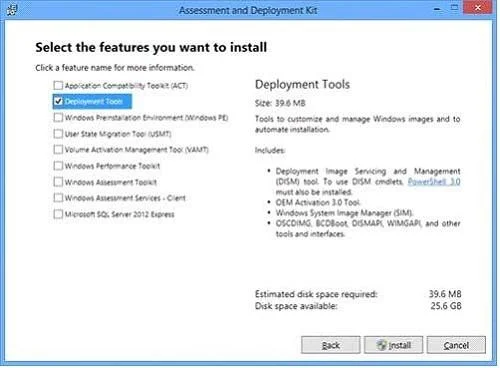
Exhibit
Options
- AInstall and run the Microsoft Deployment Toolkit.
- BInstall and run the Windows Application Compatibility Toolkit.
- CInstall and run the Windows App Certification Kit.
- DInstall and run the Microsoft Assessment and Planning Toolkit.
How the community answered
(23 responses)- A83% (19)
- B9% (2)
- C4% (1)
- D4% (1)
Explanation
Windows Assessment and Deployment Kit for Windows 8.1: Step-by-Step: Windows 8 Deployment for IT Professionals This guide uses the tools included in the Windows Assessment and Deployment Kit (Windows ADK). This includes Windows System Image Manager (Windows SIM), the Deployment Imaging Servicing and Management tool (DISM), and Windows Preinstallation Environment (Windows PE). In addition to the tools that this guide describes, other tools are available in the Windows ADK that you can use to prepare your organization for migrating to Windows 8 and Windows 8.1: DISM Global Options for Command-Line Syntax Global options can be added to most of the servicing and imaging options in the Deployment Image Servicing and Management (DISM) tool. These options can be used to access the command-line help, specify the location of files to use, and control logging. Basic Syntax for Servicing Commands R image so that it is available offline as a flat file After you have mounted or applied a Windows○ structure, you can specify any DISM global options, the servicing option that will update your image, and the location of the offline image. You can use only one servicing option per command line. If you are servicing a running computer, you can use the /Online option instead of specifying the location of the offline Windows image. The commands and options that are available for servicing an image depend on which Windows operating system you are servicing. They also depend on whether the image is offline or a running operating system. All commands work on an offline Windows image. Subsets of the commands are available for servicing a running operating The base syntax for DISM servicing commands is: DISM.exe {/Image:<path_to_image> | /Online} [dism_global_options] {servicing_option} [<servicing_argument>] DISM App Package (.appx or .appxbundle) Servicing Command-Line Options You can use app package-servicing commands to add, remove, and list provisioned app packages (.appx or .appxbundle) in a Windows image. An .appxbundle, new for Windows 8.1, is a collection of app and resource packages used together to enrich the app experience, while minimizing the disk footprint on a given PC. Provisioned app packages are added to a Windows image and are then installed for every new or existing user profile the next time the user logs on. For more information, including requirements for app package provisioning, see Sideload Apps with DISM. You can also use Windows PowerShell to add, remove, and list app packages (.appx or .appxbundle) per image or per user in a Windows installation. Sideload Apps with DISM R image by using You can sideload line-of-business (LOB) Windows Store apps to a Windows○ R or the Deployment Image Servicing and Management (DISM) platform. Windows PowerShell○ Windows Store apps are a new type of application that runs on: - Windows 8.1 devices - Windows 8 devices - Windows Server 2012 R2 devices - Windows Server 2012 - Windows Embedded 8 Industry Typically, Windows Store apps are available only through the Windows○ You can submit LOB Windows Store apps to the Windows Store and make them available outside of your enterprise. However, you can also develop Windows Store apps for use only within your enterprise and add them to Windows devices you manage through a process we call sideloading. Sideloaded apps do not have to be certified by or installed through the Windows Further information: Microsoft Assessment and Planning Toolkit The Microsoft Assessment and Planning Toolkit (MAP) is an agentless, automated, multi-product planning and assessment tool for quicker and easier desktop, server and cloud migrations. MAP provides detailed readiness assessment reports with extensive hardware and software information, and actionable recommendations to help organizations accelerate their IT infrastructure planning process, and gather more detail on assets that reside within their current environment. MAP also provides server utilization data for Hyper-V server virtualization planning; identifying server placements, and performing virtualization candidate assessments. Windows App Certification Kit Before you submit your app for certification and listing in the Windows Store, use the Windows App Certification us/library/windows/desktop/dd562082%28v=vs.85%29.aspx Application Compatibility Toolkit (ACT) The Microsoft Application Compatibility Toolkit (ACT) is a lifecycle management tool that assists in identifying and managing your overall application portfolio, reducing the cost and time involved in resolving application compatibility issues, and helping you quickly deploy Windows and Windows updates.
Topics
Community Discussion
No community discussion yet for this question.