70-692 · Question #42
You administer Windows 8.1 Enterprise computers in your company's Active Directory Domain Services (AD DS) domain. Your company uses several peripheral devices. The drivers for these devices are not…
The correct answer is C. Add the following registry key to the computers. Configure Windows to Search Additional Folders for Device Drivers To configure Windows to Search Additional Folders for Device Drivers 1. Start Registry Editor. Click Start, and in the Start Search box type regedit. 2. If the User Account Control dialog box appears, confirm…
Question
You administer Windows 8.1 Enterprise computers in your company's Active Directory Domain Services (AD DS) domain. Your company uses several peripheral devices. The drivers for these devices are not available on Windows Update. You need to ensure that the drivers install when users connect these devices to their computers. What should you do?
Exhibit
Options
- AFor the Group Policy setting Prioritize all digitally signed drivers equally during the driver
- BFor the Group Policy setting Configure driver search locations, select Enabled. Make the
- CAdd the following registry key to the computers:
- DFrom Device Manager, find the detected scanner device and select Update Driver.
How the community answered
(65 responses)- A5% (3)
- B6% (4)
- C75% (49)
- D14% (9)
Explanation
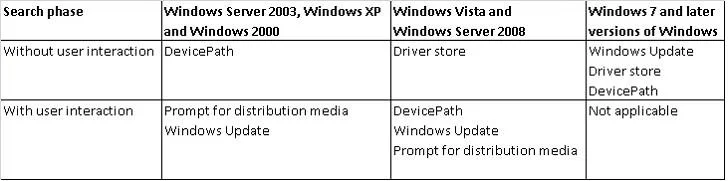
Configure Windows to Search Additional Folders for Device Drivers To configure Windows to Search Additional Folders for Device Drivers 1. Start Registry Editor. Click Start, and in the Start Search box type regedit. 2. If the User Account Control dialog box appears, confirm that the action it displays is what you want, and then click Yes. 3. Navigate to the following registry key: HKEY_LOCAL_MACHINE/Software/Microsoft/Windows/Current Version 4. In the details pane, double-click DevicePath. 5. Add additional folder paths to the setting, separating each folder path with a semi-colon. %systemroot%\inf is one of the folders included in the value. Do not remove %systemroot%\inf from the DevicePath registry entry. Removal of that folder can break device driver installation. Further Information: Where Windows Searches for Drivers After a device is attached, Windows attempts to locate a matching driver package from which it can install a driver for the device. Windows searches for driver packages from various locations and performs this search in two phases, as described in the following table. C:\Users\Chaudhry\Desktop\1.jpg Starting with Windows 7, Windows automatically downloads matching driver packages from Windows Update without prompting the user for permission. If a matching driver package is found, Windows downloads the package and stages it to the driver store. If a matching driver package cannot be downloaded, Windows searches for matching driver packages in the driver store. This includes in-box drivers, installed drivers other than in-box drivers, and preinstalled drivers. Windows also searches for driver packages that were preloaded in the locations that are specified by the DevicePath registry value. This value is under the following subkey of the HKEY_LOCAL_MACHINE By default, the DevicePath value specifies the %SystemRoot%\INF directory. If a matching driver package is found either on Windows Update or in a location that is specified by the DevicePath value, Windows first stages the driver package to the driver store before the driver is installed. In this way, Windows always installs drivers from the driver store.
Topics
Community Discussion
No community discussion yet for this question.
