nerdexam
Microsoft

70-659 · Question #82

You install Windows Server 2008 R2 (Server Core Installation) on a server. You need to be able to remotely manage storage on the server by using Disk Manager. What should you do?

The correct answer is D. Run the netshadvfirewall Firewall set rule group="Remote Volume Management" new. Enable specific services Before you can make any changes to the firewall settings remotely you must first enable remote administration of the firewall by typing the following command at a command prompt: Netsh advfirewall firewall set rule group="Windows Firewall Remote…

Configuring Hyper-V

Question

You install Windows Server 2008 R2 (Server Core Installation) on a server. You need to be able to remotely manage storage on the server by using Disk Manager. What should you do?

Exhibit
70-659 question #82 exhibit

Options

  • ARun the netshadvfirewall Firewall set rule group="Remote Administration" new enable=yes
  • BUse the DISKPART utility to run the attributes volume clear readonly command for each
  • CInstall the Microsoft Remote Server Administration Tools (RSAT).
  • DRun the netshadvfirewall Firewall set rule group="Remote Volume Management" new

How the community answered

(30 responses)
  • A
    3% (1)
  • B
    10% (3)
  • C
    3% (1)
  • D
    83% (25)

Explanation

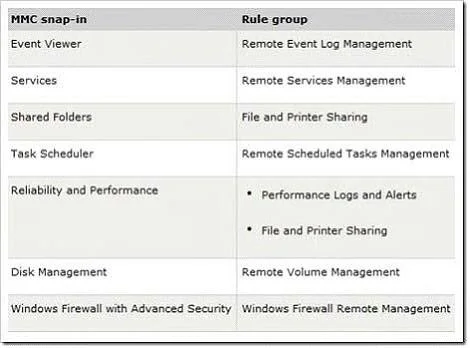
Enable specific services Before you can make any changes to the firewall settings remotely you must first enable remote administration of the firewall by typing the following command at a command prompt: Netsh advfirewall firewall set rule group="Windows Firewall Remote Management" new enable =yes Once the firewall has been configured for remote administration you can began to allow remote management through MMC snap-ins. You can configure the firewall to allow remote management via all MMC snap-ins or you can specify particular MMC snap-ins. The following command will allow you to remotely manage a Server Core installation through all Netsh advfirewall firewall set rule group="remote administration" new enable=yes To allow remote management via specific MMC snap-ins, run the following command. Netsh advfirewall firewall set rule group="<rulegroup>" new enable=yes Note: You can reference the table below for available rulegroups. Some snap-ins will require more configuration before you can connect to them through a firewall. Also, some MMC snap-ins do not have an associated rule group that allows connections through firewalls. If you look at the chart above you will see Disk Management and its corresponding rule group.This is one of the MMC snap-ins that will need additional configuration.In order to use this snap-in for remote management you must first start the Virtual Disk Service (VDS) on the computer that is running the Server Core installation. You also have to configure the Disk Management rules on the computer that is running the MMC snap-in. The command to enable the Remote Volume Management Rule group is as follows. Netsh advfirewall firewall set rule group="Remote Volume Management" new enable=yes Running this command will enable the Remote Volume Management-Virtual Disk Service Loader (RPC), Remote Volume Management-Virtual Disk Service (RPC), and Remote Volume Management-Virtual Disk Service (RPC-EPMAP) inbound rules.Remember these rules must be enabled on both the server that is running the MMC and the remote Server Core installation. whenever they tried to connect to a remote server and use the Disk Management snap-in, they Virtual Disk Manager The RPC server is unavailable And this is what it looks like: Searching Google for an answer brought a few results, but I thought I'd list it here for my other readers, as it seems that the configuration steps that are needed in order to get remote disk management going are a bit vague. In order to remotely manage disks on a Windows Server 2008 R2 machine, you need to perform the following tasks: On the target server (the one you want to connect to) you need to set the Virtual Disk Service (VDS) to Automatic, and start it. Open a Command Prompt window and type the following command: sc config vds start= auto BTW, this can also be done through the Services snap-in if you're more comfortable with it. Next, type the following command to enable the remote-volume-management firewall exceptions: netsh advfirewall firewall set rule group="Remote Volume Management" new enable=yes Again, this can also be done through the Windows Firewall with Advance Security snap-in if you're more comfortable with it. Now, proceed to the next step. You need to enable the following Firewall rules on BOTH source and target servers. Most documents and manuals fail to specify that, and unless you enable the rules on both machines, you will not be able to connect. So, open a Command Prompt window and type the following command to enable the remote- volume management firewall exceptions: netsh advfirewall firewall set rule group="Remote Volume Management" new enable=yes Again, this can also be done through the Windows Firewall with Advance Security snap-in. Once you enable these Firewall rules on both the source and target servers, you will be able to connect to the remote server. Open Server Manager, right-click Server Manager and select "Connect to Another Computer". Enter the name of the remote (target) server and click "Ok". If all is well, you will be able to use Disk Management remotely.

Topics

#Server Core#remote storage management#Disk Manager#firewall rules

Community Discussion

No community discussion yet for this question.

Full 70-659 Practice