nerdexam
Microsoft

70-659 · Question #75

Your environment includes a Windows Server 2008 R2 Hyper-V server. The server hosts several virtual machines (VMs). You are configuring a VM to use pass-through disks. In the Hyper-V Manager…

The correct answer is A. Take Disk 8 offline. Configuring Pass-through Disks in Hyper-V Pass -through Disk Configuration Hyper-V allows virtual machines to access storage mapped directly to the Hyper-V server without requiring the volume be configured. The storage can either be a physical disk internal to the Hyper-V…

Configuring Hyper-V

Question

Your environment includes a Windows Server 2008 R2 Hyper-V server. The server hosts several virtual machines (VMs). You are configuring a VM to use pass-through disks. In the Hyper-V Manager Settings window for the VM, Disk 1 through Disk 7, Disk 9, and Disk 10 are available in the Physical hard disk list. Disk 8 does not appear in the list, as shown in the following display. You need to configure the VM to use Disk 8 as a pass-through disk. What should you do?

Exhibit
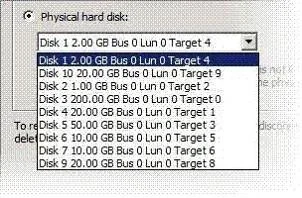
70-659 question #75 exhibit

Options

  • ATake Disk 8 offline.
  • BConvert Disk 8 to a dynamic disk.
  • CFormat Disk 8, and mark the partition as active.
  • DRun the Diskpart command. At the Diskpart prompt, type select disk 8, and then type recover.

How the community answered

(33 responses)
  • A
    85% (28)
  • B
    9% (3)
  • C
    3% (1)
  • D
    3% (1)

Explanation

Configuring Pass-through Disks in Hyper-V Pass -through Disk Configuration Hyper-V allows virtual machines to access storage mapped directly to the Hyper-V server without requiring the volume be configured. The storage can either be a physical disk internal to the Hyper-V server or it can be a Storage Area Network (SAN) Logical Unit (LUN) mapped to the To ensure the Guest has exclusive access to the storage, it must be placed in an Offline state from the Hyper-V server perspective. Additionally, this raw piece of storage is not limited in size so, hypothetically, it can be a multi-terabyte LUN. After storage is mapped to the Hyper-V server, it will appear as a raw volume and will be in an Offline state (depending on the SAN Policy (Figure 1-1)) as seen in Figure 1. Figure 1: Raw disk is Offline Figure 1-1 SAN Mode determination usingdiskpart.exe I stated earlier that a disk must beOfflinefrom the Hyper-V servers' perspective in order for the Guest to have exclusive access. However, a raw volume must first be initialized before it can be used. To accomplish this in the Disk Management interface, the disk must first be brought Online. OnceOnline,the disk will show as being Not Initialized(Figure 2). Figure 2: Disk is Online but Not Initialized Right-click on the disk and select Initialize Disk(Figure 3). Figure 3: Initialize the disk Select either an MBR or GPTpartition type (Figure 4). Figure 4: Selecting a partition type Once a disk is initialized, it can once again be placed in anOfflinestate. If the disk is not in anOfflinestate, it will not be available for selection when configuring the Guest's storage. In order to configure a Pass-through disk in a Guest, you must selectAttach a virtual disk laterin the new Virtual Machine Wizard(Figure 5). Figure 5: Choosing to attach a virtual disk later If the Pass-through disk will be used to boot the operating system, it must be attached to an IDE Data disks can take advantage of SCSI controllers. In Figure 6, a Pass-through disk is attached to IDE Controller 0. Figure 6: Attaching a pass-through disk to an IDE Controller Note:If the disk does not appear in the drop down list, ensure the disk isOfflinein the Disk Management interface (In Server CORE, use thediskpart.exeCLI). Once the Pass-through disk is configured, the Guest can be started and data can placed on the drive. If an operating system will be installed, the installation process will properly prepare the disk. If the disk will be used for data storage, it must be prepared in the Guest operating system before data can be placed on it. If a Pass-through disk, being used to support an operating system installation, is broughtOnlinebefore the Guest is started, the Guest will fail to start. When using Pass-through disks to support an operating system installation, provisions must be made for storing the Guest configuration file in an alternate location. This is because the entire Pass-through disk is consumed by the operating system installation. An example would be to locate the configuration file on another internal drive in the Hyper-V server itself. Or, if it is a cluster, the configuration file can be hosted on a separate cluster providing highly available file services. Be aware that Pass- through disks cannot be dynamically expanded. Additionally, when using Pass-through disks, you lose the capability to take snapshots, and finally, you cannot use differencing disks with Pass- Note: When using Pass-through disks in a Windows Server 2008 Failover Cluster, you must have the update documented inKB951308: Increased functionality and virtual machine control in the Windows Server 2008 Failover Cluster Management console for the Hyper-V roleinstalled on all nodes in the cluster.

Topics

#pass-through disk#disk offline#Hyper-V Manager#physical disk

Community Discussion

No community discussion yet for this question.

Full 70-659 Practice