nerdexam
Microsoft

70-659 · Question #74

You have a Windows Server 2008 R2 Hyper-V failover cluster with a single iSCSI logical unit number (LUN) and one highly available virtual machine (HAVM). You manage the virtual environment by using…

The correct answer is D. Move the VHD of one HAVM to a new iSCSI LUN. The next step for proper network planning and utilization involves iSCSI. Will the VMs be using iSCSI, or will the host be using iSCSI? Regardless of whether it's a host or a guest, you should set aside a separate interface for each instance of iSCSI traffic. If the host is…

Implementing a Server Virtualization Infrastructure

Question

You have a Windows Server 2008 R2 Hyper-V failover cluster with a single iSCSI logical unit number (LUN) and one highly available virtual machine (HAVM). You manage the virtual environment by using Microsoft System Center Virtual Machine Manager (VMM) 2008 R2. You monitor the environment by using Microsoft System Center Operations Manager 2007 R2. You configure a new virtual machine (VM) by deploying a VHD from the VMM library and placing the VHD on the existing iSCSI LUN. You create an HAVM configuration, and you attach the VHD to the configuration. VMM reports the status of the VMs as Unsupported Cluster Configuration. You need to be able to manage the VMs by using VMM. What should you do?

Exhibit
70-659 question #74 exhibit

Options

  • AConfigure Windows System Resource Manager (WSRM) on the Windows Server 2008 R2
  • BConfigure Performance and Resource Optimization (PRO) on the Windows Server 2008 R2
  • CMove the VHD of one HAVM to the system volume of a cluster node.
  • DMove the VHD of one HAVM to a new iSCSI LUN.

How the community answered

(60 responses)
  • A
    5% (3)
  • B
    8% (5)
  • C
    15% (9)
  • D
    72% (43)

Explanation

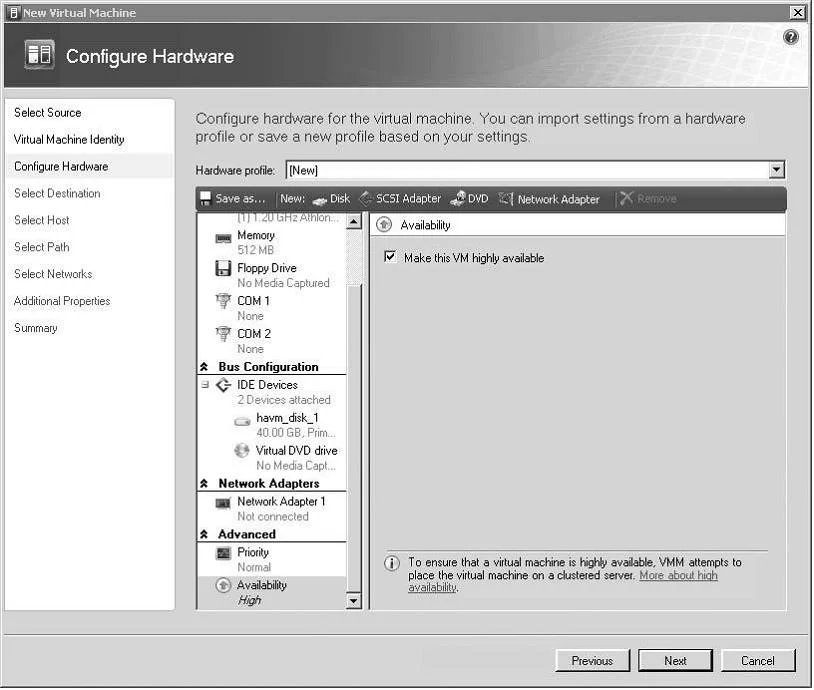
The next step for proper network planning and utilization involves iSCSI. Will the VMs be using iSCSI, or will the host be using iSCSI? Regardless of whether it's a host or a guest, you should set aside a separate interface for each instance of iSCSI traffic. If the host is using iSCSI (for failover clustering, for example), then it should have a separate adapter port that is different from any adapter port being used for guest VMs using iSCSI. iSCSI can be used in a VM--in fact, it's the only way to set up a cluster Note of VMs. It's recommended that if a VM is using iSCSI, you should create a separate virtual network to ensure sufficient bandwidth. Creating Highly Available Virtual Machines Last but not least, one of the most important provisioning options is the ability to make a VM highly available. Doing so provides availability in the event that the virtualization host experiences planned or unplanned downtime. Planned downtime can occur when you perform maintenance on a host; unplanned downtime can occur when a virtualization host goes down completely for any reason. In the event of planned downtime, the VM state is saved and migrated to another virtualization host in a Hyper-V Quick Migration cluster. If a virtualization host crashes that is a part of a Quick Migration cluster, the VM and associated resources are restarted on another Hyper-V host in the Quick Migration cluster. To provision highly available VMs, you first must have set up a Quick Migration cluster Then, you're almost ready to use SCVMM to create highly available VMs. You have to make SCVMM aware of the host cluster the same way you add any host to SCVMM for management. Let's walk through the steps for making a VM highly available: 1. Add the Quick Migration cluster to SCVMM via the SCVMM administrator console using the Add Host option. SCVMM detects that you're adding a node to the Quick Migration cluster and adds SCVMM agents to each host in the cluster. A cluster object is created and available in the SCVMM console. See Figure for a view of the new cluster object. 2. You're ready to configure a highly available VM. Open the SCVMM administrator console. 3. Select New Virtual Machine to start the New Virtual Machine Wizard. 4. Select the source for the new VM. Create the new machine with a blank hard drive. 5. Select the name of the VM, the owner of the VM (AD user or group), and enter a description of 6. Set up the hardware profile of the VM, including the VHD, the processor count, the network adapters, and either IDE or SCSI adapters. 7. The most important step is to scroll down to the Availability option and select the check box to make this VM highly available 8. Select the destination. You can either deploy directly to an existing host or store the VM on an SCVMM library server. 9. Intelligent Placement determines the best host for the workload using the star rating system. The host with the most stars represents the best host for placement of this VM (driven by the Intelligent Placement settings shown in Figure 10. Select a VM path that is in the Quick Migration cluster and a SAN volume. 11. Click Create The Virtual Machine, and verify that the VM is created on the selected cluster 12. Verify the high-availability configuration for the VM by right-clicking the VM and performing a migration of the VM to another node in the Quick Migration cluster.

Topics

#Hyper-V failover cluster#HAVM#iSCSI LUN#highly available VM

Community Discussion

No community discussion yet for this question.

Full 70-659 Practice