
300-625 · Question #26
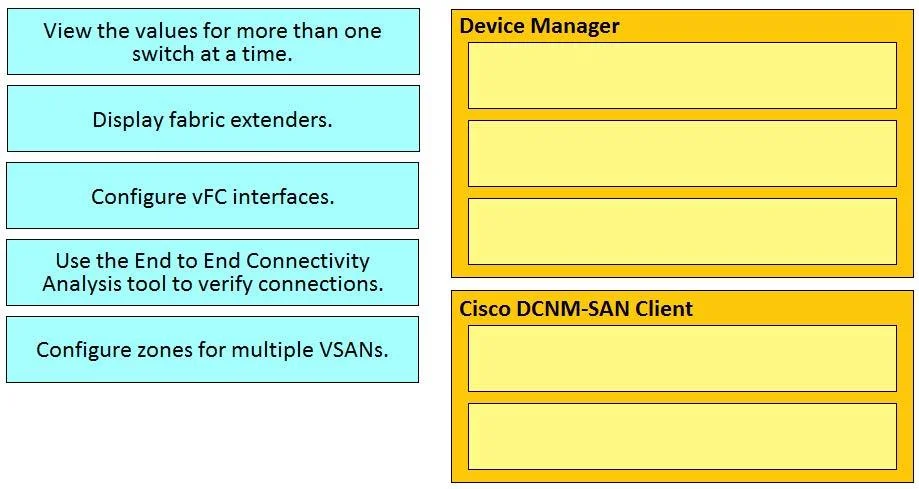
Drag and Drop Question Drag and drop the DCNM configuration tasks from the left onto the correct tools on the right. Answer:
The correct answer is Configure vFC interfaces.; Configure zones for multiple VSANs.; View the values for more than one switch at a time.; Display fabric extenders.; Use the End to End Connectivity Analysis tool to verify connections. DCNM Configuration Tasks - Drag-and-Drop Explained Note: The question maps tasks to specific DCNM tools (the right-side targets aren't shown in your text). Based on the correct arrangement, here's what each maps to and why: --- 1. Configure vFC interfaces → FCoE Wizard Virtual…
Question
Drag and Drop Question Drag and drop the DCNM configuration tasks from the left onto the correct tools on the right. Answer:
Exhibit
Answer Area
Drag items
Correct arrangement
- Configure vFC interfaces.
- Configure zones for multiple VSANs.
- View the values for more than one switch at a time.
- Display fabric extenders.
- Use the End to End Connectivity Analysis tool to verify connections.
Explanation
DCNM Configuration Tasks - Drag-and-Drop Explained
Note: The question maps tasks to specific DCNM tools (the right-side targets aren't shown in your text). Based on the correct arrangement, here's what each maps to and why:
1. Configure vFC interfaces → FCoE Wizard
Virtual Fibre Channel (vFC) interfaces bind FCoE to Ethernet ports, enabling Fibre Channel over Ethernet. The FCoE Wizard in DCNM is the dedicated tool for creating and managing vFC interface bindings. Common mistake: Trying to configure vFC through the standard Interfaces panel - the wizard handles the FCoE-specific parameters correctly.
2. Configure zones for multiple VSANs → Zone Wizard
The Zone Wizard allows zone configuration across multiple VSANs in a single workflow. Individual VSAN zone management is possible elsewhere, but the wizard is specifically designed for multi-VSAN scope. Common mistake: Using the basic Zones panel, which operates on one VSAN at a time - the wizard is required when the task explicitly involves multiple VSANs.
3. View the values for more than one switch at a time → Table View
DCNM's Table View aggregates configuration and status values across multiple switches into a tabular format simultaneously. The topology or individual device views only show one device's context at a time. Common mistake: Assuming the Topology view serves this purpose - it shows relationships, not comparative values.
4. Display fabric extenders → Topology View
Fabric Extenders (FEX, e.g., Cisco Nexus 2000 series) are displayed in DCNM's Topology view, where their parent-switch relationships and connectivity are rendered visually. Common mistake: Looking for FEX under a dedicated "FEX" menu - they appear as connected nodes within the fabric topology.
5. Use End to End Connectivity Analysis tool to verify connections → End to End Connectivity Analysis
This is DCNM's built-in path analysis tool that traces connectivity between two endpoints through the fabric, verifying that zoning, VSAN membership, and physical paths are all consistent. Common mistake: Using ping or other CLI-based verification - the E2E tool is fabric-aware and validates SAN-layer connectivity, not just IP reachability.
Key Takeaway
The arrangement follows a logical workflow: provision interfaces (vFC) → configure access control (zones) → verify configuration across switches (table view) → inspect physical topology (FEX/topology) → validate end-to-end connectivity. Understanding which DCNM tool has which scope (single switch vs. multi-switch, physical vs. logical) is the core concept being tested.
Topics
Community Discussion
No community discussion yet for this question.