
220-1202 · Question #91
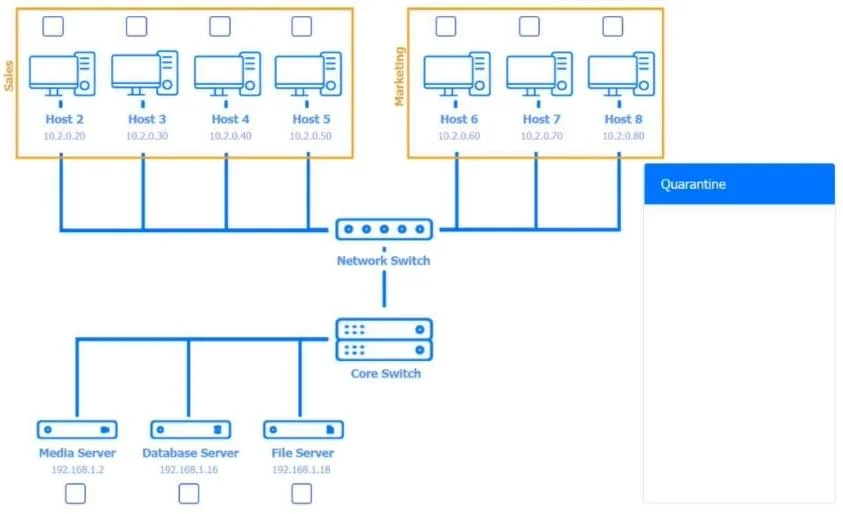
SIMULATION Multiple users are reporting audio issues as well as performance issues after downloading unauthorized software. You have been dispatched to identify and resolve any issues on the network…
Exam Simulation Explanation: Network Quarantine & Audio Issue Resolution --- Overall Goal Users downloaded unauthorized software, likely introducing malware that is consuming bandwidth and degrading network performance - causing audio (VoIP/streaming) quality issues. The fix…
Question
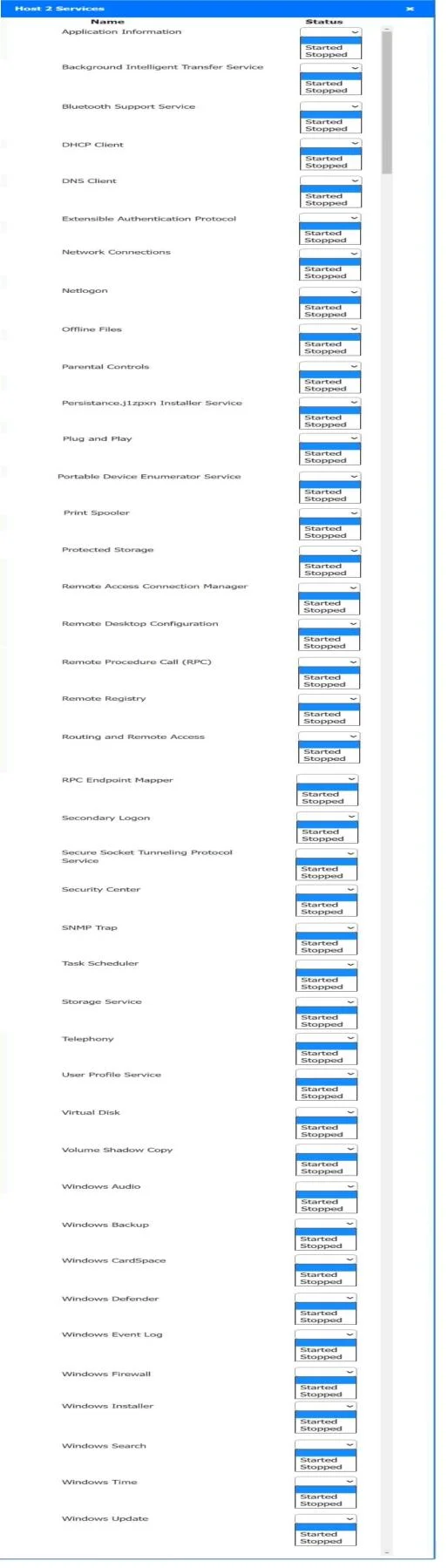
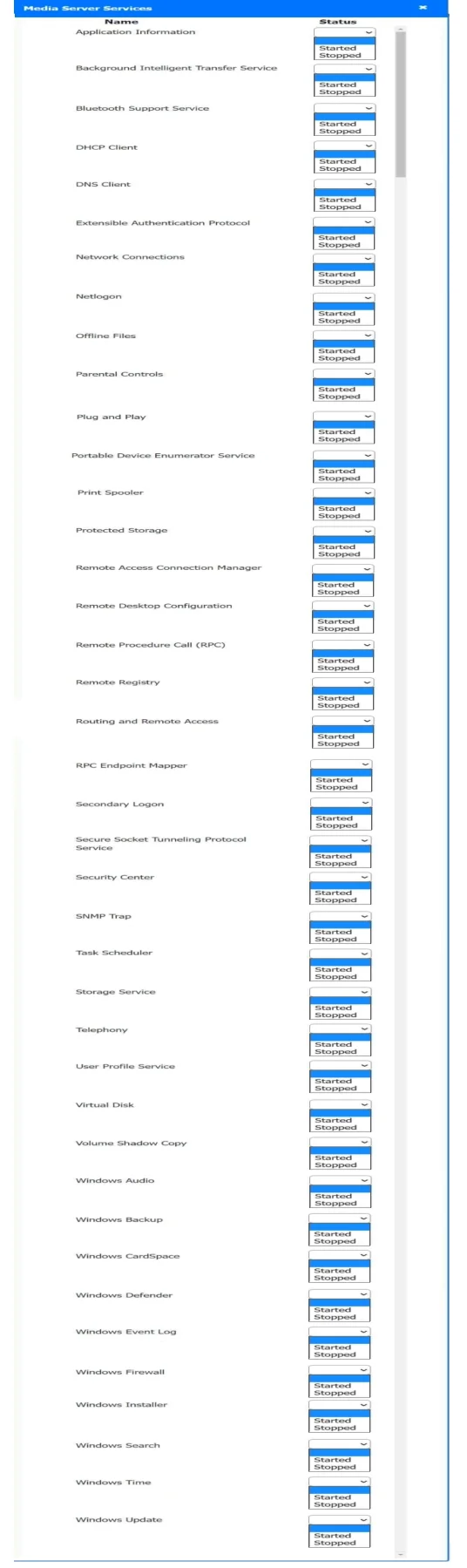
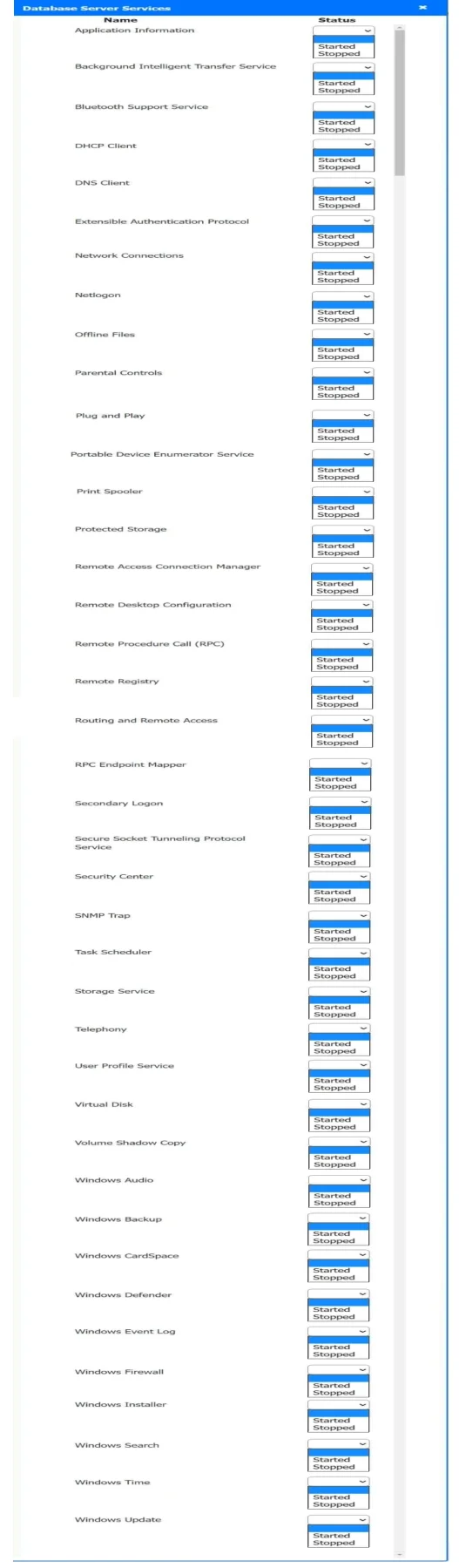
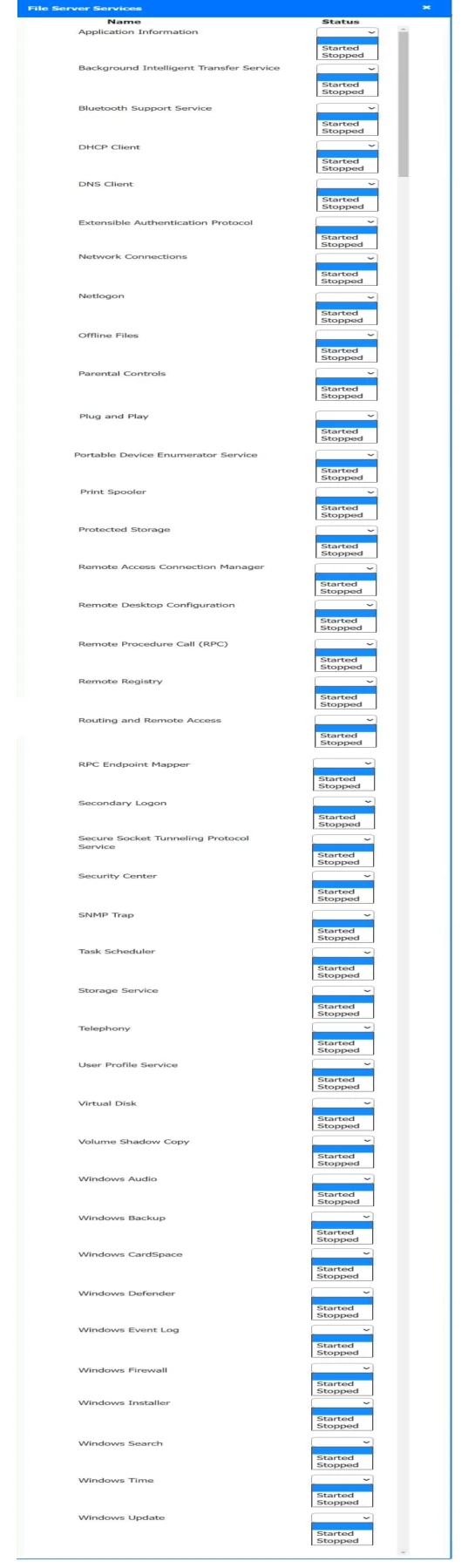
SIMULATION Multiple users are reporting audio issues as well as performance issues after downloading unauthorized software. You have been dispatched to identify and resolve any issues on the network using best practice procedures. INSTRUCTIONS Quarantine and configure the appropriate device(s) so that the users' audio issues are resolved using best practice procedures. Multiple devices may be selected for quarantine. Click on a host or server to configure services. If at any time you would like to bring back the initial state of the simulation, please click the Reset All button. Answer:
Exhibits
Explanation
Exam Simulation Explanation: Network Quarantine & Audio Issue Resolution
Overall Goal
Users downloaded unauthorized software, likely introducing malware that is consuming bandwidth and degrading network performance - causing audio (VoIP/streaming) quality issues. The fix has two objectives:
- Quarantine the problematic devices by segmenting them onto isolated network zones
- Enable remote remediation of the infected PC via RDP
- Secure the wireless segment that receives the quarantined game console
The core principle is network segmentation - separating infected/untrusted devices from clean infrastructure so they cannot degrade or threaten other hosts.
Step-by-Step Reasoning
Step 1 - Configure Wireless AP (LAN IP: 192.168.10.1, WPA2 PSK)
The Wireless AP becomes the quarantine zone for the game console. Setting its LAN IP to 192.168.10.1 places it on a distinct subnet (192.168.10.0/24) that is separate from the main LAN. WPA2 PSK is the best-practice minimum for wireless encryption - it prevents unauthorized clients from joining the quarantine segment and sniffing traffic.
If skipped: The game console remains on the main network, continuing to consume bandwidth and potentially spreading malware. Using no encryption or WEP would leave the segment vulnerable.
Step 2 - Configure Router: Port-Forward TCP Any -> 3389 to Windows PC
Port 3389 is RDP (Remote Desktop Protocol). Forwarding inbound TCP port 3389 from the Internet to the Windows PC allows an administrator to remotely connect and remediate the infected machine without physically touching it - a best-practice response procedure. The PC is the device that downloaded the unauthorized software.
If skipped: IT cannot remotely manage or clean the infected PC. Physical access becomes required, which is slower and less practical.
Security note: In a real environment you'd restrict the source IP, not "Any." The exam answer uses "Any" because it's a simulation testing the concept, not production hardening.
Step 3 - Configure Firewall (Screened Subnet Side IP: 10.100.0.1)
The 10.100.0.0/24 subnet represents a screened subnet (DMZ). Setting the firewall's interface facing that subnet to 10.100.0.1 means the firewall controls all traffic entering/exiting the DMZ. This protects any servers in the screened subnet from the rest of the compromised network.
If skipped: The DMZ has no enforcement boundary - infected hosts could reach servers directly.
Step 4 - Place the PC Behind the Router
The Windows PC must sit on the LAN segment served by the router so the port-forward rule in Step 2 has a valid destination. The router's NAT/port-forward sends inbound RDP traffic to the PC's private IP address.
If skipped or misplaced: The port-forward rule points to a host on the wrong segment and RDP connections fail - no remote remediation possible.
Step 5 - Place the Game Console on the Wireless AP
The game console (the likely source of unauthorized software and bandwidth abuse) is quarantined to the 192.168.10.0/24 wireless segment. Isolating it here stops it from degrading the main LAN's bandwidth, which resolves the audio quality issues (VoIP or audio streams were being starved of bandwidth by the console's malicious/unauthorized traffic).
If skipped: The console stays on the main LAN, performance and audio issues persist.
Step 6 - Place the Firewall in Front of the Screened Subnet
The firewall with its 10.100.0.1 interface sits between the main network and the screened subnet, acting as the enforcement point for DMZ access. This follows the screened subnet security model: traffic must traverse the firewall to reach DMZ servers.
If skipped: DMZ servers are reachable directly from any network segment - including potentially infected ones.
What Would Break If Done Out of Order
| Skipped Step | Consequence |
|---|---|
| Step 1 (AP config) | No quarantine zone exists for the console |
| Step 2 (port-forward) | RDP unreachable; PC can't be remotely remediated |
| Step 3 (firewall IP) | DMZ firewall has no defined interface; routing fails |
| Step 5 (console placement) | Audio issues persist; quarantine never executed |
Memory Tip
Think "Segment, Secure, Remediate":
- Segment the bad devices (console -> Wireless AP, firewall gates the DMZ)
- Secure the wireless zone (WPA2 PSK)
- Remediate the infected PC remotely (RDP port-forward)
The audio issues are a symptom of network congestion from unauthorized software. Quarantine the offending device, and the congestion - and the audio problems - go away.
Topics
Community Discussion
No community discussion yet for this question.