
SC-300 · Question #431
You have a Microsoft 365 E5 subscription. You create an access review named Review1. Review1 requires that every six months, Microsoft 365 group owners review guest user access to their groups. You…
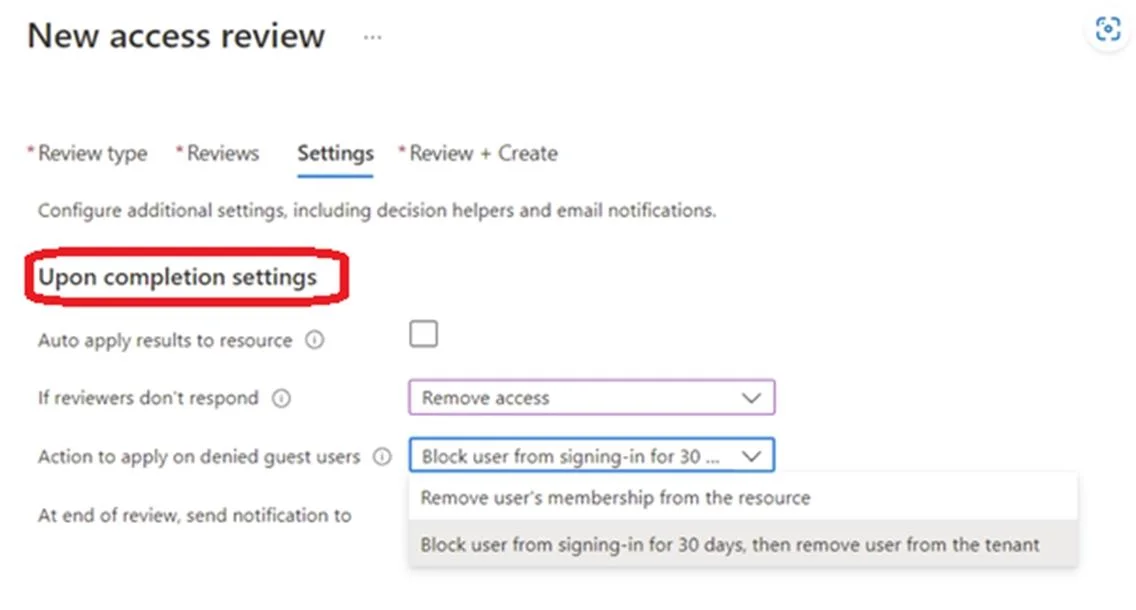
The correct answer is D. Upon completion settings. When completed Upon completion settings * Advanced settings Note: See step 5 below. Ask guests to review their need for access, in general In some organizations, guests might not be aware of their group memberships. 1. Create a security group in Microsoft Entra ID with the…
Question
You have a Microsoft 365 E5 subscription. You create an access review named Review1. Review1 requires that every six months, Microsoft 365 group owners review guest user access to their groups. You need to ensure that if the group owners fail to review the membership of Review1, guest users are removed automatically. Which settings should you configure for Review1?
Exhibit
Options
- AReviewers
- BGeneral
- CAdvanced settings
- DUpon completion settings
How the community answered
(41 responses)- A7% (3)
- B17% (7)
- C5% (2)
- D71% (29)
Explanation
- When completed * Upon completion settings * Advanced settings Note: See step 5 below. Ask guests to review their need for access, in general In some organizations, guests might not be aware of their group memberships. 1. Create a security group in Microsoft Entra ID with the guests as members, if a suitable group doesn't already exist. 2. To create a’ access review for that group, select the reviewers to be the members themselves. 3. Ask each guest to review their own membership. By default, each guest who accepted an invitation receives an email from Microsoft Entra ID with a link to the access review in your organization's access panel. 4. After the reviewers give input, stop the access review. 5. You can automatically delete the guest users Microsoft Entra B2B accounts as part of an access review when you're configuring an Access review for Select Team + Groups. This option isn't available for All Microsoft 365 groups with guest users. To do so, select Auto apply results to resource as this will automatically remove the user from the resource. If reviewer don't respond should be set to Remove access and Action to apply on denied guest users should also be set to Block from signing in for 30 days then remove user from https://learn.microsoft.com/en-us/entra/id-governance/manage-guest-access-with-access-reviews
Topics
Community Discussion
No community discussion yet for this question.