
SC-300 · Question #341
SIMULATION Use the following login credentials as needed: To enter your username, place your cursor in the Sign in box and click on the username below. To enter your password, place your cursor in…
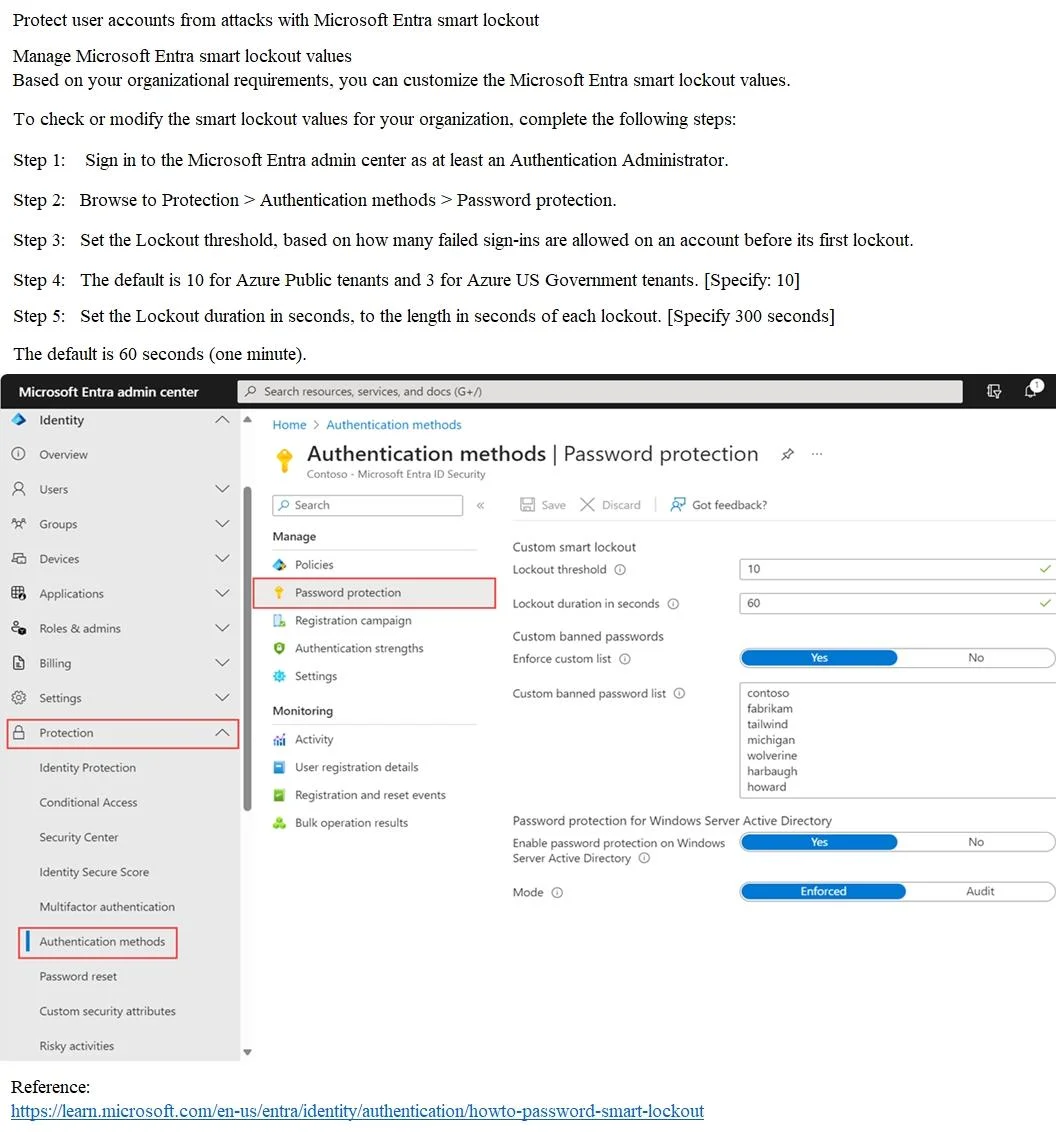
The correct approach is to configure Microsoft Entra ID Smart Lockout via Protection > Authentication methods > Password protection in the Microsoft Entra admin center. Setting the Lockout threshold to 10 ensures accounts lock after 10 failed attempts, and setting the Lockout…
Question
SIMULATION Use the following login credentials as needed:
To enter your username, place your cursor in the Sign in box and click on the username below. To enter your password, place your cursor in the Enter password box and click on the password below. Microsoft 365 Username:[email protected] Microsoft 365 Password: =1122334455667788 If the Microsoft 365 portal does not load successfully in the browser, press CTRL-K to reload the portal in a new browser tab. The following information is for technical support purposes only:
Lab Instance: 99999999 You need to lock out accounts for five minutes when they have 10 failed sign-in attempts. To complete this task, sign in to the appropriate admin center. Answer:
Exhibit
Explanation
The correct approach is to configure Microsoft Entra ID Smart Lockout via Protection > Authentication methods > Password protection in the Microsoft Entra admin center. Setting the Lockout threshold to 10 ensures accounts lock after 10 failed attempts, and setting the Lockout duration to 300 seconds (5 minutes × 60 seconds/minute) enforces the required lockout period. This is the authoritative location for managing Smart Lockout policies in Microsoft 365/Entra ID environments.
Topics
Community Discussion
No community discussion yet for this question.