
MS-102 · Question #67
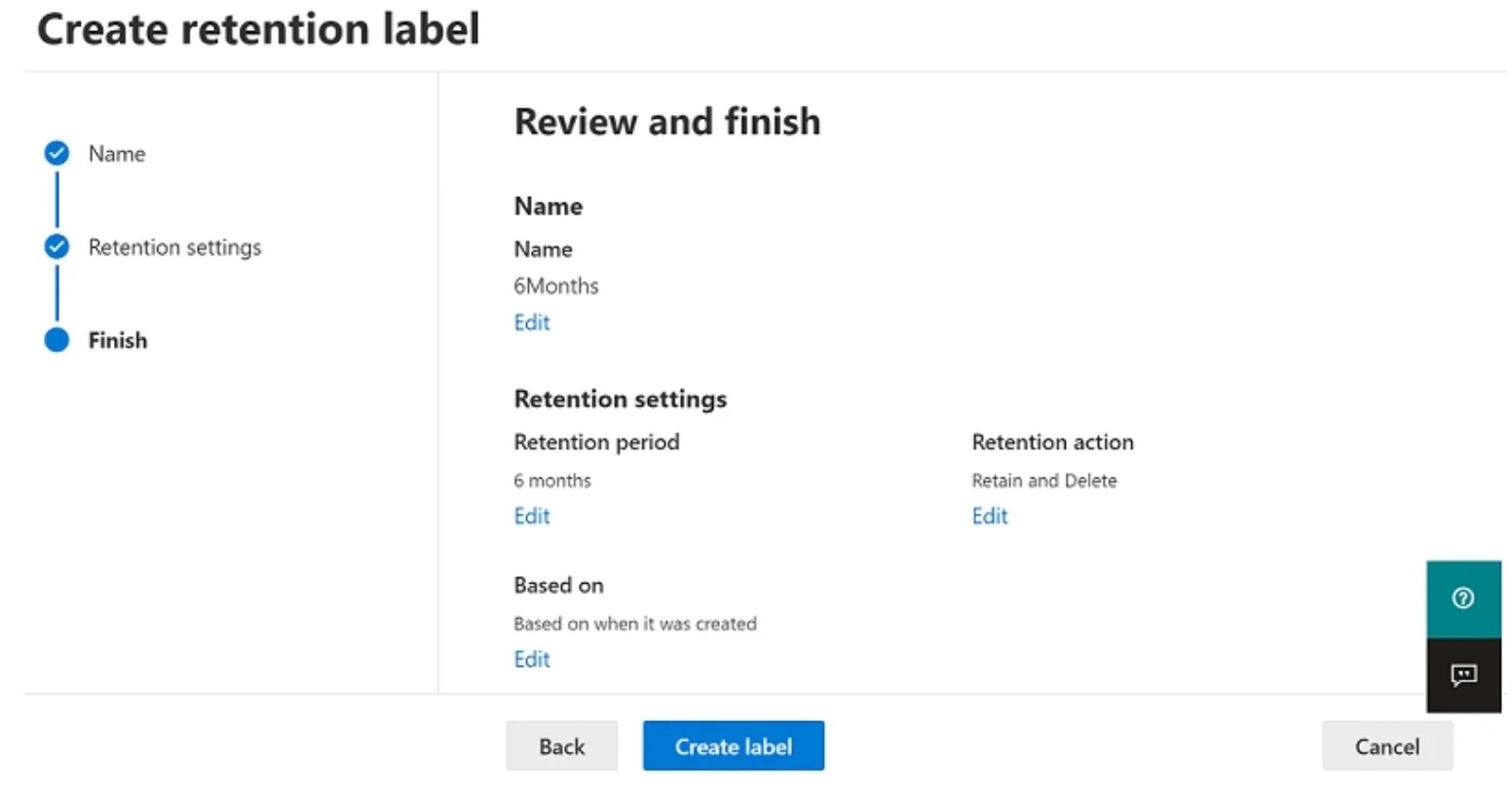
You have a Microsoft 365 E5 tenant. You create a retention label named Retention1 as shown in the following exhibit. When users attempt to apply Retention1, the label is unavailable. You need to…
The correct answer is A. Create a new label policy. In Microsoft Purview, creating a retention label does not automatically make it available to users. A label must be published through a label policy, which specifies which labels are made available and to which users, groups, or locations (SharePoint sites, mailboxes, etc.)…
Question
You have a Microsoft 365 E5 tenant. You create a retention label named Retention1 as shown in the following exhibit. When users attempt to apply Retention1, the label is unavailable. You need to ensure that Retention1 is available to all the users. What should you do?
Exhibit
Options
- ACreate a new label policy.
- BModify the Authority type setting for Retention1.
- CModify the Business function/department setting for Retention1.
- DUse a file plan CSV template to import Retention1.
How the community answered
(36 responses)- A89% (32)
- B3% (1)
- C6% (2)
- D3% (1)
Explanation
In Microsoft Purview, creating a retention label does not automatically make it available to users. A label must be published through a label policy, which specifies which labels are made available and to which users, groups, or locations (SharePoint sites, mailboxes, etc.). Without a label policy that publishes Retention1, users will not see it when attempting to manually apply a label. Modifying the Authority type (B) or Business function/department (C) only changes the label's file plan metadata. Importing via a CSV template (D) is used to create labels in bulk, not to publish them. The correct fix is to create a new label policy (A) that includes Retention1 and targets the appropriate users.
Topics
Community Discussion
No community discussion yet for this question.