MB-800 · Question #299
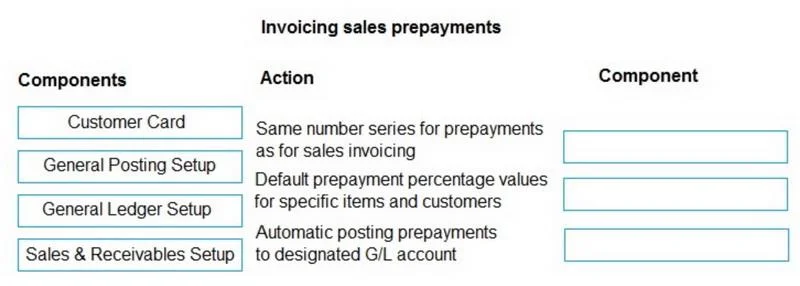
Drag and Drop Question You are implementing Business Central for a company. The finance manager requires the following implementation to determine which customers are required to make a full or…
The correct answer is Sales & Receivables Setup; Customer Card; General Posting Setup. Business Central Prepayments - Drag-and-Drop Explanation The Three Requirements Mapped | # | Requirement | Correct Component | |---|---|---| | 1 | Same number series for prepayments as sales invoicing | Sales & Receivables Setup | | 2 | Default prepayment % for specific…
Question
Exhibit
Answer Area
Drag items
Correct arrangement
- Sales & Receivables Setup
- Customer Card
- General Posting Setup
Explanation
Business Central Prepayments - Drag-and-Drop Explanation
The Three Requirements Mapped
| # | Requirement | Correct Component |
|---|---|---|
| 1 | Same number series for prepayments as sales invoicing | Sales & Receivables Setup |
| 2 | Default prepayment % for specific items/customers | Customer Card |
| 3 | Auto-post prepayments to a designated G/L account | General Posting Setup |
Placement 1 - Sales & Receivables Setup
Requirement: Enable the same number series for prepayments as the one used for sales invoicing.
The Sales & Receivables Setup page is the central configuration hub for all sales document numbering. It contains fields like Posted Invoice Nos. and Posted Prepmt. Inv. Nos. (Posted Prepayment Invoice Numbers). Setting both fields to the same number series ensures prepayment invoices draw from the same sequence as regular posted sales invoices - exactly what the finance manager needs.
This is the only place in BC where number series for sales and prepayment documents are linked.
Placement 2 - Customer Card
Requirement: Establish default values for a required prepayment percentage for specific items and customers.
The Customer Card has a dedicated Prepayment % field. When populated, this value automatically defaults onto any new sales order created for that customer. Similarly, the Item Card also carries a Prepayment % field. BC also supports a Sales Prepayment Percentages table (accessible from the Customer Card) that lets you define percentage combinations by customer group and item - giving granular control over "specific items and customers."
The Customer Card is the correct answer here because it represents the per-customer (and by extension, per-item via the sub-table) default configuration point.
Placement 3 - General Posting Setup
Requirement: Automatically post prepayments to a designated G/L account.
The General Posting Setup is a matrix of Gen. Business Posting Group × Gen. Product Posting Group combinations. Each row contains specific G/L account mappings - including the Sales Prepayments Account field. When a prepayment invoice is posted, BC looks up this matrix and routes the amount to that designated account automatically.
This is distinct from the Item or Customer card - those control percentages, not where money lands in the ledger.
Common Mistakes & Misconceptions
Confusing General Ledger Setup with General Posting Setup - this is the most common error. General Ledger Setup controls high-level accounting rules (posting date ranges, rounding, currency). It does not contain prepayment G/L account mappings. That belongs in General Posting Setup. The unused distractor here, General Ledger Setup, is deliberately included to test this distinction.
Assigning number series to General Ledger Setup - number series for sales documents live in Sales & Receivables Setup, not in the GL-level setup.
Thinking prepayment % defaults live in Sales & Receivables Setup - that page controls process-level defaults (number series, discount settings, etc.), not customer- or item-specific prepayment percentages. Those belong on the Customer/Item Card.
Topics
Community Discussion
No community discussion yet for this question.