
MB-800 · Question #275
Case Study 4 - Fabrikam, Inc Background Fabrikam, Inc., is a manufacturer of products for the gift industry. The company plans to implement Business Central as its new enterprise resource planning…
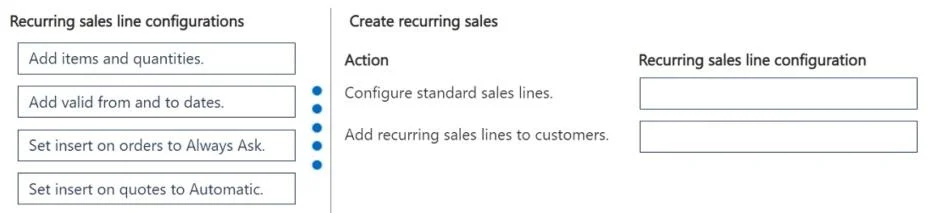
The correct answer is Add valid from and to dates.; Add items and quantities.; Set insert on orders to Always Ask. Recurring Sales Lines Configuration - Explanation Context The issue: "Order entry takes too long for wholesale customers." The requirement: "The system must be configured to ask the user if recurring lines should be added to sales orders." The solution is Recurring Sales Lines…
Question
Exhibit
Answer Area
Drag items
Correct arrangement
- Add valid from and to dates.
- Add items and quantities.
- Set insert on orders to Always Ask.
Explanation
Recurring Sales Lines Configuration - Explanation
Context
The issue: "Order entry takes too long for wholesale customers." The requirement: "The system must be configured to ask the user if recurring lines should be added to sales orders."
The solution is Recurring Sales Lines (Standard Sales Codes) in Business Central - a feature that lets you predefine item lines for a customer so they can be quickly added to new orders.
Step-by-Step Breakdown
Step 1 - Add valid from and to dates
Before anything else, you must define the validity window for the recurring sales line code. Business Central requires a date range to know when the configuration is active. Without this, the recurring lines cannot be used. This is a prerequisite setup step - it scopes when the saved lines apply.
Step 2 - Add items and quantities
Once the validity period exists, you populate the recurring line with the actual products and quantities the customer typically orders. This is the content of the template - the whole point of recurring lines is to preload these details so the order entry clerk doesn't re-key them every time.
Step 3 - Set insert on orders to "Always Ask"
The Insert Rec. Lines On Orders field controls the insertion behavior. Setting it to Always Ask means Business Central will prompt the user each time a sales order is created for that customer - exactly matching the stated requirement. This gives users control without forcing automatic insertion.
Why "Set insert on quotes to Automatic" is Wrong
Two reasons:
- Wrong document type - the requirement is about sales orders, not quotes.
- Wrong behavior - "Automatic" inserts lines silently, bypassing the user prompt. The requirement explicitly says to ask the user.
Common Misconceptions
| Mistake | Why it's wrong |
|---|---|
| Skipping valid from/to dates | They are required fields - setup fails without them |
| Using "Automatic" instead of "Always Ask" | Removes the user prompt; violates the stated requirement |
| Applying this to quotes | The issue is about sales order entry speed, not quotes |
The order is logical: scope it → fill it → configure its behavior.
Topics
Community Discussion
No community discussion yet for this question.