
MB-500 · Question #368
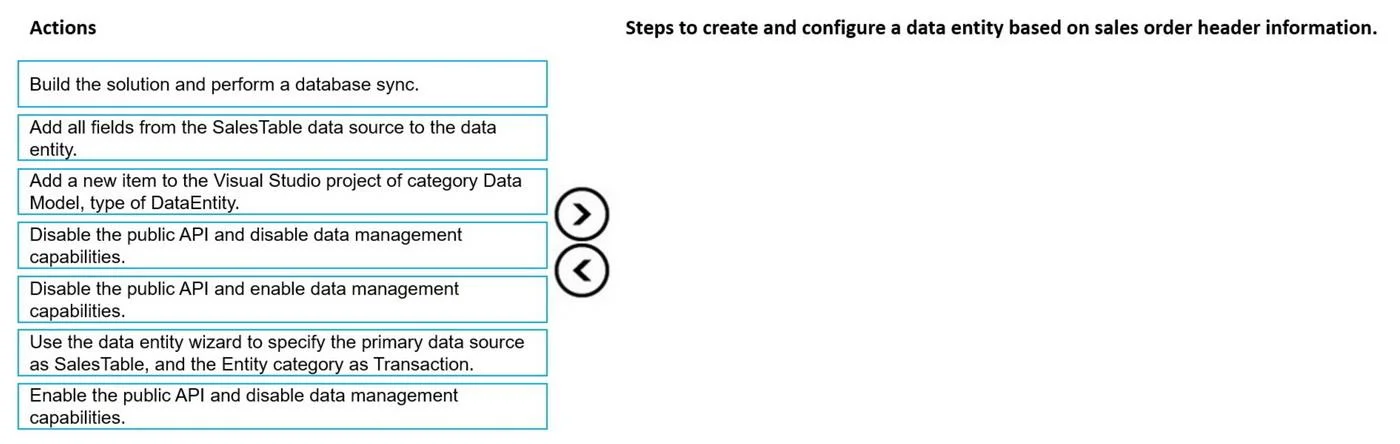
Drag and Drop Question A company has a Dynamics 365 finance and operations app. A user requests a data entity for the sales order header information in a Power BI report that uses OData. You need to…
The correct answer is Add a new item to the Visual Studio project of category Data Model, type of DataEntity.; Use the data entity wizard to specify the primary data source as SalesTable, and the Entity category as Transaction.; Add all fields from the SalesTable data source to the data entity.; Enable the public API and enable data management capabilities.; Build the solution and perform a database sync. Creating a D365 F&O Data Entity for OData/Power BI Overview This question tests your knowledge of the data entity creation workflow in Visual Studio (X++ development environment) for Dynamics 365 Finance & Operations. The process follows a strict wizard-driven sequence before…
Question
Exhibit
Answer Area
Drag items
Correct arrangement
- Add a new item to the Visual Studio project of category Data Model, type of DataEntity.
- Use the data entity wizard to specify the primary data source as SalesTable, and the Entity category as Transaction.
- Add all fields from the SalesTable data source to the data entity.
- Enable the public API and enable data management capabilities.
- Build the solution and perform a database sync.
Explanation
Creating a D365 F&O Data Entity for OData/Power BI
Overview
This question tests your knowledge of the data entity creation workflow in Visual Studio (X++ development environment) for Dynamics 365 Finance & Operations. The process follows a strict wizard-driven sequence before configuration and compilation.
Step-by-Step Breakdown
Step 1: Add a new item to the Visual Studio project of category Data Model, type of DataEntity.
This is the entry point - you must create the entity artifact before anything else exists to configure. In VS, you right-click the project → Add → New Item → Data Model → Data Entity. This opens the Data Entity wizard. Nothing else can happen until this object exists in the project.
Step 2: Use the data entity wizard to specify the primary data source as SalesTable, and the Entity category as Transaction.
The wizard runs immediately after creation. You must configure the primary data source (SalesTable, which holds sales order header data) and the Entity category (Transaction, because sales orders are transactional records) before you can select fields. The wizard scaffolds the entity structure - skipping this or doing it later is not possible in the wizard flow.
Step 3: Add all fields from the SalesTable data source to the data entity.
Only after the wizard establishes SalesTable as the data source can you select which fields to expose. You add the fields you want visible in OData/Power BI here. This must come after the wizard because the field picker is bound to the data sources defined in Step 2.
Step 4: Enable the public API and enable data management capabilities.
This is the critical configuration step for your use case. Since the requirement is OData for Power BI, you must:
- Enable Public API → exposes the entity via OData endpoint
- Enable Data Management → allows the entity to participate in import/export frameworks
Both are required together for full OData exposure. This is done after fields are added because you're finalizing what gets exposed before turning on the API.
Step 5: Build the solution and perform a database sync.
Always the last step. Building compiles the X++ code and validates the entity. The database sync registers the entity in the system tables (SysDataEntityTable, etc.) and makes it discoverable at runtime. You cannot test or use the OData endpoint until this completes successfully.
Why the Distractors Are Wrong
| Distractor | Why Excluded |
|---|---|
| Disable the public API and disable data management capabilities | Opposite of what's needed - OData requires the public API enabled |
| Enable the public API and disable data management capabilities | Half-correct, but disabling data management unnecessarily restricts the entity. For full OData support, both should be enabled |
Common Mistakes
- Doing the build before enabling the public API - the entity would compile but wouldn't be OData-accessible until you re-build after enabling it
- Confusing Entity category - choosing the wrong category (e.g., "Master" instead of "Transaction") doesn't break the entity but is semantically incorrect for sales orders and can affect filtering behavior in data management
- Forgetting database sync - building alone isn't enough; the sync is what registers the entity in the metadata tables that the OData stack reads
Topics
Community Discussion
No community discussion yet for this question.