
MB-500 · Question #205
Drag and Drop Question A banking company is creating custom functionality to consolidate and post financial transactions. You need to create menu items for the following business processes: Process1…
The correct answer is Action; Display; Action. Microsoft Dynamics 365 F&O: Menu Item Types Explained This question is from Microsoft Dynamics 365 Finance & Operations (D365 F&O). Understanding the three menu item types is essential: | Type | Purpose | |------|---------| | Action | Executes a class/batch job - triggers a…
Question
Exhibit
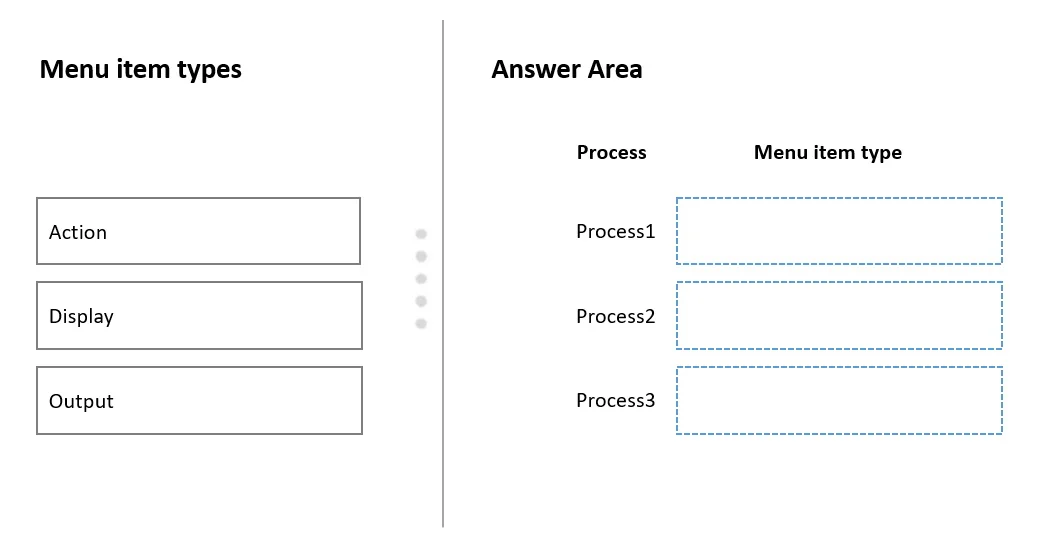
Answer Area
Drag items
Correct arrangement
- Action
- Display
- Action
Explanation
Microsoft Dynamics 365 F&O: Menu Item Types Explained
This question is from Microsoft Dynamics 365 Finance & Operations (D365 F&O). Understanding the three menu item types is essential:
| Type | Purpose |
|---|---|
| Action | Executes a class/batch job - triggers a process programmatically |
| Display | Opens a form - lets users view and interact with data |
| Output | Generates a report (SSRS) - produces printable/visual output |
Process 1 → Action
"Automatically check transactions against validation rules every hour"
This is a scheduled batch job - it runs on a timer, not triggered by a user opening a form or generating a report. Action menu items invoke a runnable class (e.g., SysOperation or RunBaseBatch), which is exactly the pattern for automated background processing. No form is opened; no report is printed - it just does something.
Process 2 → Display
"Manually review and correct transactions with errors. No preprocessing is done."
The phrase "no preprocessing is done" is the key clue. Display menu items open a form directly without running any prior logic. Users can view records, edit them, and correct errors interactively. This is the standard pattern for a review/correction workspace.
Not Action - because no background process is triggered.
Process 3 → Action
"Export transactions to another system when they successfully post"
This trips up most candidates. "Export" sounds like Output, but Output menu items are exclusively for SSRS reports (printed/visual output for humans). Exporting to another system is a programmatic integration - it runs a class that pushes data via a file, API, or queue. That's an Action.
Common Mistakes
- Choosing Output for Process 3: The word "export" misleads people. Output = reports for human consumption. System integrations/data exports = Action.
- Choosing Action for Process 2: Just because a user is "doing something" (correcting errors) doesn't mean it's an Action. The menu item type describes how the entry point works, not what the user does once inside. Display forms fully support editing.
- Confusing Display with read-only: Display menu items allow editing - they just open a form without preprocessing first.
Topics
Community Discussion
No community discussion yet for this question.