Question
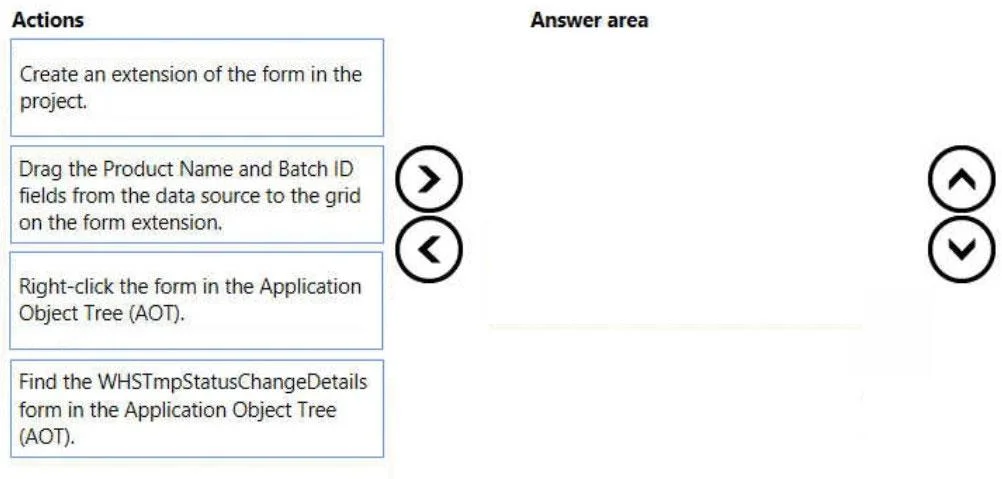
Case Study 3 - Munson's Pickles and Preserves Farm Background Munson's Pickles and Preserves Farm produces and sells jarred food goods. The organization has several production and warehouse locations across the United States. Each location runs both production and warehousing operations. The company has three locations: East, Central, and West. The company is upgrading its Dynamics AX 2009 system to Dynamics 365 Finance. Current environment General Munson's Pickles and Preserves Farm plans to migrate customizations, data, and integration from its legacy system into Dynamics 365 finance and operations apps. The Dynamics 365 finance and operations environment includes: - multiple cloud-hosted development environments using Microsoft Visual Studio 2017 - a Microsoft Azure DevOps project for source control - two tier 2 environments for user acceptance testing and staging, as well as production Munson's Pickles and Preserves Farm is currently in the planning and development phase of the upgrade process. The company's internal development team needs additional development resources to address issues. The company already created a project that is set up to use a custom model named GPExtensions. Integrations Munson's Pickles and Preserves Farm has a new integration for its freight processing information. The internal development team created the secure file transfer protocol (SFTP) site for the source information to be stored and the staging table to house the source information once the data is added to Dynamics 365 Finance. Information from the source will be transferred once a day from the source system and integrated with the target system. More than 10,000 records will be transferred over the integration. The company created an aggregate entity for the integration to minimize the amount of transmitted data. Munson's Pickles and Preserves Farm has added a new integration for freight processing where all item weights, dimensions, and other factors will be configured in the external portal while planning the loads. Once the load is planned, it will be integrated into Dynamics 365 finance and operations apps for the freight invoice processing to occur. No duplicate invoices or posting are associated with the freight invoice charges. The integration of this information from the source system is intended only for report creation and compilation purposes. Planned changes Munson's Pickles and Preserves Farm wants to change inventory forms to fit its current needs. Any modifications or enhancements must follow the existing functionality for forms in Dynamics 365 Finance. Requirements Integrations All data from integrations have the same format as an existing Dynamics 365 Finance apps field. All enhancements or customizations must use existing assets before creating new functionality. Munson's Pickles and Preserves Farm wants to change its integration strategy to include real- time data from the freight processing source system. The inventory must update as it is sold from the system. That information will be updated in Dynamics 365 Finance. The freight processing integration requires the use of an SFTP site to store XML files from the source system. The additional integration will use OData and must be transferred in real time. A periodic batch job must: - Pull data from the SFTP site. - Import the data to a staging table used to hold the information from the source system. - Map source data to the target table in Dynamics 365 Finance. The imported Load ID field must be added to the Sales Order header for all processed orders. Additional requirements for integrations, including other integration strategies, may be necessary as the company grows. Existing tables must be changed to include the Load ID. The database will need to be synched before adding the Load ID field. Changes Munson's Pickles and Preserves Farm must change the Inventory Status form to include more columns. It plans to create a table to enter the data for the Inventory Status form as a new data source. The company wants to add both the Product Name field and Batch ID field to this new table. The current form includes the item number, location, license plate, product inventory dimensions, and quantity. The grid on the Inventory Status form must include the product name by using the item number and legal entity. The user interface must be created to include the new columns and the data must be available to add to the grid. The form must have only an Action Pane, a Navigation List, a List Style Grid, a Details Header, and a Details Tab in the design and include the Load ID field. Munson's Pickles and Preserves Farm is currently in the process of adding the other required fields: one for Product Name and one for Batch ID. The new fields must be related to extended data types for the original fields on the existing data source for the Inventory Status form. Munson's Pickles and Preserves Farm plans to add the EcoResProductName and Batch ID data to the extended table for WHSTmpStatusChange. The fields on the table extension must be populated with data and visible on the Inventory Status form on insert. Issues The internal development team has created the SFTP site connections, the staging table, and the batch jobs for the new integration for freight processing. The development team needs to map the source data to the target table and the data management workspace. The development team notices errors with mapping target fields in the data management workspace. The team needs another developer to configure the table extensions, class extensions, and form extensions that are required for the planned changes. The internal development team has issues adding the required fields to the Inventory Status standard form. The team needs another developer to configure the table extensions, class extensions, and form extensions that are required for the planned changes. Question Drag and Drop Question You need to add new fields to the standard form and organize the grid to meet the requirements. In which order should you perform the actions? To answer, move all actions from the list of actions to the answer area and arrange them in the correct order. Answer:
Explanation
Explanation: Adding Fields to a Standard Form in D365 F&O
This question tests your knowledge of the form extension workflow in Dynamics 365 Finance and Operations (F&O). In D365 F&O, you never directly modify standard (Microsoft-owned) objects - you extend them. The correct order follows a strict find → right-click → create extension → modify pattern.
Why This Order?
The workflow reflects a fundamental D365 F&O development principle: you must locate an object before you can act on it, and you must extend it before you can modify it.
Step-by-Step Breakdown
1. Find the WHSTmpStatusCodeDetails form in the AOT
You cannot work with an object you haven't located. The Application Object Tree (AOT) is the central browser for all application objects in Visual Studio. Before anything else, you must navigate to the specific form (WHSTmpStatusCodeDetails) that drives the Inventory Status form. This is purely a prerequisite step - no action can be taken on the form until you know where it is.
Common mistake: Developers sometimes skip searching the AOT and try to create extensions blind, leading to extensions targeting the wrong object or being placed in the wrong model.
2. Right-click the form in the AOT
Once the form is located, right-clicking it exposes the context menu, which includes the "Create extension" option. This step is the bridge between finding the object and acting on it. You must right-click the specific standard form object to initiate the extension creation process within your project (GPExtensions in this case).
Common mistake: Some developers try to manually create a form extension object by adding a new item to the project directly. While possible, the correct workflow is to right-click from the AOT, which ensures the extension is properly linked to the base form object.
3. Create an extension of the form in the project
After right-clicking, you select "Create extension" from the context menu. This creates a form extension object in your custom model (GPExtensions). The extension is a non-intrusive overlay - it does not alter Microsoft's base form code, preserving upgradability. Only after this step do you have a modifiable artifact in your project.
Common mistake: Confusing a form extension with a form customization or overlay. Overlays (directly modifying the base form) are discouraged in D365 F&O and break upgrade compatibility. Extensions are the required approach per Microsoft best practices - which the case study explicitly reinforces ("must follow existing functionality").
4. Drag the Product Name and Batch ID fields from the data source to the grid on the form extension
Only now - with a form extension open in the designer - can you modify the UI. You drag the fields from the data source (the new table added to the form) into the grid. This is the final, visible change that satisfies the business requirement of showing Product Name and Batch ID columns on the Inventory Status form.
Common mistake: Attempting to drag fields before the extension exists, or dragging them onto the base form rather than the form extension. Changes made directly to base forms are overwritten during Microsoft updates.
Summary Table
| Step | Action | Why |
|---|
| 1 | Find form in AOT | Must locate before acting |
| 2 | Right-click the form | Exposes the extension creation option |
| 3 | Create extension in project | Produces the safe, upgrade-compatible artifact |
| 4 | Drag fields to grid | Actual UI modification on the extension |
The key takeaway: every modification in D365 F&O flows through an extension, and every extension starts by finding the base object in the AOT.