
MB-330 · Question #250
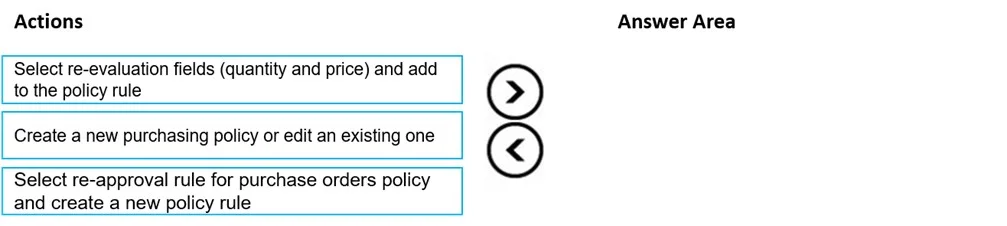
Drag and Drop Question A company plans to make changes to change management processes for purchase orders. Currently, the system requires an approval for any change. The company wants to implement…
The correct answer is Create a new purchasing policy or edit an existing one; Select re-approval rule for purchase orders policy and create a new policy rule; Select re-evaluation fields (quantity and price) and add to the policy rule. Explanation: Purchase Order Change Management Re-Approval Configuration This question is about configuring purchasing policies in Microsoft Dynamics 365 Finance & Operations to trigger re-approval only on specific field changes (quantity and unit price), rather than any change…
Question
Exhibit
Answer Area
Drag items
Correct arrangement
- Create a new purchasing policy or edit an existing one
- Select re-approval rule for purchase orders policy and create a new policy rule
- Select re-evaluation fields (quantity and price) and add to the policy rule
Explanation
Explanation: Purchase Order Change Management Re-Approval Configuration
This question is about configuring purchasing policies in Microsoft Dynamics 365 Finance & Operations to trigger re-approval only on specific field changes (quantity and unit price), rather than any change.
Why This Order?
The sequence follows a strict container-before-content logic: you must have a policy before you can add rules to it, and you must have a rule before you can specify which fields trigger it.
Step-by-Step Breakdown
Step 1: Create a new purchasing policy or edit an existing one
This is the mandatory starting point. A purchasing policy is the top-level container that holds all policy rules. You cannot create or assign any rule without a policy to attach it to. Skipping this step means there is nowhere to configure the re-approval rule.
Common mistake: Jumping straight to creating a rule without first establishing (or navigating to) the policy. The UI will not expose rule options without a policy context.
Step 2: Select re-approval rule for purchase orders policy and create a new policy rule
Once inside a policy, you select the Purchase order re-approval rule type and create a new policy rule for it. This rule is specifically designed to control what triggers re-approval. Without creating this rule first, there are no re-evaluation field options to configure - the field selection UI in Step 3 only appears within this rule's configuration.
Common mistake: Confusing this with the general change management toggle. The re-approval rule is a distinct policy rule type, not a global system setting.
Step 3: Select re-evaluation fields (quantity and price) and add to the policy rule
This is the final, most granular step. Within the re-approval policy rule created in Step 2, you specify which fields actually trigger re-approval. You select Quantity and Unit price from the available re-evaluation fields and add them to the rule.
Common mistake: Thinking these fields can be selected independently of the rule, or that they apply system-wide. They are scoped to the specific policy rule configured in Step 2.
Key Takeaway
The order enforces a strict hierarchy:
Policy → Policy Rule → Rule Field Configuration
Each step unlocks the next. You cannot configure what you haven't created yet.
Topics
Community Discussion
No community discussion yet for this question.