
MB-330 · Question #200
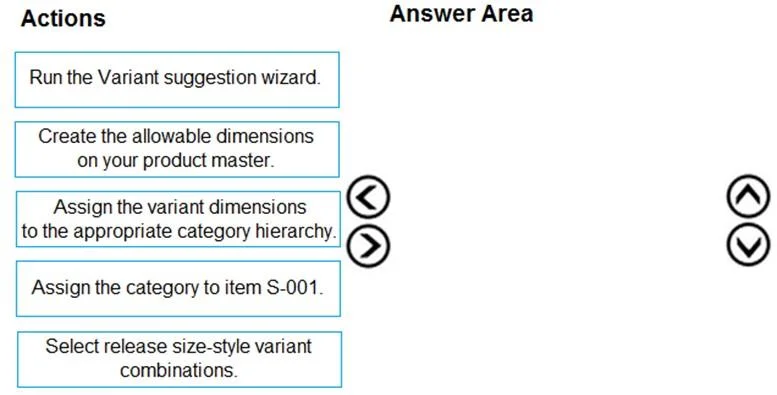
Drag and Drop Question You create and maintain items in Dynamics 365 Supply Chain Management. You create a product master named S-001 for metal bolts. Bolts come in three different lengths and two…
Explanation: Setting Up Product Variants in D365 SCM Scenario Summary Product master S-001 has two product dimensions: Size (3 lengths) and Style (2 styles) 3 × 2 = 6 possible combinations, but only 5 should be released Goal: configure and selectively release variants --- Why…
Question
Exhibit
Options
- Box1Create the allowable dimensions on your product master.
- Box2Run the Variant suggestion wizard.
- Box3Select release size-style variant combinations.
Explanation
Explanation: Setting Up Product Variants in D365 SCM
Scenario Summary
- Product master S-001 has two product dimensions: Size (3 lengths) and Style (2 styles)
- 3 × 2 = 6 possible combinations, but only 5 should be released
- Goal: configure and selectively release variants
Why This Sequence?
The three steps follow a strict dependency chain - you cannot do step 2 without step 1, and step 3 requires the output of step 2.
Step 1 - Create the allowable dimensions on your product master
Why first: A product master is a template. Before any variants can exist, you must define which product dimensions apply (Size, Style, Color, Config, etc.) and populate the dimension values (e.g., Small/Medium/Large for Size; HexHead/FlatHead for Style).
Without this, the system has no dimension values to combine - the Variant suggestion wizard has nothing to work with.
Technical detail: This is done in the Product dimensions form on the product master. You assign the dimension group and then add the individual values for each dimension.
Step 2 - Run the Variant suggestion wizard
Why second: Once the dimensions and their values exist, the Variant suggestion tool reads them and generates the full combinatorial matrix (all 6 combinations in this case). It presents them as suggested variants you can review before committing.
Technical detail: Found under Released products > Product variants > Variant suggestions. The wizard calculates the Cartesian product of all defined dimension values.
Step 3 - Select release size-style variant combinations
Why third: From the wizard's output, you deselect the one combination you don't want and release only the five approved variants. This is the selective release step - it creates the actual product variants in the released products table.
Technical detail: You choose which suggested combinations to include, then the wizard creates the released product variants. Unreleased combinations simply don't get created.
Common Mistakes
| Mistake | Why It's Wrong |
|---|---|
| Trying to run the wizard before defining dimension values | The wizard needs values to combine - it will produce nothing |
| Releasing all 6 and deleting one afterward | Technically possible but incorrect workflow; the wizard exists precisely to prevent releasing unwanted variants |
| Confusing "product dimensions" with "storage/tracking dimensions" | Only product dimensions (Size, Color, Style, Config) drive variants - don't mix these up |
| Skipping the wizard and manually creating variants | For small counts it's possible, but the exam expects the supported wizard workflow |
Topics
Community Discussion
No community discussion yet for this question.