
MB-330 · Question #162
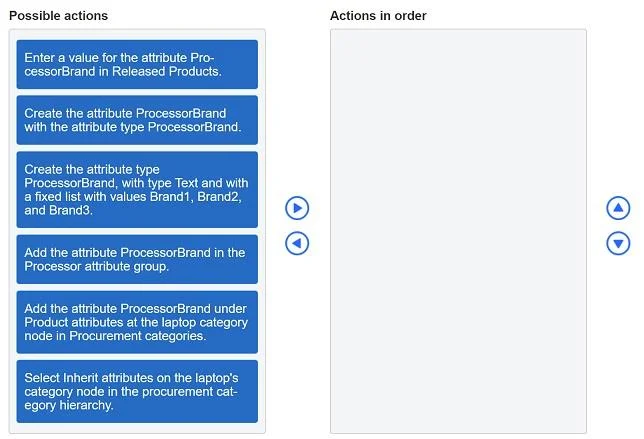
Drag and Drop Question You are the product and procurement manager for a company that distributes laptops. You need to add a new attribute to the products in the laptop procurement category that…
The correct answer is Create the attribute type ProcessorBrand with type Text and with a fixed list with values Brand1, Brand2, and Brand3.; Create the attribute ProcessorBrand with the attribute type ProcessorBrand.; Add the attribute ProcessorBrand under Product attributes at the laptop category node in Procurement categories.; Enter a value for the attribute ProcessorBrand in Released Products. Explanation: Adding a Processor Brand Attribute in Dynamics 365 This question tests your understanding of the attribute configuration hierarchy in Microsoft Dynamics 365's Product Information Management and Procurement modules. The key insight is that you must build from the…
Question
Exhibit
Answer Area
Drag items
Correct arrangement
- Create the attribute type ProcessorBrand with type Text and with a fixed list with values Brand1, Brand2, and Brand3.
- Create the attribute ProcessorBrand with the attribute type ProcessorBrand.
- Add the attribute ProcessorBrand under Product attributes at the laptop category node in Procurement categories.
- Enter a value for the attribute ProcessorBrand in Released Products.
Explanation
Explanation: Adding a Processor Brand Attribute in Dynamics 365
This question tests your understanding of the attribute configuration hierarchy in Microsoft Dynamics 365's Product Information Management and Procurement modules. The key insight is that you must build from the foundation up - you can't reference something that doesn't exist yet.
The Correct Order and Why
1. Create the Attribute Type ProcessorBrand (type: Text, fixed list: Brand1, Brand2, Brand3)
Path: Product information management > Setup > Categories and attributes > Attribute Types
This must come first because an attribute type defines the data structure - what kind of values are allowed. Think of it as the blueprint. You cannot create an attribute without first defining its type. The fixed list constrains valid inputs to only the three brands, preventing free-text errors.
2. Create the Attribute ProcessorBrand using attribute type ProcessorBrand
Path: Product information management > Setup > Categories and attributes > Attributes
An attribute is the actual field that will appear on products. It references the attribute type created in step 1 - so step 1 must exist first. Without the attribute type, there's nothing to select here. This step creates the usable field, bound to the allowed values defined in step 1.
3. Add attribute ProcessorBrand under Product Attributes on the laptop category node in Procurement Categories
Path: Procurement and sourcing > Procurement categories > [laptop node] > Product attributes
Now that the attribute exists, you assign it to the category. This makes the attribute applicable to all products within the laptop procurement category. The attribute must exist (step 2) before you can attach it to a category. This is the scope-assignment step.
4. Enter a value for ProcessorBrand in Released Products
Path: Released Products > [select laptop] > Product tab > Set up > Product attributes
Only after the attribute is defined and scoped to the category can you populate it for a specific product. This is the data-entry step - it's always last because it depends on all prior configuration being in place.
Common Mistakes / Distractors
| Distractor | Why It's Wrong |
|---|---|
| "Add attribute to the Processor attribute group" | Attribute groups are for organizing/displaying attributes, but assigning to a group has no functional effect on procurement category products in this scenario. It's a red herring. |
| "Select Inherit attributes on the laptop category node" | Inheritance is used when the attribute is defined at a parent category level and you want child categories to use it. Here, you're defining the attribute directly on the laptop node - no inheritance needed. |
Mental Model
Think of it as a dependency chain:
Attribute Type → Attribute → Category Assignment → Product Value
(what values?)   (the field)   (where it applies)    (specific data)
Each step is a prerequisite for the next. You're always building the container before filling it.
Topics
Community Discussion
No community discussion yet for this question.