
MB-310 · Question #323
Drag and Drop Question A company uses Dynamics 365 Finance. You need to use the advanced bank reconciliation feature to reconcile bank transactions. In which order should you perform the actions? To…
The correct answer is Import an electronic bank statement.; Validate the bank statement.; Reconcile the bank statement.; Post the bank statement. Advanced Bank Reconciliation in Dynamics 365 Finance The correct order follows a logical data pipeline: bring data in → verify it → match it → finalize it. --- Step-by-Step Breakdown 1. Import an electronic bank statement This is the mandatory first step because you cannot…
Question
Exhibit
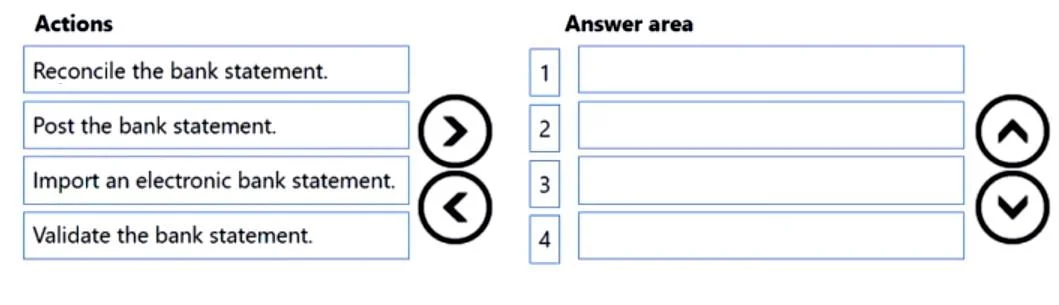
Answer Area
Drag items
Correct arrangement
- Import an electronic bank statement.
- Validate the bank statement.
- Reconcile the bank statement.
- Post the bank statement.
Explanation
Advanced Bank Reconciliation in Dynamics 365 Finance
The correct order follows a logical data pipeline: bring data in → verify it → match it → finalize it.
Step-by-Step Breakdown
1. Import an electronic bank statement
- This is the mandatory first step because you cannot reconcile what doesn't exist in the system yet.
- D365 Finance supports importing bank statements in formats like BAI2, MT940, or custom formats via data entities.
- Common mistake: Trying to manually enter transactions instead of importing, or skipping this step when the bank provides a paper statement only - the advanced reconciliation feature specifically requires an electronic import.
2. Validate the bank statement
- After importing, D365 runs a validation check to ensure the statement is structurally correct: balances tie out, dates are valid, no duplicate statement IDs, etc.
- This step catches import errors before you invest time in matching, preventing reconciliation failures mid-process.
- Common mistake: Assuming the import automatically validates. Validation is a discrete action you must trigger. Skipping it risks working against a corrupted or incomplete statement.
3. Reconcile the bank statement
- This is the core matching step where you match bank statement lines against your D365 Finance ledger/subledger transactions.
- You can use automated matching rules or manually match transactions. Unmatched items are flagged for investigation.
- Common mistake: Attempting to reconcile before validating - D365 will typically block this, but the conceptual error is thinking validation and reconciliation are the same action. They are not: validation checks the data, reconciliation checks the accounting.
4. Post the bank statement
- Posting finalizes the reconciliation, writing the matched and cleared transactions to the general ledger permanently.
- This step is irreversible (without reversal entries), which is why it comes last - after all discrepancies are resolved.
- Common mistake: Posting before all unmatched lines are resolved. You should ensure no outstanding exceptions remain before posting, or you lock in an incomplete reconciliation.
Key Takeaway
The order mirrors standard accounting controls: import → validate integrity → reconcile differences → post to ledger. Each step acts as a gate for the next, which is a deliberate design in D365 Finance to enforce data accuracy and auditability before any permanent ledger impact occurs.
Topics
Community Discussion
No community discussion yet for this question.