
DP-300 · Question #380
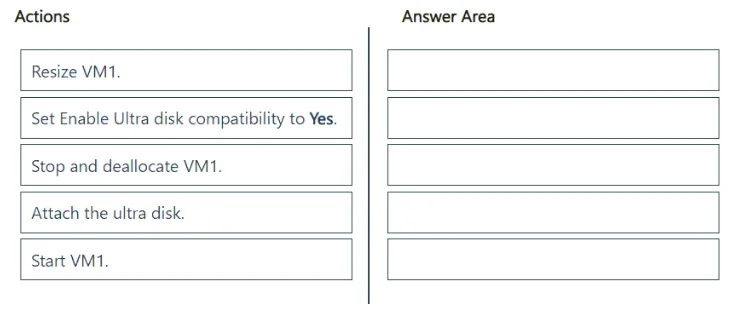
Drag and Drop Question You have a burstable Azure virtual machine named VM1 that hosts an instance of Microsoft SQL Server. You need to attach an Azure ultra disk to VM1. The solution must minimize…
The correct answer is Stop and deallocate VM1.; Resize VM1.; Set Enable Ultra disk compatibility to Yes.; Attach the ultra disk.; Start VM1. Attaching an Azure Ultra Disk to a burstable VM requires the VM to be stopped and deallocated first because Ultra Disk compatibility cannot be enabled on a running VM, and burstable VM sizes (B-series) do not natively support Ultra Disks, requiring a resize to a compatible VM…
Question
Exhibit
Answer Area
Drag items
Correct arrangement
- Stop and deallocate VM1.
- Resize VM1.
- Set Enable Ultra disk compatibility to Yes.
- Attach the ultra disk.
- Start VM1.
Explanation
Attaching an Azure Ultra Disk to a burstable VM requires the VM to be stopped and deallocated first because Ultra Disk compatibility cannot be enabled on a running VM, and burstable VM sizes (B-series) do not natively support Ultra Disks, requiring a resize to a compatible VM size. The correct sequence is: Stop/deallocate → Resize to a compatible size → Enable Ultra Disk compatibility → Attach the Ultra Disk → Start the VM. This order ensures each prerequisite is met before the next step, and all configuration changes are made while the VM is offline to minimize errors, though downtime cannot be fully avoided for this operation.
Topics
Community Discussion
No community discussion yet for this question.