
DP-203 · Question #120
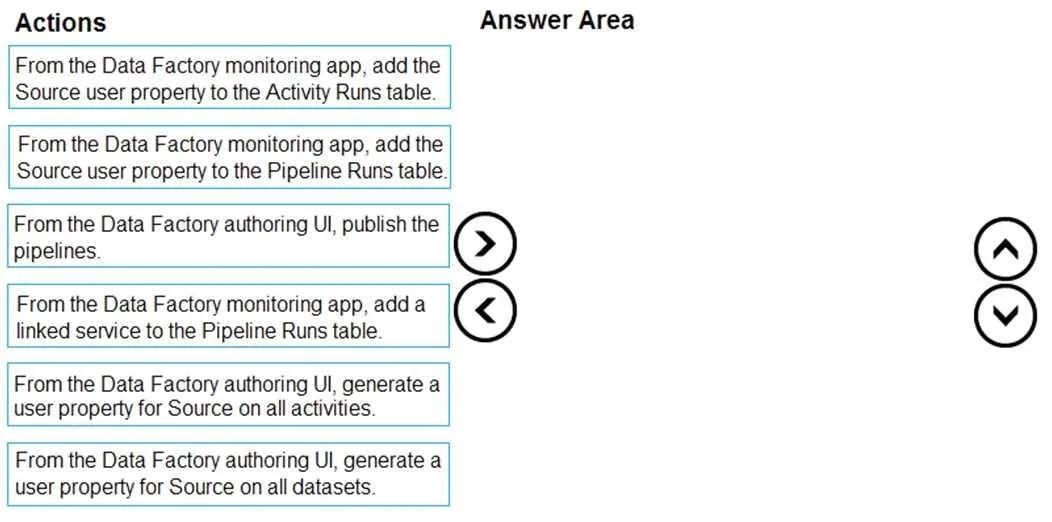
Drag and Drop Question You plan to monitor an Azure data factory by using the Monitor & Manage app. You need to identify the status and duration of activities that reference a table in a source…
The correct answer is From the Data Factory authoring UI, generate a user property for Source on all activities.; From the Data Factory monitoring app, add the Source user property to the Pipeline Runs table.; From the Data Factory authoring UI, publish the pipelines. Azure Data Factory Monitoring - Explanation This question tests your understanding of how user properties work in ADF to enable custom filtering in the Monitor & Manage app. --- The Core Concept By default, the ADF monitoring app shows generic activity metadata. To filter by a…
Question
Exhibit
Answer Area
Drag items
Correct arrangement
- From the Data Factory authoring UI, generate a user property for Source on all activities.
- From the Data Factory monitoring app, add the Source user property to the Pipeline Runs table.
- From the Data Factory authoring UI, publish the pipelines.
Explanation
Azure Data Factory Monitoring - Explanation
This question tests your understanding of how user properties work in ADF to enable custom filtering in the Monitor & Manage app.
The Core Concept
By default, the ADF monitoring app shows generic activity metadata. To filter by a source table, you must first define a user property on activities, then surface it in the monitoring view, then publish those changes.
Step-by-Step Breakdown
Step 1: Generate a user property for Source on all activities (Authoring UI)
User properties must be defined at the activity level, not the dataset level. Each activity (Copy, Lookup, etc.) has its own user properties section. You set Source as a user property that captures the source table name dynamically (e.g., @dataset().tableName). This is the foundation - nothing else works without it.
Common mistake: Choosing "generate on all datasets" instead. Datasets don't have user properties in the monitoring context; the monitoring app reads user properties from activity runs, not datasets.
Step 2: Add the Source user property to the Pipeline Runs table (Monitoring app)
Once user properties exist, you must add them as visible columns in the monitoring app. The correct table is Pipeline Runs, which aggregates activity context at the pipeline level and supports custom column additions for user properties.
Common mistake: Adding to the Activity Runs table instead. While activity runs display per-activity detail, adding the user property column to surface it for filtering happens at the Pipeline Runs view in the Monitor & Manage app.
Step 3: Publish the pipelines (Authoring UI)
Publishing deploys your changes to the live ADF service. Until you publish, the user properties defined in Step 1 only exist in draft form - they won't appear in monitoring for actual runs.
Common mistake: Publishing first. If you publish before configuring user properties, live runs won't capture the
Sourcedata, and you'd need to republish anyway.
Why the Other Items Are Wrong
| Item | Why excluded |
|---|---|
| Add Source to Activity Runs table | Wrong monitoring table for this use case |
| Add a linked service to Pipeline Runs | Linked services are connection configs, not a monitoring column concept |
| Generate user property on datasets | User properties for monitoring are defined on activities, not datasets |
Summary Flow
Author -> Define user property on activities
Monitor -> Surface that property as a column
Author -> Publish to make it live
The authoring/monitoring/authoring sandwich is the key pattern to remember.
Topics
Community Discussion
No community discussion yet for this question.