
D-PST-DY-23 · Question #78
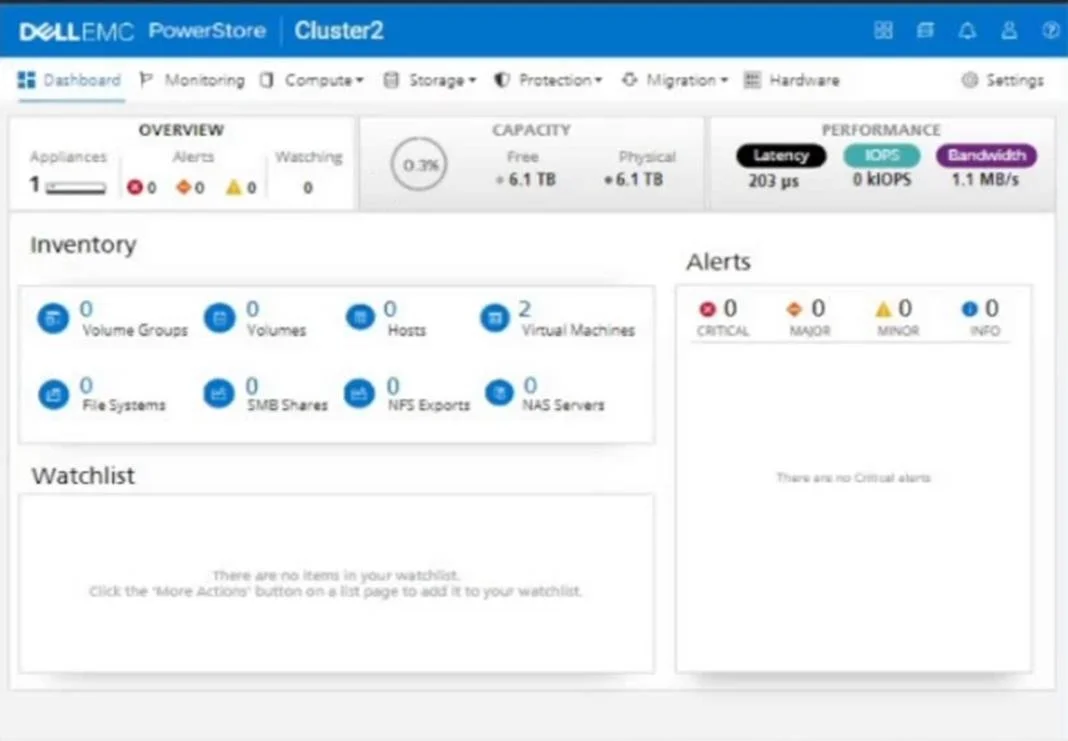
SIMULATION Use the simulator to assign a protection policy to the virtual machine "VM1". Use the following settings: - Snapshots on Monday through Friday at 10:00 PM Eastern Time - Retention of 10…
The correct answer is A. Navigate to the virtual machine management section where VMs are listed, usually under the "Compute" or "VM" section. Locate "VM1" from the list of virtual machines. Access the settings or properties of "VM1". Look for the "Protection" or "Protection Policies" section within the VM settings. Select the option to create a new policy or assign an existing one. In the policy settings, configure the snapshot schedule. Set the frequency to weekly on Monday, Tuesday, Wednesday, Thursday, and Friday. Set the time to 10:00 PM Eastern Time. Configure the retention period for the snapshots to be 10 days. Save the policy and ensure it is correctly associated with "VM1". Option A is correct because it outlines the exact sequence of steps required to assign a protection policy to a VM in a cloud/virtualization management platform - navigating to the VM, accessing its protection settings, configuring the snapshot schedule (Mon–Fri at 10 PM ET)…
Question
Exhibit
Options
- ANavigate to the virtual machine management section where VMs are listed, usually under the "Compute" or "VM" section. Locate "VM1" from the list of virtual machines. Access the settings or properties of "VM1". Look for the "Protection" or "Protection Policies" section within the VM settings. Select the option to create a new policy or assign an existing one. In the policy settings, configure the snapshot schedule. Set the frequency to weekly on Monday, Tuesday, Wednesday, Thursday, and Friday. Set the time to 10:00 PM Eastern Time. Configure the retention period for the snapshots to be 10 days. Save the policy and ensure it is correctly associated with "VM1".
How the community answered
(22 responses)- A100% (22)
Explanation
Option A is correct because it outlines the exact sequence of steps required to assign a protection policy to a VM in a cloud/virtualization management platform - navigating to the VM, accessing its protection settings, configuring the snapshot schedule (Mon–Fri at 10 PM ET), setting a 10-day retention period, and saving. Since this is a simulation question with only one answer choice, the focus is on knowing the correct workflow rather than ruling out distractors - the exam is testing whether you can execute the steps in the right order within the simulator. The key details to get right are the schedule (weekdays only, not all 7 days) and retention (10 days, not a default like 7 or 30). Memory tip: Think "P-S-R-S" - find the Protection section, set the Schedule (Mon–Fri, 10 PM ET), set Retention (10 days), then Save - this covers every graded action in the correct order.
Topics
Community Discussion
No community discussion yet for this question.