
D-PST-DY-23 · Question #70
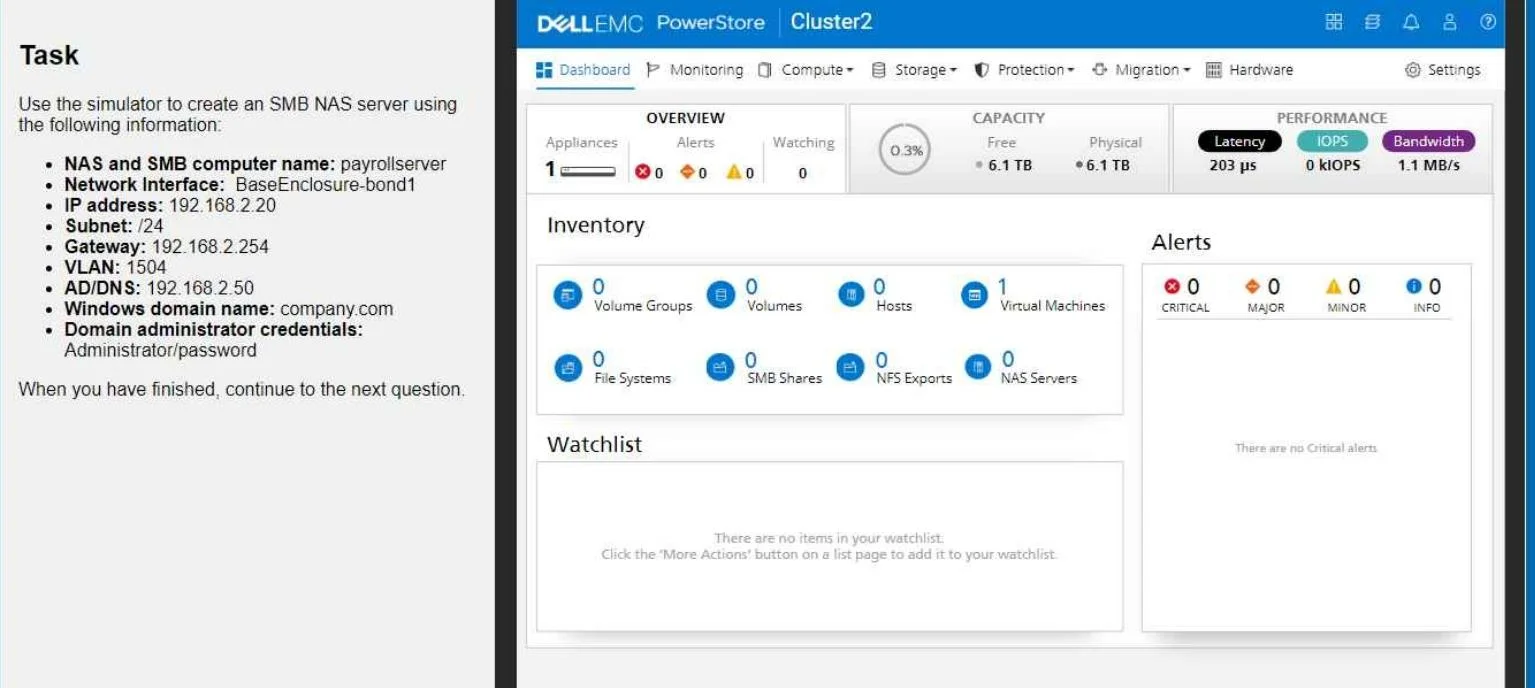
SIMULATION You create an SMB NAS server in the PowerStore simulator using the provided information. Here's the information that is given: NAS and SMB computer name: payrollserver Network Interface…
The correct answer is A. 1. Navigate to NAS Servers Go to Compute > NAS Servers. Click Add NAS Server. 2. Option A is correct because it accurately describes the required navigation path and configuration sequence for creating an SMB NAS server in Dell PowerStore: starting at Compute > NAS Servers, clicking Add NAS Server, and entering all provided parameters (name, network…
Question
Exhibit
Options
- A
- Navigate to NAS Servers Go to Compute > NAS Servers. Click Add NAS Server. 2
How the community answered
(15 responses)- A100% (15)
Explanation
Option A is correct because it accurately describes the required navigation path and configuration sequence for creating an SMB NAS server in Dell PowerStore: starting at Compute > NAS Servers, clicking Add NAS Server, and entering all provided parameters (name, network interface, IP, subnet, gateway, VLAN, AD/DNS, and domain credentials) before clicking Add.
Since this is a simulation question with only one valid procedural path, there are no meaningful distractors - the question tests whether you can execute the correct steps in the correct order, not choose between competing options.
The critical detail examiners look for is joining the NAS server to Active Directory using the domain administrator credentials, which enables SMB (Windows file sharing) functionality; skipping or misordering any step would cause the server creation to fail.
Memory tip: Think "C-NAS-IP-AD" - Compute menu → NAS Server name/interface → IP/subnet/gateway/VLAN → AD/DNS + domain join. This covers the four logical stages of the workflow in order.
Topics
Community Discussion
No community discussion yet for this question.