nerdexam
Microsoft

AZ-800 · Question #218

SIMULATION You need to deploy a new primary DNS zone named fabrikam.com to DC1. The zone must be signed. To complete this task, sign in to the required computer or computers. Answer: Step 1: Create…

The correct answer is A. Create the zone B. Sign the zone. Both A (Create the zone) and B (Sign the zone) are correct because the task explicitly requires a signed primary DNS zone - you cannot sign a zone that doesn't exist, so both steps are mandatory and sequential. Creating the zone as an Active Directory-integrated primary zone on…

Implement and manage on-premises and hybrid networking infrastructure

Question

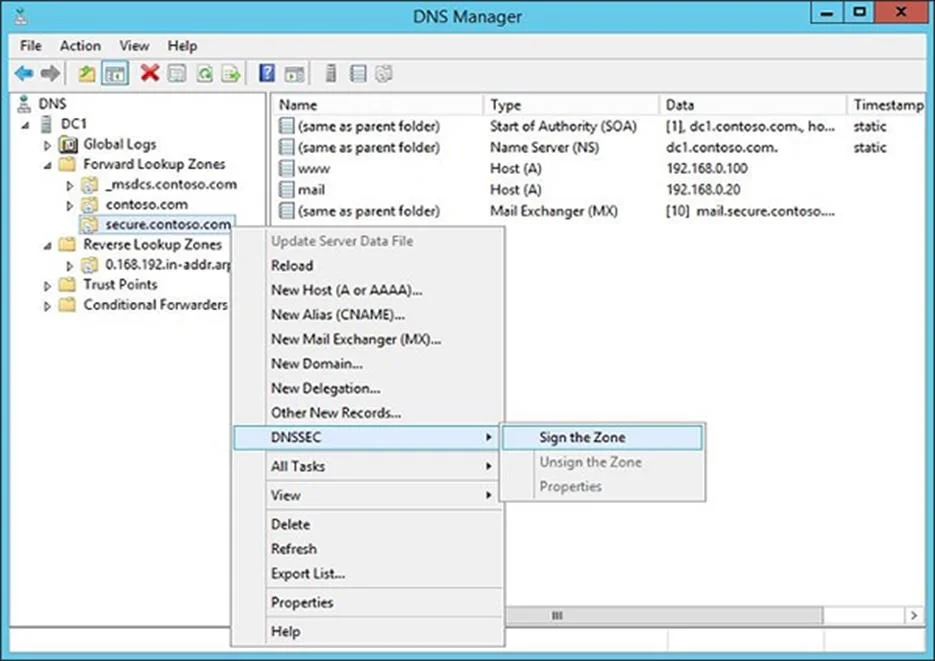
SIMULATION You need to deploy a new primary DNS zone named fabrikam.com to DC1. The zone must be signed. To complete this task, sign in to the required computer or computers. Answer: Step 1: Create the zone Manage DNS zones using DNS server in Windows Server Create a primary zone Create an Active Directory integrated primary zone To create an Active Directory integrated primary zone, select the relevant method and follow the steps. Here's how to create a forward look up zone using DNS Manager. 1. From the Windows desktop, open the Start menu, select Windows Administrative Tools > DNS. 2. In the console tree, connect to the DNS server you wish to manage, expand the DNS server, right-click, then select New Zone. Connect to: DC1 3. On the New Zone Wizard page, select Next. 4. On the Zone Type page, select Primary zone and ensure Store the zone in Active Directory is checked. This option is available when the DNS server is also an AD DS domain controller. 5. On the Active Directory Zone Replication Scope page, choose one of the following options: All DNS servers running on AD DS domain in the domain. All domain controllers in this domain (for Windows 2000 compatibility). All domain controllers enrolled in a specific directory partition. 6. On the Forward or Reverse Lookup Zone page, select Forward lookup zone. 7. On the zone name page, specify the name of the DNS zone. For example, north.contoso.com Type: fabrikam.com 8. On the Dynamic Update page, choose one of the following options: Allow only secure dynamic updates (recommended for Active Directory). Allow both nonsecure and secure dynamic updates. Do not allow dynamic updates. 9. Select Finish to complete the New Zone Wizard. Step 2: Sign the zone Zone Signing Wizard To start the Zone Signing Wizard in DNS Manager, right-click a forward or reverse DNS zone on a primary, authoritative DNS server, point to DNSSEC, and click Sign the Zone. See the following example. After you click Sign the Zone, the wizard displays an introductory page with a summary of DNSSEC (not shown). Click Next to view the Signing Options page. Signing options The Signing Options page requires you to choose a method for specifying DNSSEC parameter values. See the following example. Select: Use default settings to sign the zone. If you choose this option, the zone will be signed with default parameters. These parameters are the same as those that are displayed by default if you choose to customize zone signing parameters, provided the zone has not been previously signed with a different set of parameters. If you choose to sign the zone with default settings, the wizard will skip to the summary page. Reference: https://learn.microsoft.com/en-us/windows-server/networking/dns/manage-dns-zones https://learn.microsoft.com/en-us/previous-versions/windows/it-pro/windows-server-2012-r2-and- 2012/dn593642(v=ws.11)

Exhibit

AZ-800 question #218 exhibit

Options

  • ACreate the zone
  • BSign the zone

How the community answered

(57 responses)
  • A
    100% (57)

Explanation

Both A (Create the zone) and B (Sign the zone) are correct because the task explicitly requires a signed primary DNS zone - you cannot sign a zone that doesn't exist, so both steps are mandatory and sequential. Creating the zone as an Active Directory-integrated primary zone on DC1 establishes the authoritative zone for fabrikam.com, while signing it with DNSSEC (via the Zone Signing Wizard using default settings) fulfills the "must be signed" requirement. There are no incorrect distractors here - this is a two-part simulation where omitting either step results in an incomplete solution: a zone without a signature fails the security requirement, and a signature without a zone is impossible.

Memory tip: Think of it as "Build it, then bolt it" - you always create the DNS zone first, then sign it with DNSSEC. The order is non-negotiable, just like you can't lock a door that hasn't been built yet.

Topics

#DNS Zone Management#DNSSEC#Active Directory DNS

Community Discussion

No community discussion yet for this question.

Full AZ-800 Practice