AZ-500 · Question #125
AZ-500 Question #125: Real Exam Question with Answer & Explanation
Registering an application in Azure Active Directory (Azure AD) is the correct approach because it establishes a trust relationship between the app and the Microsoft identity platform, allowing the app to authenticate and be granted permissions. The process involves navigating to
Question
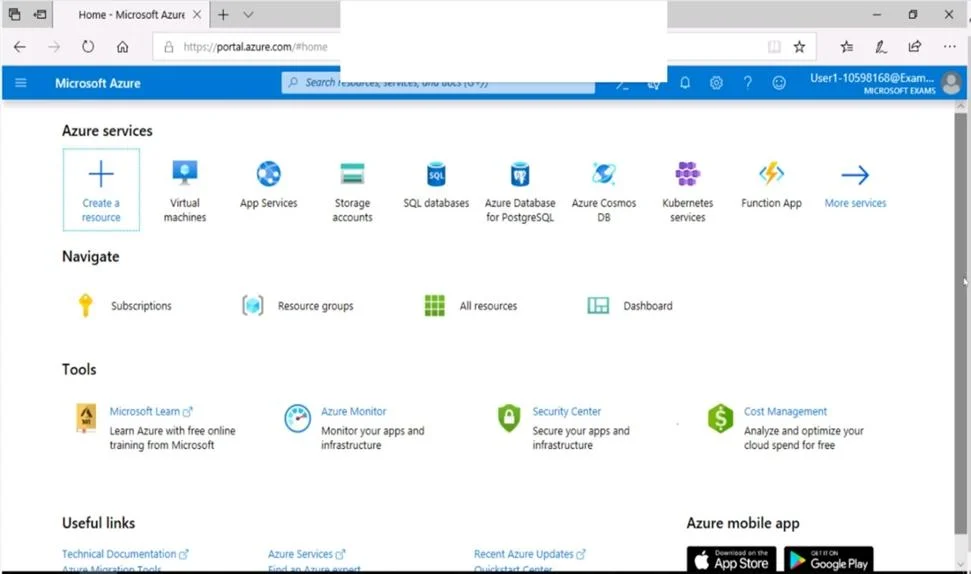
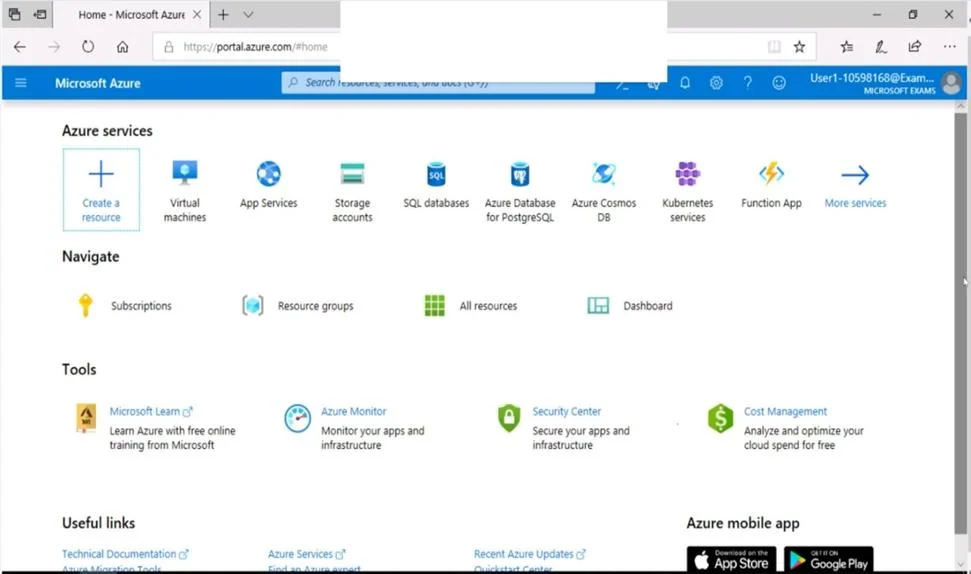
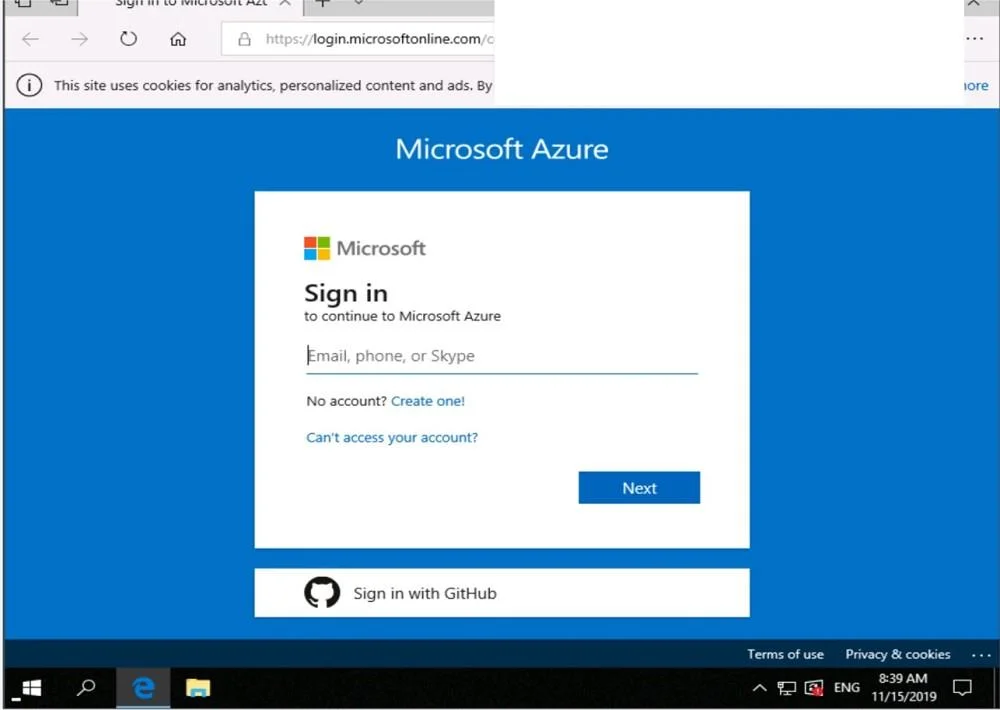
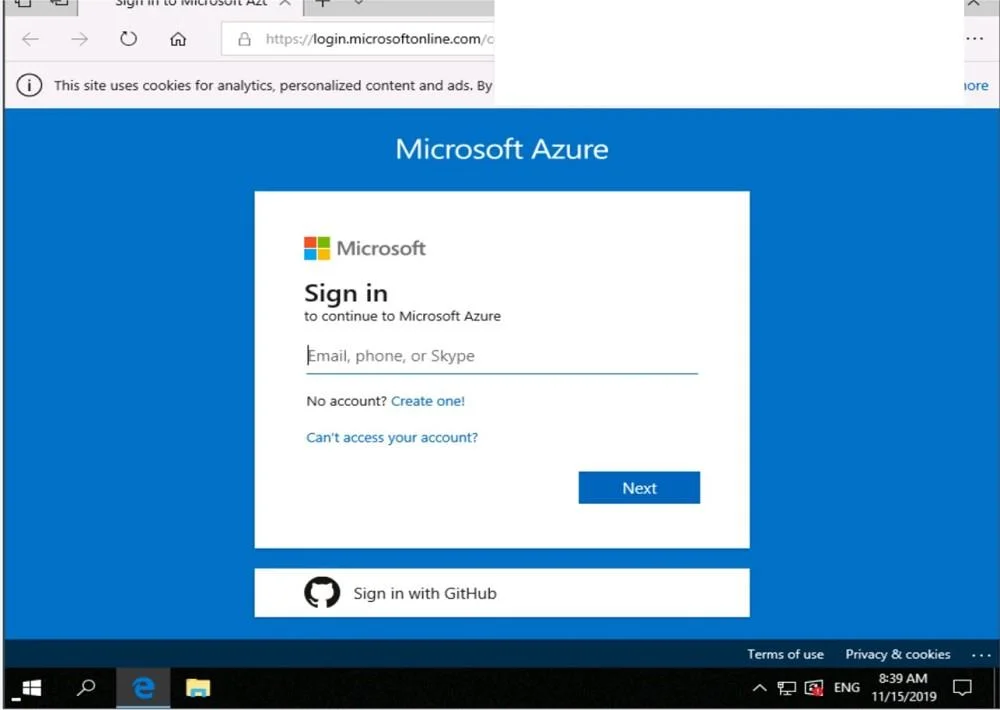
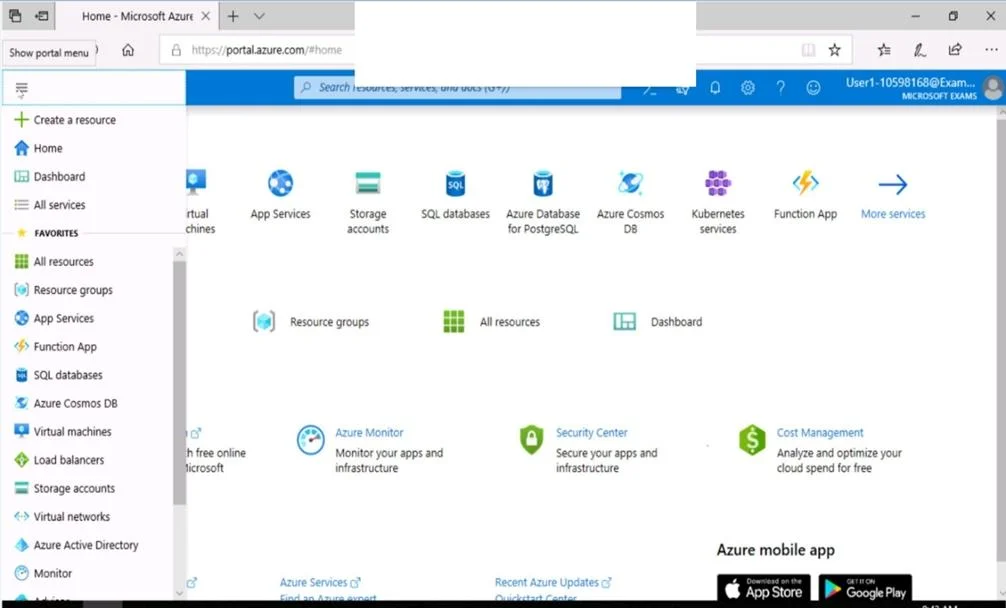
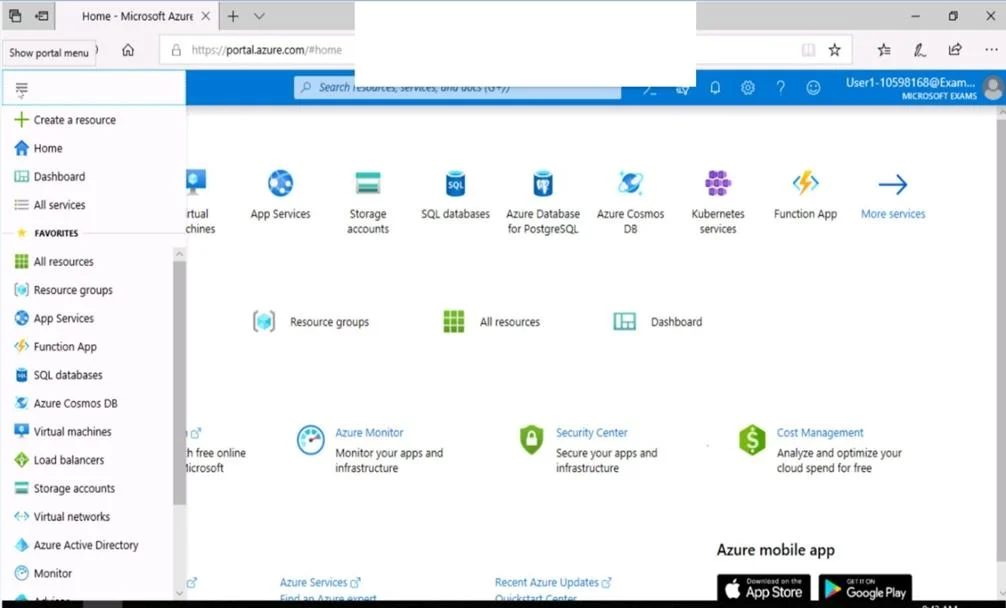
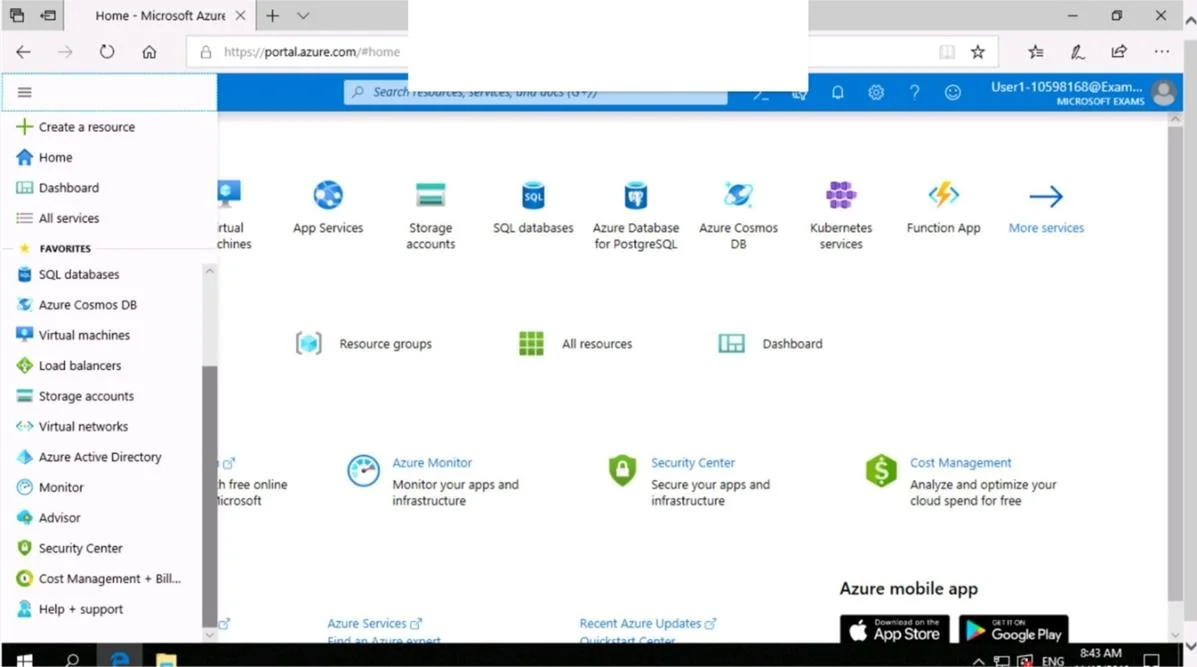
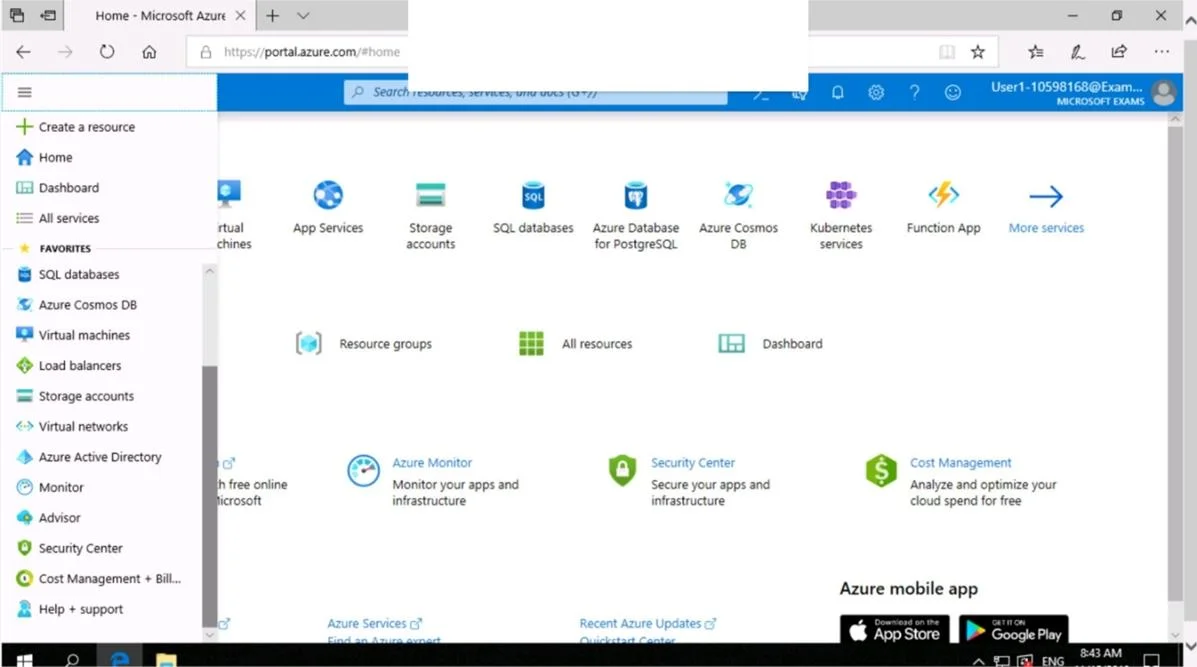
SIMULATION Use the following login credentials as needed: To enter your username, place your cursor in the Sign in box and click on the username below. To enter your password, place your cursor in the Enter password box and click on the password below. Azure Username: [email protected] Azure Password: Ag1Bh9!#Bd The following information is for technical support purposes only: Lab Instance: 10598168 The developers at your company plan to create a web app named App10598168 and to publish You need to perform the following tasks: - Ensure that App10598168 is registered to Azure Active Directory (Azure AD). - Generate a password for App10598168. To complete this task, sign in to the Azure portal. Answer: Step 1: Register the Application 1. Sign in to your Azure Account through the Azure portal. 2. Select Azure Active Directory. 3. Select App registrations. 4. Select New registration. 5. Name the application App10598168 . Select a supported account type, which determines who can use the application. Under Redirect URI, select Web for the type of application you want to 6. Click Register Step 2: Create a new application secret If you choose not to use a certificate, you can create a new application secret. 7. Select Certificates & secrets. 8. Select Client secrets -> New client secret. 9. Provide a description of the secret, and a duration. When done, select Add. After saving the client secret, the value of the client secret is displayed. Copy this value because you aren't able to retrieve the key later. You provide the key value with the application ID to sign in as the application. Store the key value where your application can retrieve it. Reference: https://docs.microsoft.com/en-us/azure/active-directory/develop/howto-create-service-principal- portal
Options
- taskEnsure that App10598168 is registered to Azure Active Directory (Azure AD) and generate a password for App10598168.
- prerequisitesAzure Username: [email protected], Azure Password: Ag1Bh9!#Bd
Explanation
Registering an application in Azure Active Directory (Azure AD) is the correct approach because it establishes a trust relationship between the app and the Microsoft identity platform, allowing the app to authenticate and be granted permissions. The process involves navigating to Azure AD > App Registrations > New Registration, naming it App10598168, and then generating a client secret (password) under 'Certificates & Secrets' to enable secure authentication. This client secret acts as the application's password, which developers use to authenticate the app when requesting tokens from Azure AD.
Topics
Community Discussion
No community discussion yet for this question.