
AZ-400 · Question #516
SIMULATION Navigate to https://dev.azure.com, select Start Free, and specify the following credentials: - User: [email protected] - Password: 0123456789 Use the default setting to sign up…
Azure DevOps: Add External User as Stakeholder Overall Goal This task tests your ability to manage Azure DevOps organization access control - specifically, inviting an external user with the least privileged access level (Stakeholder). In enterprise environments, you frequently…
Question
Exhibit
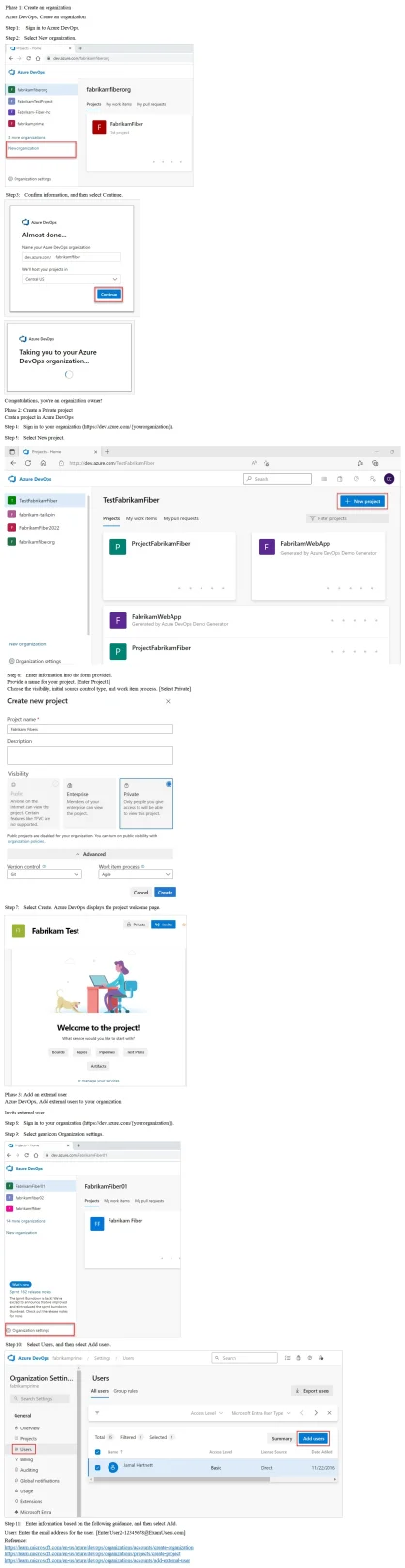
Explanation
Azure DevOps: Add External User as Stakeholder
Overall Goal
This task tests your ability to manage Azure DevOps organization access control - specifically, inviting an external user with the least privileged access level (Stakeholder). In enterprise environments, you frequently need to give non-developers (managers, clients, auditors) limited visibility into projects without granting full contributor rights.
Step-by-Step Breakdown
Steps 1-3: Navigate to dev.azure.com and sign in You must authenticate as the organization owner (User1). Azure DevOps ties organizations to Microsoft accounts, so you cannot create or manage an org without first being signed in as the correct user. Signing in as the wrong user would create the org under the wrong identity.
Step 4: Create the Azure DevOps organization The organization is the top-level container for all projects, users, and billing. It must exist before you can create projects or manage users. Using default settings avoids misconfiguration (region selection affects latency but defaults are acceptable for exam purposes).
Step 5: Create a private project named Project1 The project must be private - this ensures external users cannot access it without an explicit invitation. A public project would undermine the access control you're about to configure. The project must exist before you can assign users to it.
Step 6: Add User2 as a Stakeholder to the organization
This is the core of the task. Key details:
- Navigate to Organization Settings -> Users -> Add users
- Enter
[email protected] - Set Access level = Stakeholder
- Add to the "Project Stakeholders" group (or the default Stakeholder group - this is the most restrictive built-in group)
Why Stakeholder is the most restrictive group: Azure DevOps has three access levels in ascending order of privilege:
| Level | Can do |
|---|---|
| Stakeholder | View work items, submit feedback, limited read access |
| Basic | Full work item access, code read, pipelines |
| Basic + Test Plans | Everything above + test management |
Stakeholder is free and intentionally limited - no code access, no pipeline runs.
What Goes Wrong if Steps Are Skipped/Reordered
| Mistake | Consequence |
|---|---|
| Adding user before creating the org | No org exists to add them to |
| Setting project to Public | External user has access without invitation - defeats the purpose |
| Adding user as Basic instead of Stakeholder | Fails the "most restrictive group" requirement - exam marked wrong |
| Adding user to a project group instead of the org | User may not appear as an org-level stakeholder |
Key Tip for Remembering
"Least privilege = Stakeholder" - In any Azure DevOps question asking for the most restrictive access, the answer is always Stakeholder. It's the only free tier and has no code/pipeline permissions. Think: a stakeholder in business has interest but no hands-on involvement - same concept here.
The exam specifically tests whether you know to add the user at the organization level (not just the project level) and choose Stakeholder (not Basic, which is the default when you click "Add").
Topics
Community Discussion
No community discussion yet for this question.