
AZ-220 · Question #84
You have 1,000 devices that connect to an Azure IoT hub. You discover that some of the devices fail to send data to the IoT hub. You need to ensure that you can use Azure Monitor to troubleshoot the…
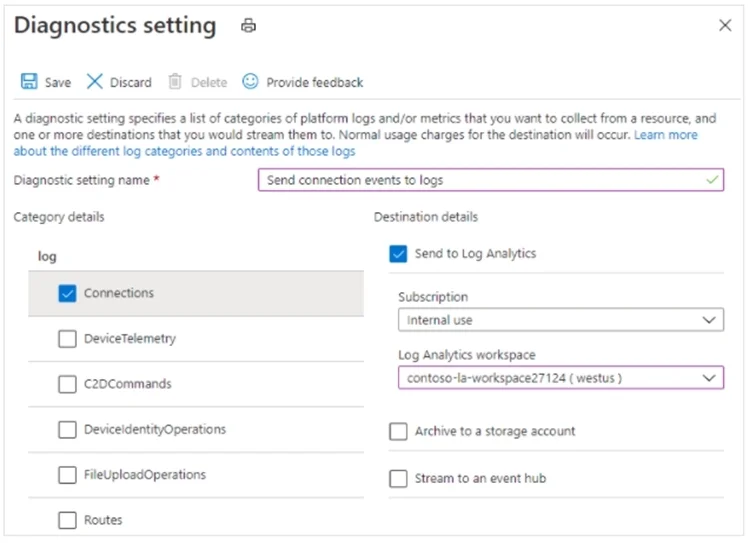
The correct answer is B. Collect the DeviceTelemetry, Connections, and Routes logs. D. From the Diagnostics settings of the IoT hub, select Send to Log Analytic. The IoT Hub resource logs connections category emits operations and errors having to do with device connections. The following screenshot shows a diagnostic setting to route these logs to a Log Analytics workspace: Note: Azure Monitor: Route connection events to logs: IoT hub…
Question
Exhibit
Options
- AFrom the Diagnostics settings of the IoT hub, select Archive to a storage account.
- BCollect the DeviceTelemetry, Connections, and Routes logs.
- CCollect all metrics.
- DFrom the Diagnostics settings of the IoT hub, select Send to Log Analytic.
- ECollect the JobsOperations, DeviceStreams, and FileUploadOperations logs.
How the community answered
(37 responses)- A11% (4)
- B81% (30)
- C3% (1)
- E5% (2)
Explanation
The IoT Hub resource logs connections category emits operations and errors having to do with device connections. The following screenshot shows a diagnostic setting to route these logs to a Log Analytics workspace: Note: Azure Monitor: Route connection events to logs: IoT hub continuously emits resource logs for several categories of operations. To collect this log data, though, you need to create a diagnostic setting to route it to a destination where it can be analyzed or archived. One such destination is Azure Monitor Logs via a Log Analytics workspace, where you can analyze the data using Kusto queries. https://docs.microsoft.com/en-us/azure/iot-hub/iot-hub-troubleshoot-connectivity
Topics
Community Discussion
No community discussion yet for this question.