nerdexam
Microsoft

AZ-120 · Question #363

Drag and Drop Question You have an SAP Fiori single sign-on (SSO)-enabled subscription. You have an Azure subscription that is linked to a Microsoft Entra tenant named contoso.com. You need to…

The correct answer is Add an enterprise application from the gallery.; Select SAML as the SSO method.; Upload the metadata file and provide the sign-in URL.; Update the user claims.; Download the federation metadata file. SAP Fiori SSO Configuration with Microsoft Entra - Explanation Overview This question tests knowledge of the SAML-based SSO setup workflow in the Microsoft Entra admin center. The process follows a strict dependency chain: you must have an application before you can configure…

Design and implement an infrastructure to support SAP workloads on Azure

Question

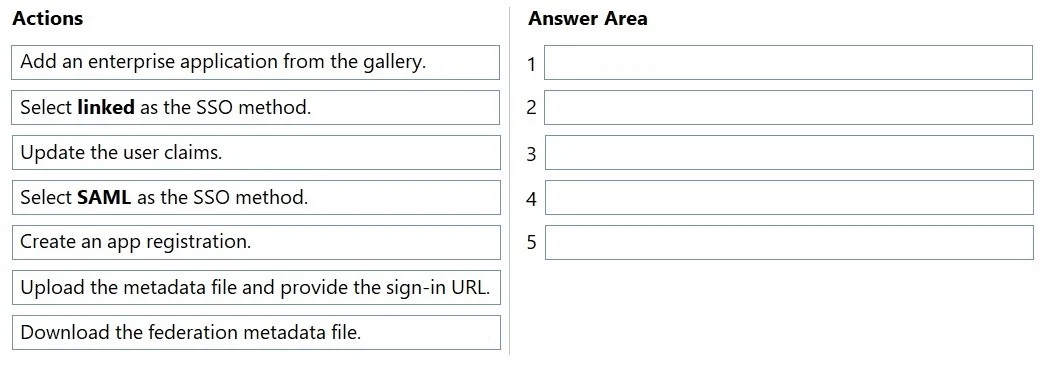
Drag and Drop Question You have an SAP Fiori single sign-on (SSO)-enabled subscription. You have an Azure subscription that is linked to a Microsoft Entra tenant named contoso.com. You need to configure SSO authentication between SAP Fiori and contoso.com. Which five actions should you perform in sequence in the Microsoft Entra admin center? To answer, move the appropriate actions from the list of actions to the answer area and arrange them in the correct order. Answer:

Exhibit
AZ-120 question #363 exhibit

Answer Area

Drag items

Add an enterprise application from the gallery.Select linked as the SSO method.Update the user claims.Select SAML as the SSO method.Create an app registration.Upload the metadata file and provide the sign-in URL.Download the federation metadata file.

Correct arrangement

  • Add an enterprise application from the gallery.
  • Select SAML as the SSO method.
  • Upload the metadata file and provide the sign-in URL.
  • Update the user claims.
  • Download the federation metadata file.

Explanation

SAP Fiori SSO Configuration with Microsoft Entra - Explanation

Overview

This question tests knowledge of the SAML-based SSO setup workflow in the Microsoft Entra admin center. The process follows a strict dependency chain: you must have an application before you can configure it, and you must configure it before you can share its metadata.


Step-by-Step Breakdown

1. Add an enterprise application from the gallery

SAP Fiori has a pre-built template in the Microsoft Entra application gallery. Starting here (rather than "Create an app registration") is critical because gallery apps come pre-configured with known endpoints, claim templates, and SAML settings specific to SAP Fiori. A raw app registration gives you a blank slate with no Fiori-specific defaults - wrong tool for this job.

Common mistake: Choosing "Create an app registration" first. App registrations are for custom-built apps you develop yourself. Gallery enterprise applications are for third-party SaaS integrations like SAP Fiori.


2. Select SAML as the SSO method

Once the enterprise application exists, you must choose the SSO protocol. SAML is required here because SAP Fiori's SSO implementation is SAML 2.0-based.

Common mistake: Choosing "Linked" as the SSO method. Linked SSO does not configure authentication at all - it simply adds a link to an existing SSO-enabled app in the My Apps portal. It provides no federation, no token exchange, nothing. It's used when SSO is already configured elsewhere.


3. Upload the metadata file and provide the sign-in URL

After selecting SAML, Microsoft Entra needs to know the Service Provider (SP) details from SAP Fiori's side - entity ID, assertion consumer service URL, etc. These details come from SAP Fiori's metadata file. You upload that file (and/or the sign-in URL) into Entra's SAML configuration. This step establishes the trust relationship from Entra's perspective.

Technical note: You must define the SP side before you can meaningfully configure claims, because the application's audience and endpoints must exist for claims to be scoped correctly.


4. Update the user claims

With the SAML configuration established, you now customize which user attributes (claims) are sent to SAP Fiori in the SAML assertion - e.g., email, user principal name, or a specific SAP user ID attribute. SAP Fiori may require specific claim names or formats that differ from Entra's defaults.

Why here and not earlier? Claims are part of the SAML token configuration, which only makes sense after the SAML method is selected and the SP metadata is loaded. Ordering this before uploading the metadata file would mean configuring claims without a defined recipient.


5. Download the federation metadata file

Finally, you download Microsoft Entra's federation metadata XML (containing Entra's entity ID, signing certificate, and SSO endpoints) and provide it to SAP Fiori. This is the Identity Provider (IdP) metadata that SAP Fiori needs to trust Entra.

Why last? This step completes the other half of the trust - telling SAP Fiori who its IdP is. It must come after Entra is fully configured, because the metadata reflects your final configuration (including any claim customizations). Downloading it prematurely could give SAP an incomplete or mismatched configuration.


Mental Model Summary

StepWho is being configuredWhat is established
1EntraApplication exists
2EntraProtocol = SAML
3EntraKnows about SAP Fiori (SP)
4EntraWhat to say about the user
5SAP FioriKnows about Entra (IdP)

The flow is: create → configure protocol → import SP info → refine claims → export IdP info. Each step depends on the previous one being complete.

Topics

#SAP Fiori SSO#SAML#Microsoft Entra ID#federation metadata

Community Discussion

No community discussion yet for this question.

Full AZ-120 Practice