
AZ-120 · Question #140
Drag and Drop Question You have an Azure tenant and an SAP Cloud Platform tenant. You need to ensure that users sign in automatically by using their Azure AD accounts when they connect to SAP Cloud…
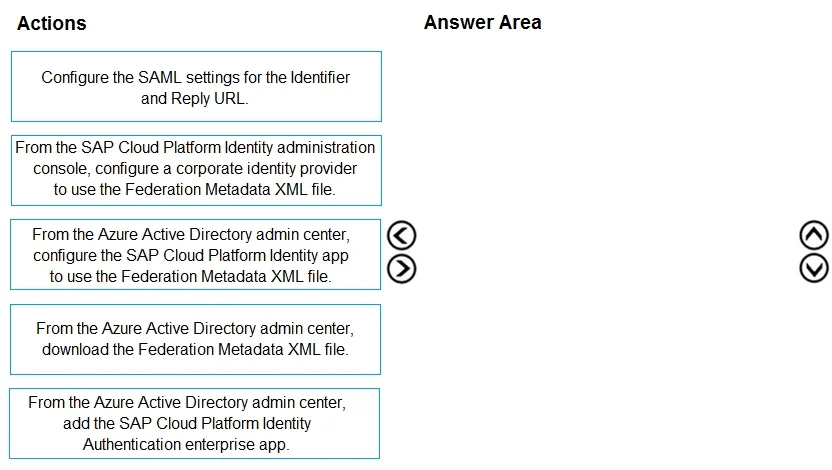
The correct answer is From the Azure Active Directory admin center, add the SAP Cloud Platform Identity Authentication enterprise app.; From the Azure Active Directory admin center, download the Federation Metadata XML file.; From the Azure Active Directory admin center, configure the SAP Cloud Platform Identity app to use the Federation Metadata XML file.; From the SAP Cloud Platform Identity administration console, configure a corporate identity provider to use the Federation Metadata XML file. SAML SSO Setup: Azure AD → SAP Cloud Platform This question tests your understanding of the sequence required to federate Azure AD as an Identity Provider (IdP) with SAP Cloud Platform Identity Authentication as the Service Provider (SP) using SAML 2.0. --- The Core Flow The…
Question
Exhibit
Answer Area
Drag items
Correct arrangement
- From the Azure Active Directory admin center, add the SAP Cloud Platform Identity Authentication enterprise app.
- From the Azure Active Directory admin center, download the Federation Metadata XML file.
- From the Azure Active Directory admin center, configure the SAP Cloud Platform Identity app to use the Federation Metadata XML file.
- From the SAP Cloud Platform Identity administration console, configure a corporate identity provider to use the Federation Metadata XML file.
Explanation
SAML SSO Setup: Azure AD → SAP Cloud Platform
This question tests your understanding of the sequence required to federate Azure AD as an Identity Provider (IdP) with SAP Cloud Platform Identity Authentication as the Service Provider (SP) using SAML 2.0.
The Core Flow
The principle is simple: configure Azure AD first, then hand the metadata to SAP. You can't configure what doesn't exist yet.
Step-by-Step Breakdown
Step 1: Add the SAP Cloud Platform Identity Authentication enterprise app
Why first? This is the prerequisite for everything else. Adding the enterprise app from the Azure AD gallery creates the SAML application registration in your tenant. Without this object existing, there is nothing to download metadata from, configure, or point SAP at.
Step 2: Download the Federation Metadata XML file
Why second? Only after the enterprise app exists does Azure AD generate the Federation Metadata XML for that app. This XML contains Azure AD's SAML IdP information - the signing certificate, issuer URI, and login/logout endpoints that SAP needs to trust Azure AD. You cannot download it before the app exists.
Step 3: Configure the SAP Cloud Platform Identity app (in Azure AD) to use the Federation Metadata XML
Why third? This completes the Azure AD side of the trust. By uploading SAP's SP metadata XML into the Azure AD enterprise app, Azure AD auto-populates the Identifier (Entity ID) and Reply URL (ACS URL) - eliminating the need for the manual step "Configure the SAML settings for the Identifier and Reply URL" (which is why that item is the distractor excluded from the correct answer).
Step 4: In SAP's Identity Administration console, configure a corporate identity provider using the Federation Metadata XML
Why last? This is the SAP-side configuration. You upload the Federation Metadata XML you downloaded in Step 2 into SAP's trust configuration, telling SAP to accept SAML assertions signed by Azure AD. This must come last because you need the downloaded XML file (Step 2) to perform it, and the Azure AD side must be fully configured (Step 3) before the trust is meaningful.
Why the Excluded Item Is a Trap
"Configure the SAML settings for the Identifier and Reply URL" is a valid task - but it's the manual alternative to Step 3. When you use a Federation Metadata XML file to configure the app, those fields are auto-populated. The correct path uses the XML file, so the manual configuration step is redundant and excluded.
Common Mistakes
| Mistake | Why it's wrong |
|---|---|
| Downloading the XML before adding the app | No app = no Azure AD metadata exists yet |
| Configuring SAP before configuring Azure AD | SAP needs Azure AD's metadata (Step 2) first |
| Including the manual SAML settings step | The XML upload (Step 3) replaces it automatically |
| Configuring SAP before Azure AD is fully set up | The trust won't work if Azure AD's app isn't fully configured |
Mental model: Think of it as a handshake - Azure AD must fully prepare its side and generate its credential (the XML), then pass that credential to SAP so SAP knows who to trust.
Topics
Community Discussion
No community discussion yet for this question.