
AZ-120 · Question #137
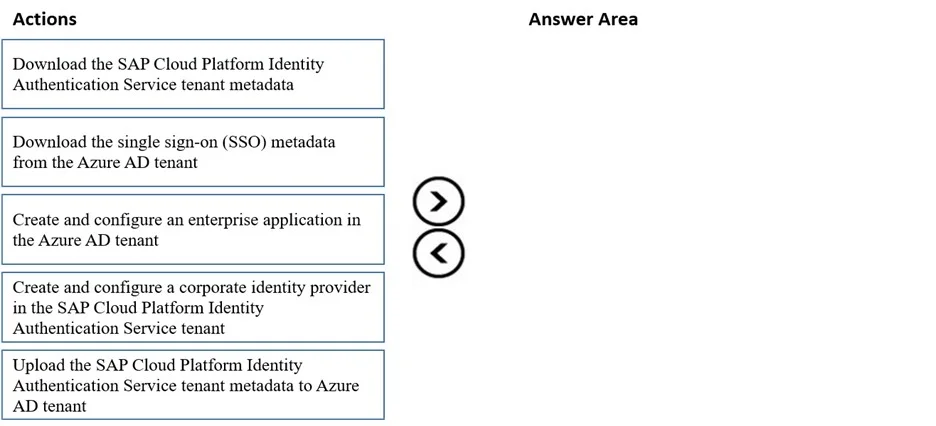
Drag and Drop Question You have an Azure Active Directory (Azure AD) tenant and an SAP Cloud Platform Identity Authentication Service tenant. You need to ensure that users can use their Azure AD…
The correct answer is Create and configure an enterprise application in the Azure AD tenant; Download the single sign-on (SSO) metadata from the Azure AD tenant; Create and configure a corporate identity provider in the SAP Cloud Platform Identity Authentication Service tenant; Download the SAP Cloud Platform Identity Authentication Service tenant metadata; Upload the SAP Cloud Platform Identity Authentication Service tenant metadata to Azure AD tenant. Azure AD + SAP IAS Federation - Step-by-Step Explanation Core concept: You're setting up Azure AD as a corporate (external) identity provider inside SAP IAS. SAP IAS acts as a proxy IdP for SAP apps, but delegates actual authentication to Azure AD. This requires a bidirectional…
Question
Exhibit
Answer Area
Drag items
Correct arrangement
- Create and configure an enterprise application in the Azure AD tenant
- Download the single sign-on (SSO) metadata from the Azure AD tenant
- Create and configure a corporate identity provider in the SAP Cloud Platform Identity Authentication Service tenant
- Download the SAP Cloud Platform Identity Authentication Service tenant metadata
- Upload the SAP Cloud Platform Identity Authentication Service tenant metadata to Azure AD tenant
Explanation
Azure AD + SAP IAS Federation - Step-by-Step Explanation
Core concept: You're setting up Azure AD as a corporate (external) identity provider inside SAP IAS. SAP IAS acts as a proxy IdP for SAP apps, but delegates actual authentication to Azure AD. This requires a bidirectional SAML trust - each side must know the other's metadata before the connection is complete.
Step 1 - Create and configure an enterprise application in the Azure AD tenant
Why first: Everything else depends on this. Creating the enterprise app in Azure AD registers SAP IAS as a known SAML service provider. Only after this exists does Azure AD generate its federation metadata (entity ID, SSO URL, signing certificate). You cannot download Azure AD's metadata until the app exists.
Common mistake: Trying to start on the SAP IAS side first. SAP IAS needs Azure AD's metadata to trust it - but that metadata doesn't exist until Azure AD has an app to represent the relationship.
Step 2 - Download the SSO metadata from the Azure AD tenant
Why second: The enterprise app from Step 1 is now configured and Azure AD has generated its SAML federation metadata XML. You download this so you can hand it to SAP IAS in the next step. This metadata tells SAP IAS: "Here is Azure AD's SSO endpoint and the certificate to validate its assertions."
Common mistake: Assuming you can configure SAP IAS manually without this file. The metadata contains a certificate that must match exactly - manual entry introduces errors.
Step 3 - Create and configure a corporate identity provider in the SAP Cloud Platform Identity Authentication Service tenant
Why third: Now you go into SAP IAS and create a "Corporate Identity Provider" entry, uploading the Azure AD metadata from Step 2. This teaches SAP IAS to redirect unauthenticated users to Azure AD and to trust tokens signed by Azure AD's certificate. You can't do this before Step 2 because you have nothing to upload.
Common mistake: Confusing "corporate identity provider" (what you create in SAP IAS to represent Azure AD) with SAP IAS itself. SAP IAS is the proxy; Azure AD is the corporate IdP being registered here.
Step 4 - Download the SAP Cloud Platform Identity Authentication Service tenant metadata
Why fourth: After SAP IAS is configured with Azure AD as its corporate IdP, SAP IAS now has finalized SAML metadata of its own - describing itself as a service provider from Azure AD's perspective (entity ID, Assertion Consumer Service URL, etc.). You download this to close the loop on the Azure AD side. This metadata couldn't be finalized until Step 3 was complete.
Common mistake: Trying to download SAP IAS metadata before configuring the corporate IdP. While SAP IAS always has some metadata, the corporate IdP configuration may affect its SAML behavior and you want the final version.
Step 5 - Upload the SAP Cloud Platform Identity Authentication Service tenant metadata to the Azure AD tenant
Why last: You return to Azure AD and upload the SAP IAS metadata into the enterprise application created in Step 1. This tells Azure AD: "SAP IAS is the service provider - send SAML assertions to this URL, using this entity ID." This completes the bidirectional trust. Only now can users authenticate end-to-end.
Common mistake: Thinking Step 5 is optional. Without it, Azure AD doesn't know where to send the SAML response, and SSO will fail. Both sides must know each other's metadata for SAML to function.
Mental Model Summary
Azure AD (IdP)          ←--- Step 5: SAP IAS metadata uploaded here
     |
     | Step 2: Download Azure AD metadata
     ↓
SAP IAS (Proxy IdP)     ←--- Step 3: Azure AD registered as corporate IdP
     |
     | Step 4: Download SAP IAS metadata
     ↓
  SAP Apps
The pattern is: create app → get IdP metadata → configure SP → get SP metadata → complete IdP config. Each step produces an artifact the next step consumes.
Topics
Community Discussion
No community discussion yet for this question.