AZ-120 · Question #108
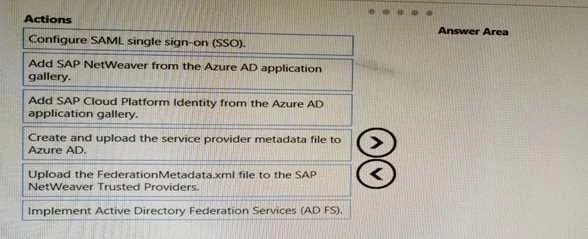
Drag and Drop Question You deploy an SAP environment on Azure. You need to configure SAP NetWeaver to authenticate by using Azure Active Directory (Azure AD). Which four actions should you perform…
The correct answer is Add SAP NetWeaver from the Azure AD application gallery.; Create and upload the service provider metadata file to Azure AD.; Upload the FederationMetadata.xml file to the SAP NetWeaver Trusted Providers.; Configure SAML single sign-on (SSO). SAP NetWeaver + Azure AD Authentication: Explained This question tests your knowledge of the SAML 2.0 federation setup flow between Azure AD (Identity Provider / IdP) and SAP NetWeaver (Service Provider / SP). --- The Core Concept SAML SSO requires both sides to exchange trust…
Question
Exhibit
Answer Area
Drag items
Correct arrangement
- Add SAP NetWeaver from the Azure AD application gallery.
- Create and upload the service provider metadata file to Azure AD.
- Upload the FederationMetadata.xml file to the SAP NetWeaver Trusted Providers.
- Configure SAML single sign-on (SSO).
Explanation
SAP NetWeaver + Azure AD Authentication: Explained
This question tests your knowledge of the SAML 2.0 federation setup flow between Azure AD (Identity Provider / IdP) and SAP NetWeaver (Service Provider / SP).
The Core Concept
SAML SSO requires both sides to exchange trust metadata before SSO can function. Azure AD must know about SAP, and SAP must know about Azure AD. The sequence follows a logical: register → SP tells IdP who it is → IdP tells SP who it is → activate SSO.
Step-by-Step Breakdown
Step 1: Add SAP NetWeaver from the Azure AD application gallery
This is the mandatory starting point. You cannot configure anything without first registering SAP NetWeaver as an Enterprise Application in your Azure AD tenant. The gallery provides a pre-built SAML template for SAP NetWeaver, which scaffolds the correct configuration. Nothing else is possible until this exists.
Step 2: Create and upload the service provider metadata file to Azure AD
SAP NetWeaver (the SP) generates a metadata XML file describing itself - its Entity ID, Assertion Consumer Service (ACS) URL, and signing certificates. Uploading this to Azure AD tells the IdP where to send SAML assertions and how to identify the SP. This must come before Azure AD can be configured to issue tokens correctly for this application.
Step 3: Upload the FederationMetadata.xml file to the SAP NetWeaver Trusted Providers
Now the reverse: Azure AD generates its own FederationMetadata.xml containing its signing certificate, issuer ID, and SSO endpoints. You download this from Azure AD and upload it into SAP NetWeaver's Trusted Providers configuration. This tells SAP NetWeaver to trust SAML assertions signed by Azure AD. Without this, SAP would reject Azure AD's tokens as untrusted.
Step 4: Configure SAML single sign-on (SSO)
Only after both sides have exchanged trust metadata can you finalize and activate the SSO configuration - mapping user attributes (e.g., NameID → SAP user), setting binding types, and enabling the SSO flow. This step activates what the previous steps established.
Why the Rejected Items Are Wrong
| Item | Why it's excluded |
|---|---|
| Add SAP Cloud Platform Identity from the gallery | This is a different SAP product - SAP BTP/Cloud Platform Identity Authentication. The question is about SAP NetWeaver specifically. A common trap. |
| Implement AD FS | AD FS is an on-premises federation server used to federate with on-premises Active Directory. When Azure AD is the IdP directly, AD FS is unnecessary and irrelevant to this scenario. |
Common Mistakes
- Confusing SAP NetWeaver with SAP Cloud Platform - they appear similar but are distinct gallery entries with different configurations.
- Reversing steps 2 and 3 - candidates sometimes upload the federation metadata to SAP before giving SAP's metadata to Azure AD. The logical flow is: SP declares itself to IdP first, then IdP declares itself to SP.
- Skipping to SSO configuration early - SSO cannot be meaningfully configured before the metadata trust exchange is complete; you'd be configuring endpoints that haven't been established yet.
- Assuming AD FS is always required for enterprise SSO - Azure AD natively supports SAML 2.0 as an IdP. AD FS is only needed for hybrid on-premises federation scenarios.
Topics
Community Discussion
No community discussion yet for this question.