
AZ-104 · Question #591
Hotspot Question You have an Azure subscription that has diagnostic logging enabled and is configured to send logs to a Log Analytics workspace. You are investigating a service outage. You need to…
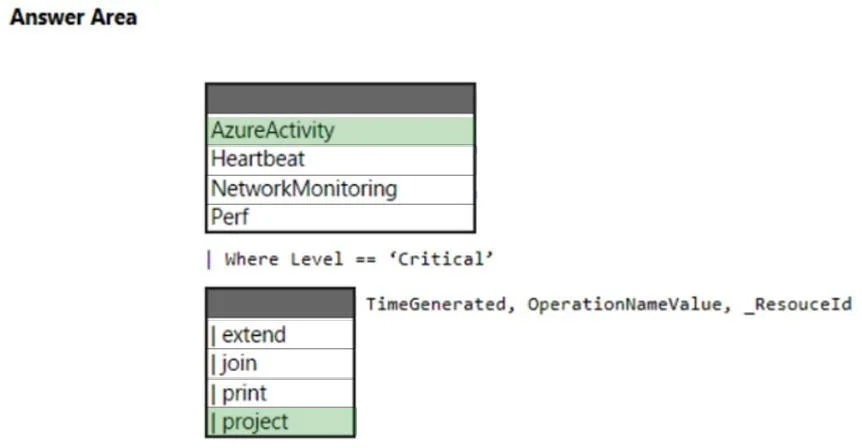
The correct answer is Select the table for the query: AzureActivity; Select the KQL operator to retrieve specific columns: project. The correct interaction involves selecting the AzureActivity table to query platform-level events related to a service outage and using the project operator to extract the specified event time, name, and affected resources.
Question
Exhibit
Answer Area
- Select the table for the queryAzureActivityAzureActivityHeartbeatNetworkMonitoringPerf
- Select the KQL operator to retrieve specific columnsprojectextendjoinprintproject
Explanation
The correct interaction involves selecting the AzureActivity table to query platform-level events related to a service outage and using the project operator to extract the specified event time, name, and affected resources.
Approach. To complete the query correctly based on the scenario:
- Select
AzureActivitytable: The scenario describes investigating a 'service outage' and requiring 'event time, event name, and affected resources'. TheAzureActivitytable is the correct choice because it stores Azure Activity Logs, which capture subscription-level events. These events include service health incidents, administrative operations, resource lifecycle events, and changes to resources, making it the primary source for understanding platform-level service outages and their impact on resources. - Select
projectoperator: The requirement is to 'view the event time, the event name, and the affected resources', which corresponds to selecting specific columns (TimeGenerated,OperationNameValue,_ResouceId) from the query result set. In KQL, theprojectoperator is used to specify and select a subset of columns to be included in the output, discarding all other columns. This perfectly aligns with the objective of viewing only the requested details after filtering for critical events (Where Level == 'Critical').
Common mistakes.
- common_mistake. Common mistakes would include selecting alternative tables or operators:
- Incorrect Table Selection:
Heartbeat: This table is used to monitor the availability of Log Analytics agents and their connectivity, not for Azure platform service health events.NetworkMonitoring: This table contains network performance data, not high-level service outage events.Perf: This table contains performance counters from virtual machines or other resources, which is too granular for a service outage investigation at the platform level. Choosing any of these tables would not provide the necessary context or data for an Azure service outage.
- Incorrect Operator Selection:
extend: This operator is used to create new calculated columns or add existing columns with new names, not to filter for a specific set of existing columns while discarding others.join: This operator is used to combine rows from two or more tables based on a common key, which is not required here as we are working with a single table.print: This operator is used to output a single row or scalar expression, typically for debugging or displaying a single result, not for projecting multiple columns from a dataset. Using these operators would result in an incorrect query syntax, irrelevant output, or failure to meet the requirement of specifically viewing the requested columns.
Concept tested. Understanding of Azure Log Analytics Kusto Query Language (KQL) syntax, specifically identifying appropriate data tables for different monitoring scenarios (e.g., AzureActivity for service health and platform events) and correctly using KQL operators like project to select and display specific columns from a dataset.
Topics
Community Discussion
No community discussion yet for this question.